Template
Document Metadata
Category: Applications Architecture / Template System
Audience: Developers, Engineers, App Builders
Difficulty: Intermediate
Time Required: Approximately 20–40 minutes
Prerequisites: Active ConnexCS account with access to the Applications module; familiarity with the Apps platform, component structure, and JSON-based configuration
Related Topics: Applications Architecture – App Structure, ScriptForge, Page Builder / Components
Next Steps: Review how templates define reusable UI and logic patterns, then create or modify a template to standardize layouts or behaviors across your applications
Introduction
ConnexCS offers a powerful templating system for automating communication.
Create your own Templates to customise the content displayed on outbound emails/SMS, the Customer Portal, and WebPhone.
ConnexCS Templates use the mustash-compatible template language Handlebars.
Template Syntax
It's important for you to follow the template syntax and enter fields such as {email} or {account_name} exactly. If not, the system won't correctly replace when the template is rendered.
How to Add a Template
-
Login to your account.
-
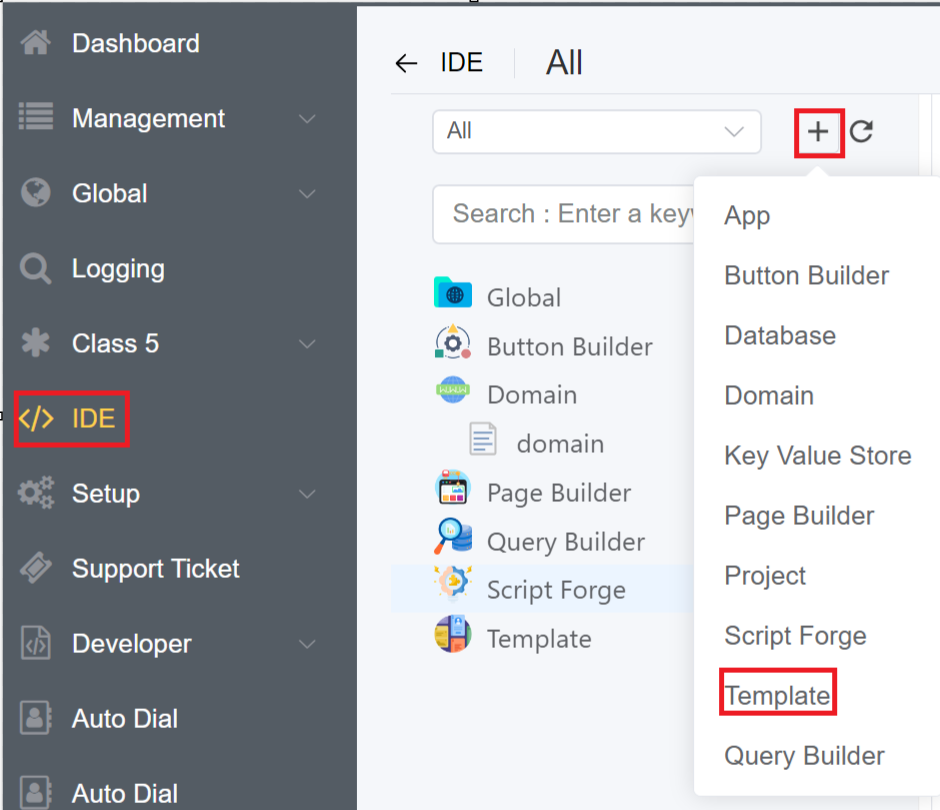
Navigate to IDE
+icon Template.
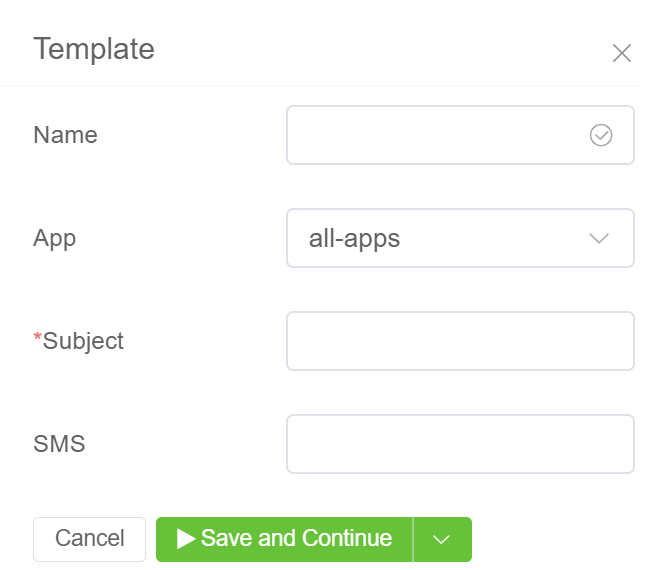
3.Fill out the following details:
- Name of the Template.
- Select the Application for which you want to integrate the template.
- Fill out the template Subject for the e-mail communication (supports variables).
- The SMS field doesn't actually send the SMS, but it's usable when other parts of the system have SMS set.
4.Click on Save.
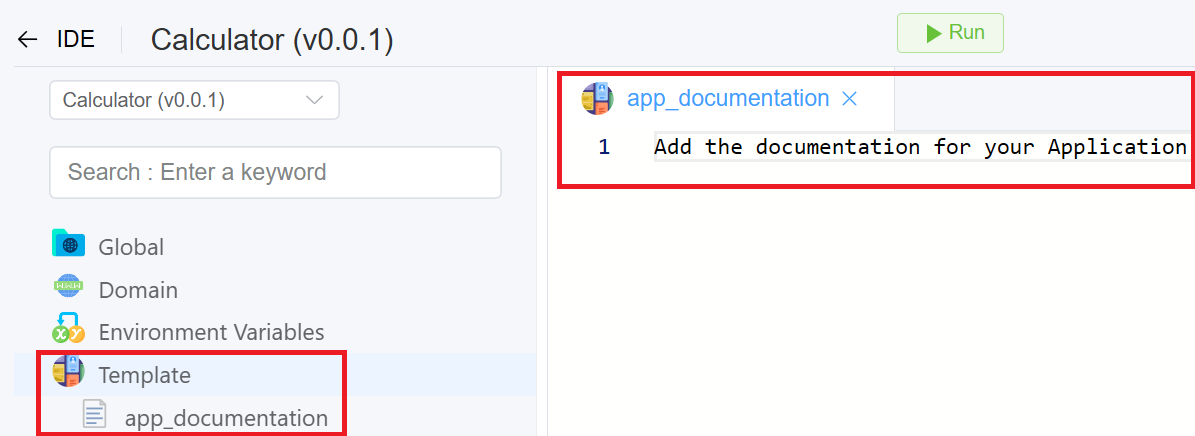
5.The created Template will be visible on the IDE panel under Template. Click on the created template.
6.Enter the HTML code. Click on Save and Run.
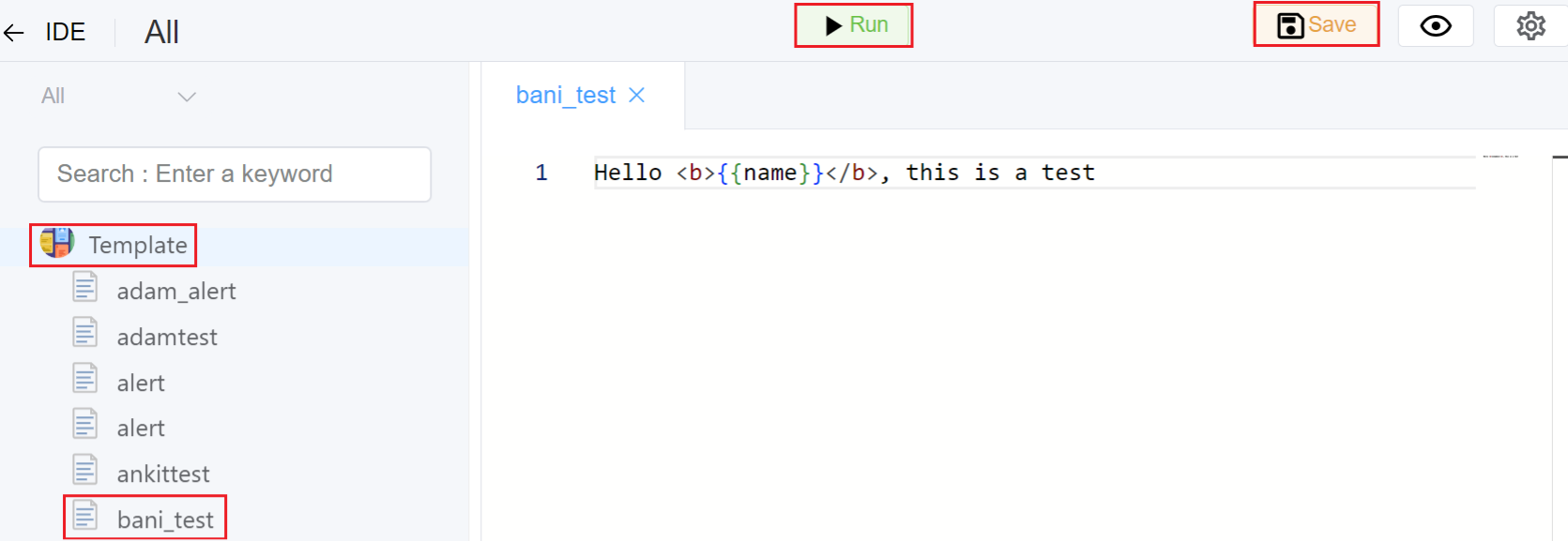
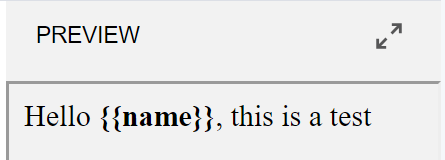
7.Preview  is available on the right side of the screen. Click here to open the preview section.
Click on this arrow
is available on the right side of the screen. Click here to open the preview section.
Click on this arrow  to maximize the preview screen.
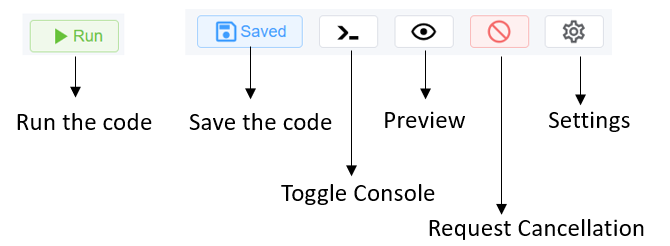
8.You can Run and Save the code, Toggle Console, Preview (errors), Request Cancellation for cancelling any ongoing requests, for example taking longer to execute, Settings you can edit, Set Vars, Copy file ID, Copy UUID using Settings.
Note
A File ID serves as the unique identifier for a file, while a UUID is used to expose a ScriptForge File to external systems.
Use Case
-
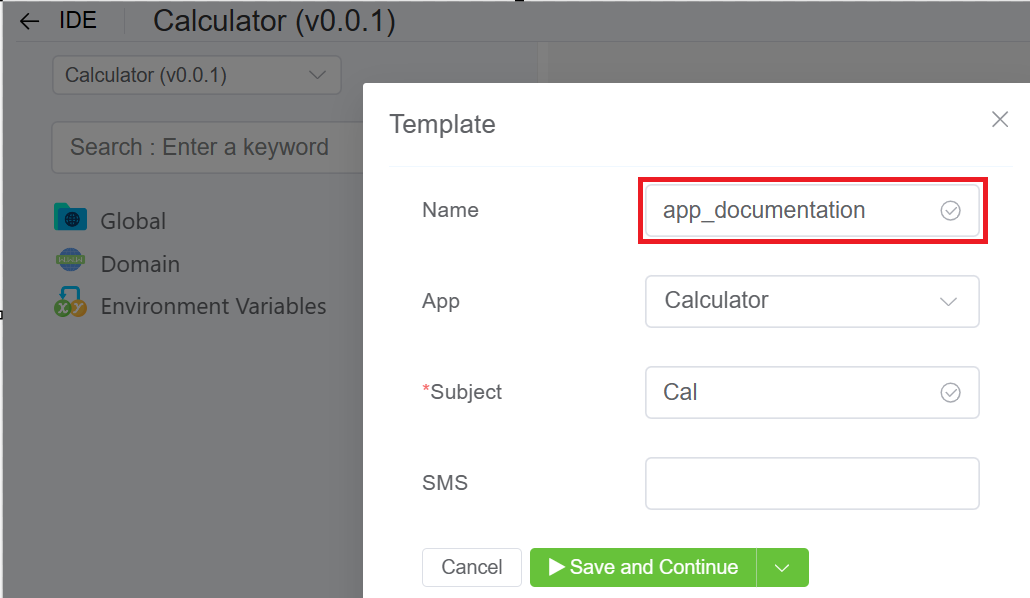
To display Documentation in App Store (Setup App Store Click on the App Documentation)
- Follow the instructions above to add documentation for a specific built application, however note that template name should actually be app_documentation.