DID Purchase
Document Metadata
Category: Customer Portal / DID Purchase
Audience: Administrators, Customer Success Team, Sales & Billing Staff
Difficulty: Intermediate
Time Required: Approximately 20–30 minutes
Prerequisites: Active ConnexCS Customer Portal account with permission to purchase or allocate Direct Inward Dial (DID) numbers
Related Topics: Customer Portal – DID Management, Billing & Invoices
Next Steps: Review available DID inventories by country, select required numbers, complete the purchase workflow (allocation + billing), update routing assignments for newly added DIDs, and schedule periodic audits to monitor DID usage and associated costs.
Overview
DID Purchase is a self-service application that lets you browse, search, and purchase available Direct Inward Dialing (DID) numbers directly from within the provider's platform.
Instead of requesting numbers manually through support, users can search for available DIDs by prefix or area code, review setup and recurring costs upfront, add selections to a cart, and check out — all from a single interface.
DID Pricing in the Customer Portal
Each DID displayed in the Customer Portal includes a price that is defined by the carrier’s pricing package.
This price is visible to customers during the DID purchase process.
DID Visibility in the Customer Portal
By default, the Customer Portal displays all DIDs that the carrier has made available for purchase from its inventory.
This feature demonstrates the capability of the ConnexCS platform to integrate with carrier inventories, where:
- Range Holder Carriers: These are carriers that own DID ranges allocated by regulatory authorities or government bodies. They can upload and manage these DIDs within their ConnexCS account to make them available to their customers.
Steps to Purchase the DID(s)
- Login to your account.
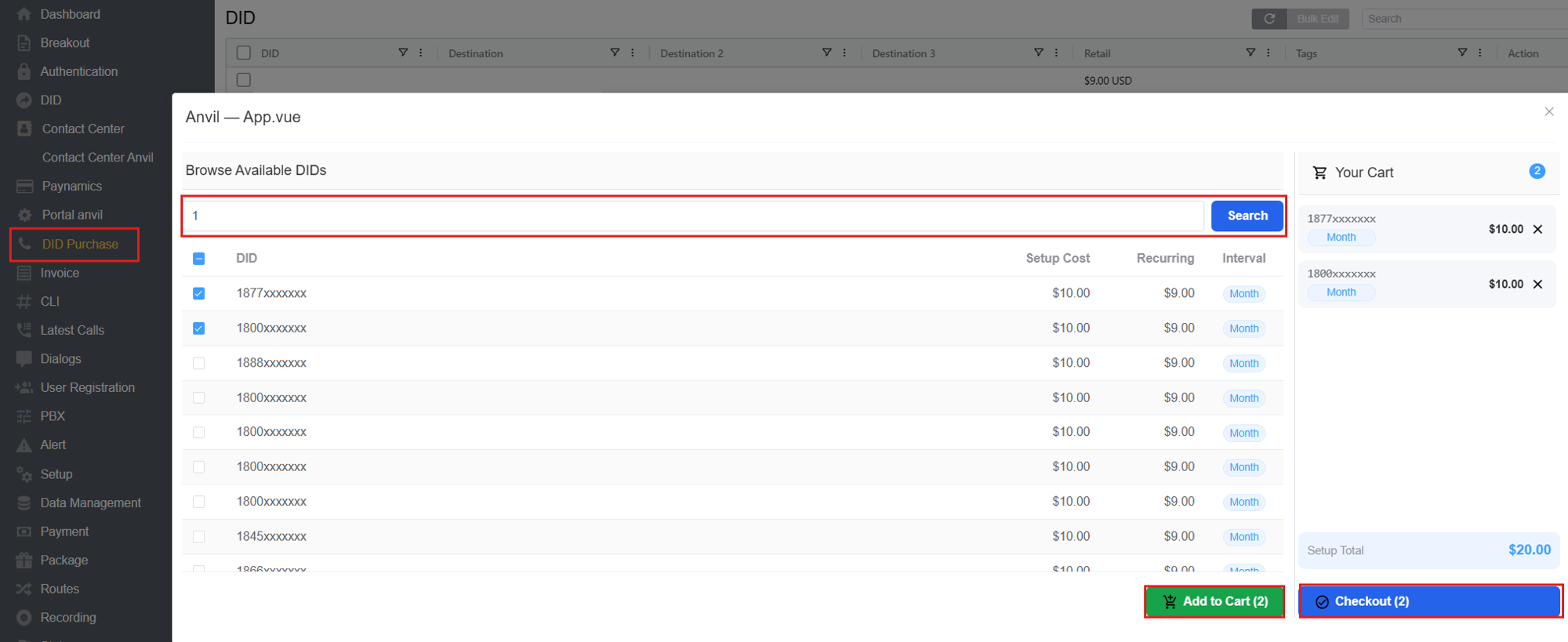
- Click DID Purchase.
- In the DID Ordering window, enter the DID prefix/area code and click Search to view available numbers.
- Select the DIDs you wish to purchase, click on Add to Cart, then Checkout.
- The purchased DIDs will be visible on the Purchase DID portal.