Per Number Report
Document Metadata
Category: Reporting & Analytics / Per Number Report
Audience: Administrators, Billing Teams, Operations Teams, Support Teams, Engineers
Difficulty: Intermediate
Time Required: Approximately 15–30 minutes
Prerequisites: Active ConnexCS account with Reports access; familiarity with telephone numbers, CLI, destination numbers, SIP response codes, and basic call metrics.
Related Topics: Reports, Breakout Report
Next Steps: Navigate to the Per Number report, select Destination or CLI, specify the required customer and date range, select or search for the number, and use the Columns and Filters panels to refine the displayed call information.
Report Per Number
Overview
The Per Number report provides detailed call information for a specific telephone number.
It's particularly useful when investigating activity associated with an individual number, such as reviewing a customer complaint or analyzing calls associated with a specific destination or CLI.
Select a number and define the required date range to generate a list of calls and associated call metrics.
Note: The maximum date range supported by the Per Number report is 6 months.
Using the Per Number Report
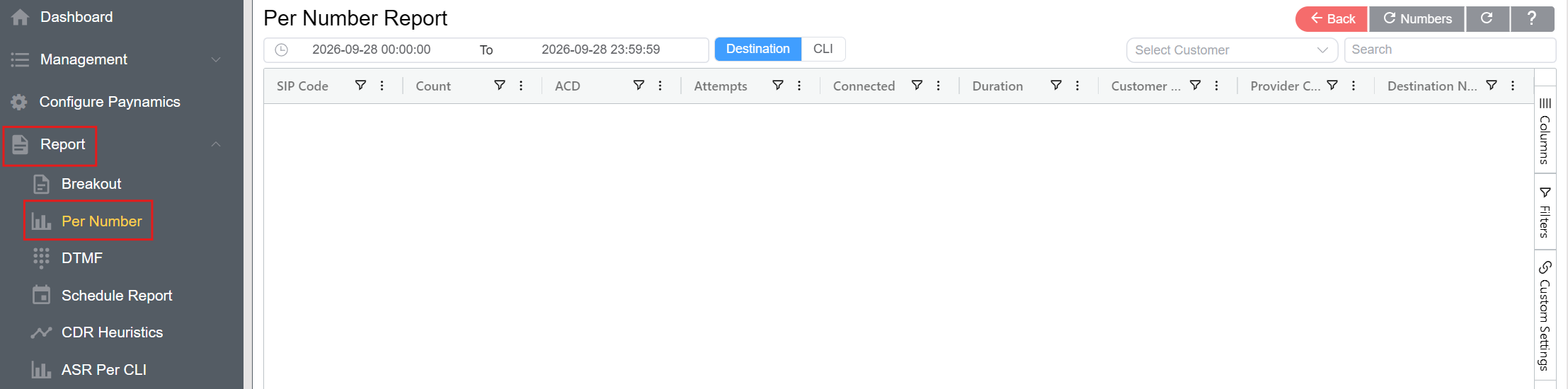
- Navigate to Reports Per Number.
- Select the required date and time range.
-
Select the required search type:
- Destination: Select this option to search for calls associated with a specific destination number. The Destination Number field is displayed.
- CLI: Select this option to search for calls associated with a specific Calling Line Identification (CLI). The CLI field is displayed.
- Select the required Customer.
- Enter or select the number to investigate.
- Review the resulting call records and associated metrics.
Searching Multiple Numbers
Click Numbers to search for multiple telephone numbers. This allows you to investigate several numbers within the selected date range.
The Numbers option can be used with the selected search type to search for multiple CLI or Destination Number values.
Report Columns
The Columns panel allows you to select which fields are displayed in the report.
| Column | Description |
|---|---|
| SIP Code | SIP response code associated with the call |
| Count | Number of calls matching the selected reporting criteria |
| ACD | Average Call Duration for the associated calls |
| Attempts | Total number of call attempts |
| Connected | Number of calls that successfully connected |
| Duration | Total duration of the associated calls |
| Customer Charge | Charge associated with the customer side of the call |
| Provider Charge | Charge associated with the provider side of the call |
| PDD In | Post-Dial Delay measured on the inbound/customer side of the call |
| PDD Out | Post-Dial Delay measured on the outbound/provider side of the call |
| CLI | Calling Line Identification (CLI), representing the originating or calling telephone number associated with the call. This column is applicable when CLI is selected |
| Destination Number | The telephone number that was called or the destination associated with the call. This column is applicable when Destination is selected |
Note: The number field displayed in the report depends on the selected search type. CLI is displayed when CLI is selected, while Destination Number is displayed when Destination is selected.
Filters
The Filters panel allows you to refine the data displayed in the Breakout report by applying conditions to individual fields. Filters can be applied to fields such as Provider, Customer Destination Name, Provider Destination Name, Attempts, and other available report columns.
Select a field in the Filters panel and choose the required filter condition. The available conditions depend on the type of data in the selected field.
Custom Settings
The Custom Settings panel provides options for adjusting the appearance and presentation of the Breakout report.
-
Theme: The Theme setting allows you to select the visual theme used for the report interface. Select a theme from the available options to change the appearance of the report grid.
-
Row Height: The Row Height setting controls the vertical spacing of rows in the report grid. Use the slider to increase or decrease the amount of information displayed vertically on the screen.
- Lower row height: Displays more rows at once.
- Higher row height: Provides more spacing between rows for easier readability.
Custom settings affect the presentation of the report and don't change the underlying report data.
Use Cases
The Per Number report can be used to:
- Investigate complaints involving a specific telephone number.
- Review calls made to a specific destination number.
- Review calls associated with a specific CLI.
- Analyze call attempts, connected calls, and duration.
- Review ACD and PDD metrics.
- Investigate SIP response codes and call outcomes.
- Review customer and provider charges.
- Analyze multiple numbers using the Numbers option.