NeuTrafix App
Document Metadata
Category: Setup / Application Store & App Deployment
Audience: Administrators, Support Team, Product Team, Customer Administrators, Telecom Operators
Difficulty: Beginner
Time Required: Approximately 5–10 minutes for installation and initial configuration. Additional time may be required for account registration, company verification, and marketplace access.
Prerequisites: An active ConnexCS account with access to Setup and App Store; permission to install applications; and valid NeuTrafix account credentials or the ability to register a new account. Company verification documents may be required to enable purchasing activities.
Related Topics: App Store, App Deployment, API Authentication, Route Marketplace, Prefix Management, Rate Cards
Next Steps: Install NeuTrafix from the Connex Store, configure the application, register or log in to NeuTrafix, complete company verification, and access the route marketplace.
Overview
NeuTrafix is a telecom route marketplace integrated with the ConnexCS platform. It enables telecom companies to access marketplace functionality for buying and selling voice routes, managing prefixes, and working with rate cards.
ConnexCS provides the NeuTrafix app through the Connex Store, allowing administrators to install and manage the integration from the ConnexCS portal.
Once installed, NeuTrafix appears as a separate option in the portal's side navigation. The application supports a workflow that connects company registration, authentication, route selection, and billing activities.
NeuTrafix is managed through the Anvil App Store interface, where administrators can review installation status, check version information, view version history, configure application settings, manage custom domains, and uninstall the app when required.
Why Use the NeuTrafix App?
The NeuTrafix integration provides a centralized way for ConnexCS customers to access the NeuTrafix route marketplace.
It helps customers and administrators:
- Access the NeuTrafix application directly from the ConnexCS portal.
- Browse and purchase telecom voice routes, subject to account eligibility.
- Manage prefixes and rate cards through the marketplace.
- Configure application access and settings.
- Review installed application versions and their approval status.
- Manage the application lifecycle through the Connex Store.
Key Features
- App Store Installation: Install NeuTrafix through the Connex Store.
- Portal Navigation Integration: Access NeuTrafix through a dedicated option in the ConnexCS portal navigation.
- Route Marketplace Access: Access marketplace functionality for buying and selling telecom routes.
- Prefix and Rate Card Management: Support prefix-based routing configuration and seller-specific rate card assignment through NeuTrafix.
- API Authentication: Use the appropriate API credentials to authenticate with NeuTrafix.
- Account Registration and Verification: Register an account and submit company documents for verification.
- Version Management: Review installed versions, latest versions, and version history.
- Custom Domain Configuration: Map a custom domain to the application. Creating a custom domain triggers an automatic rebuild and republication.
- Application Lifecycle Management: Review installation status and uninstall the app when it is no longer required.
Benefits
- Simplifies access to the NeuTrafix route marketplace from ConnexCS.
- Provides a centralized application deployment and management workflow.
- Supports telecom route purchasing and selling activities through the marketplace.
- Helps customers manage route-related information, including prefixes and rate cards.
- Separates application deployment from NeuTrafix account registration and verification.
- Enables administrators to review application versions and configuration settings.
Steps to Install and Configure the App
Install NeuTrafix
-
Navigate to Setup App Store Anvil Store Marketplace, locate NeuTrafix, and click
Install.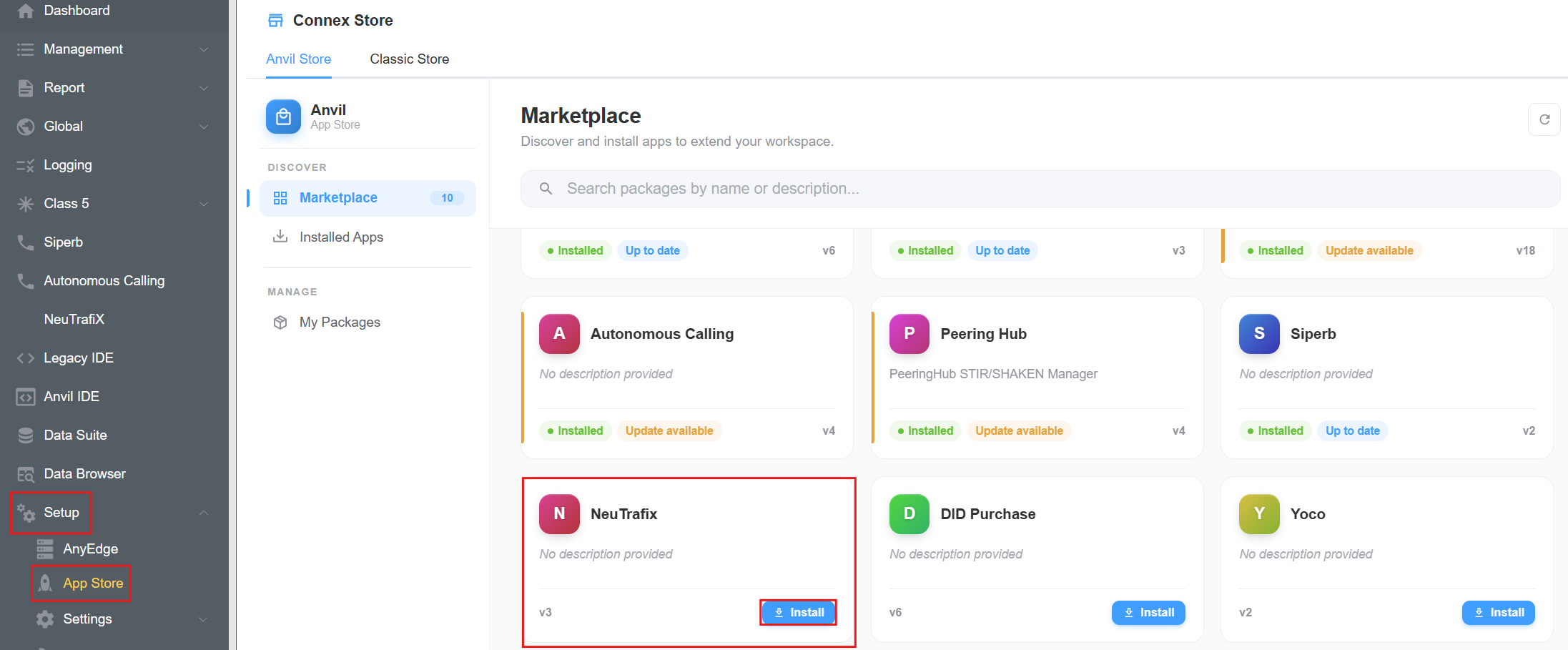
-
An Install Package confirmation window will appear. Review the application name and version, then click
Installto confirm.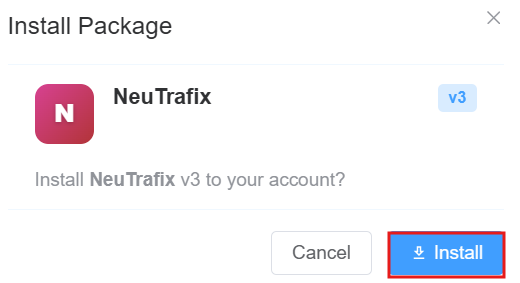
-
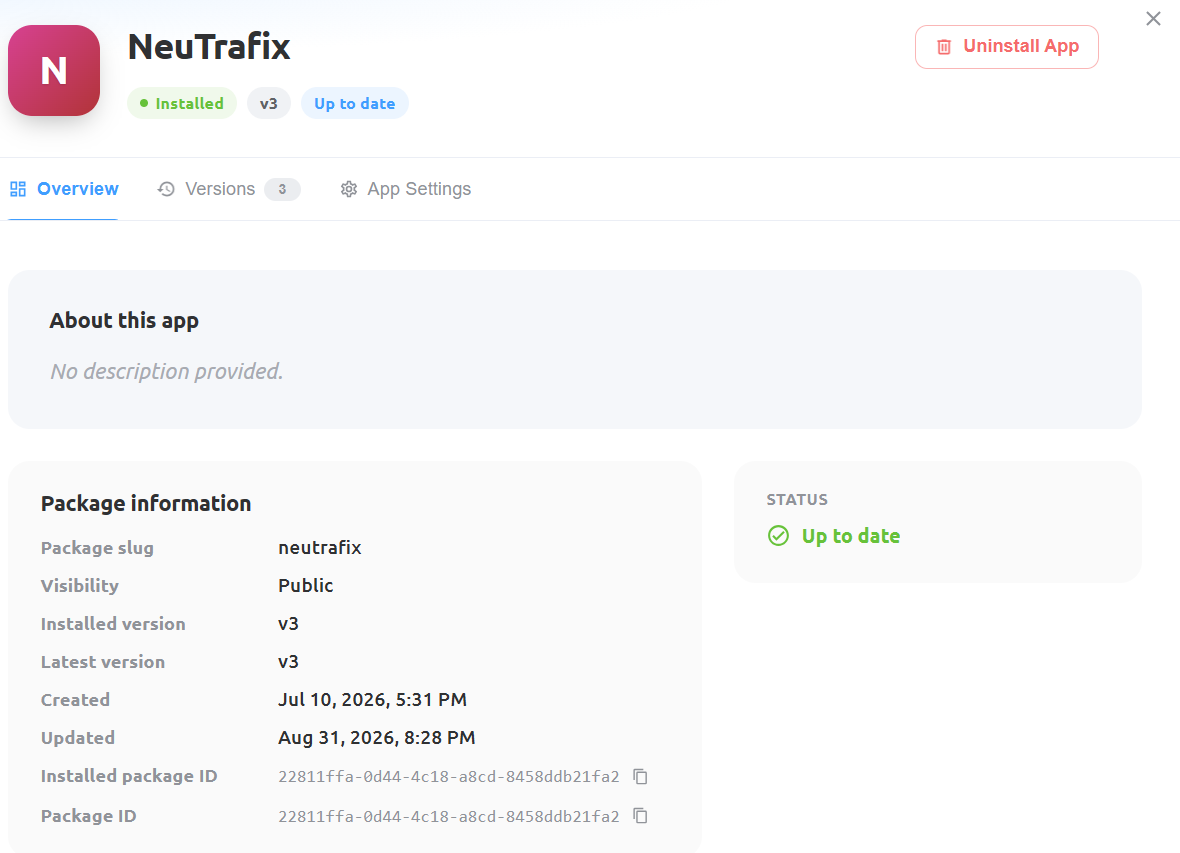
After installation, open NeuTrafix from the installed applications list. The Overview tab displays the installation status, installed version, latest version, and package information.
-
To review the application's release history, navigate to the
Versionstab. This section displays the available versions and their approval status.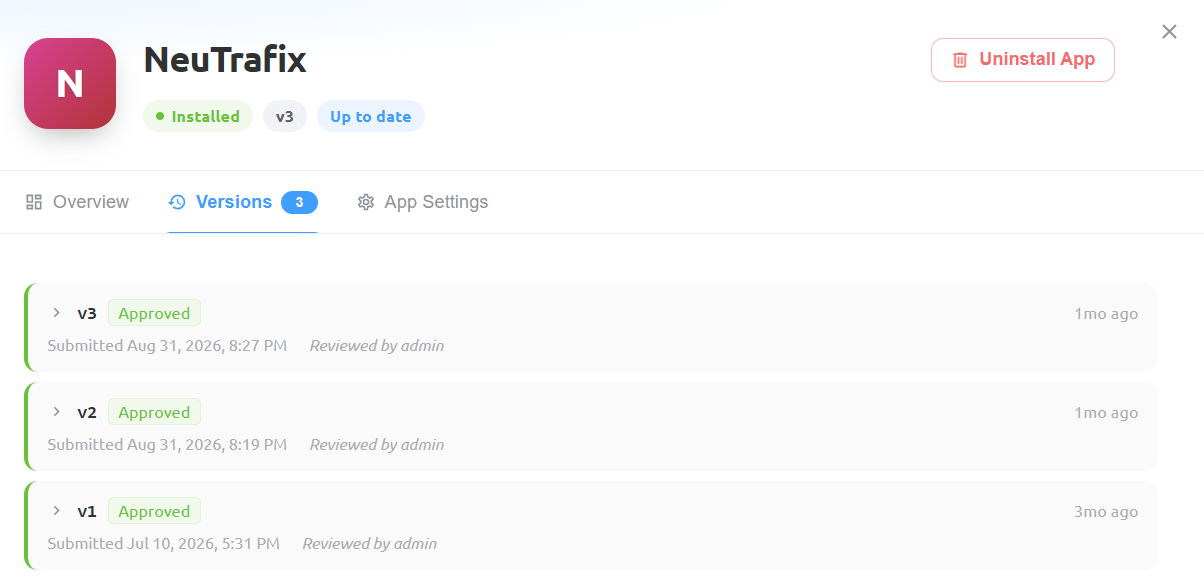
-
Navigate to the
App Settingstab to review the available application settings.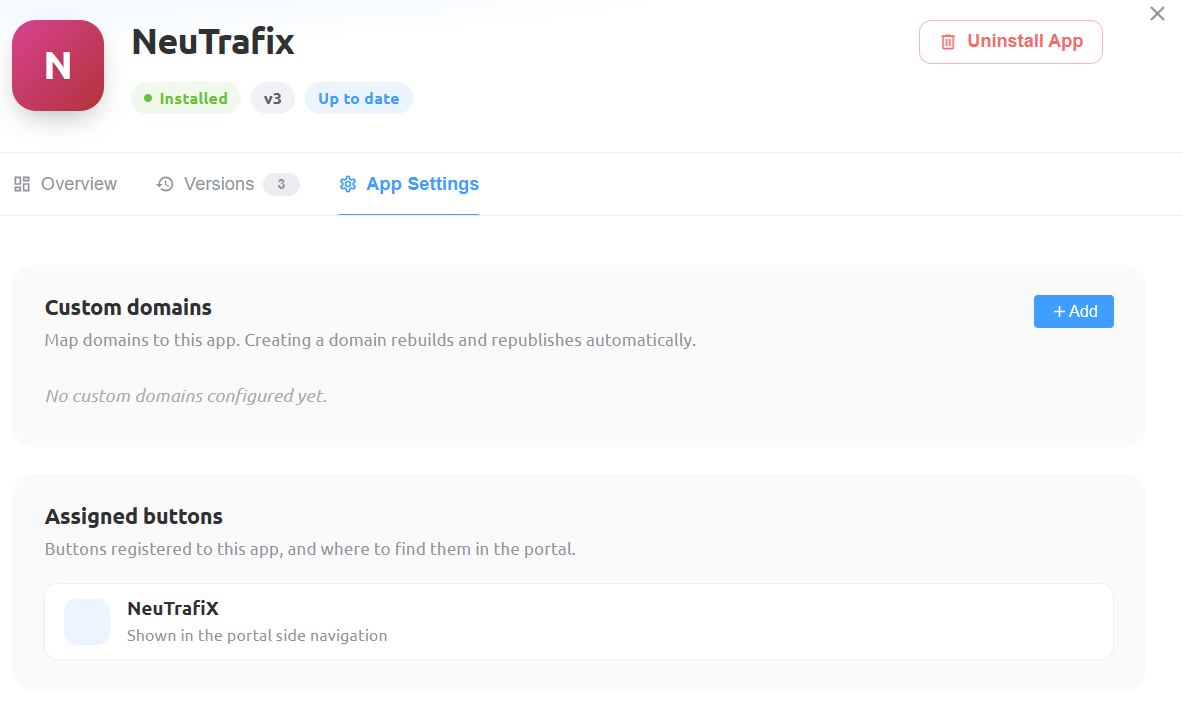
-
Review the following sections:
- Custom domains: Map a domain to the application if required. Click
+ Addto begin configuring a custom domain. Creating the domain triggers an automatic application rebuild and republication. -
Assigned buttons: Displays the application entry registered in the ConnexCS portal navigation. The screenshot shows NeuTrafix as a portal navigation entry.
-
To configure the API user, open the application's
Configoption. Select the required API User and clickConfirmto save the configuration.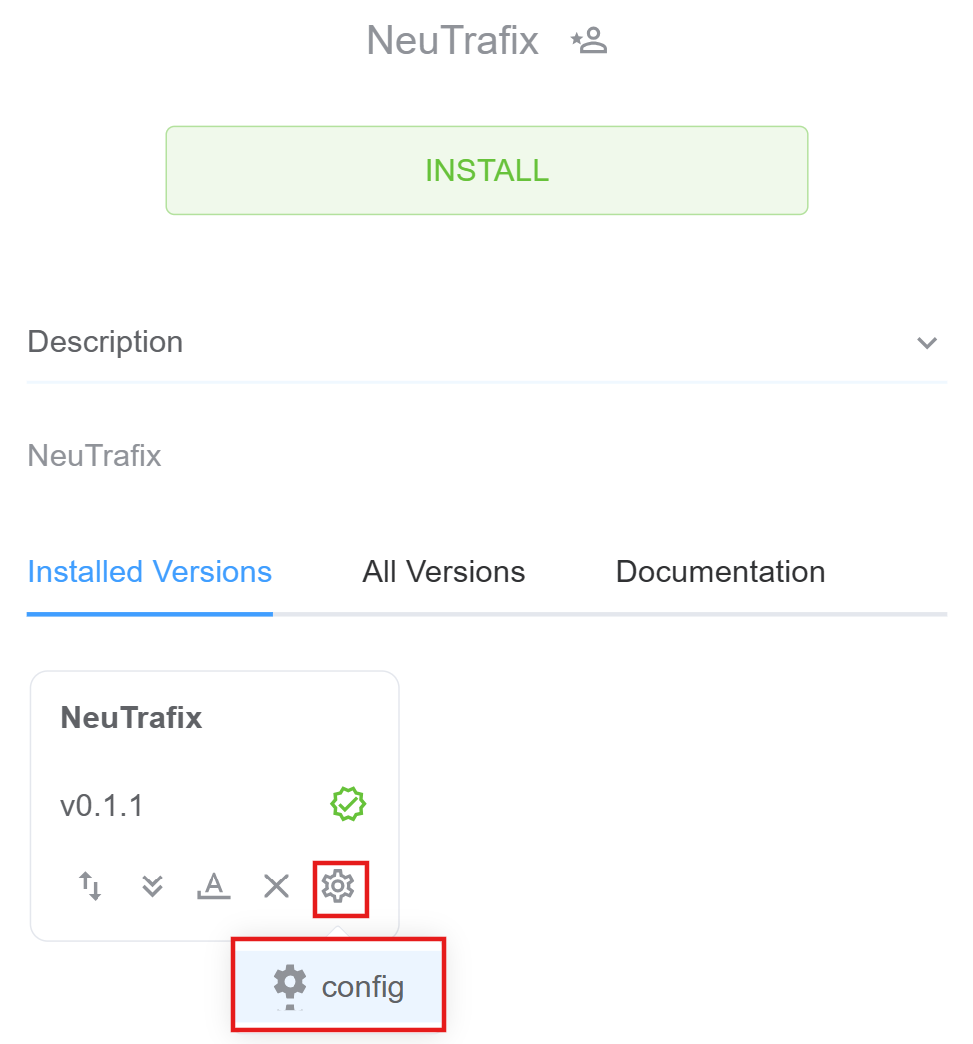
Review the configuration and confirm that the API user has been assigned as required. 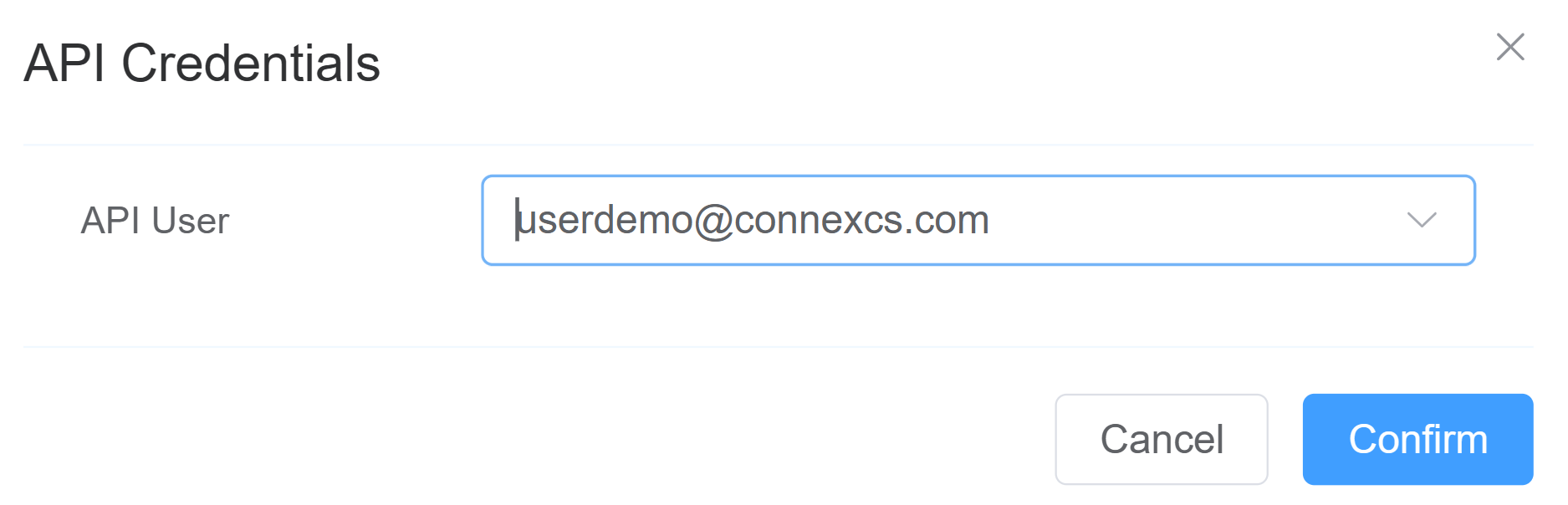
Using NeuTrafix
Sign Up
-
Click the
NeuTrafixapp in the ConnexCS portal sidebar. -
If you are a new customer, select
Signupto register a new NeuTrafix account. -
During registration, a one-time dialog displays the following credentials:
-
Username: The username generated or assigned during registration.
- Login Password: The password used to log in to the NeuTrafix account.
-
API Password: The password used for API authentication.
-
Save the credentials securely when they're displayed. Don't share them with unauthorized users.
-
The NeuTrafix account is created immediately after registration. However, company verification is a separate process.
-
Submit the required company documents to the NeuTrafix team for review.
-
Wait for the verification process to be completed and approved. Route purchasing remains unavailable until the company documents have been approved.
Store Credentials Securely
Store the credentials generated during registration securely, as they may not be displayed again. Do not share API credentials or passwords with unauthorized users.
Log In
-
Open the NeuTrafix app from the ConnexCS portal sidebar.
-
If you already have a NeuTrafix account, click
Login. The login window displays theAPI LoginandAPI Keyfields. Enter the API credentials associated with your NeuTrafix account, then clickLogin.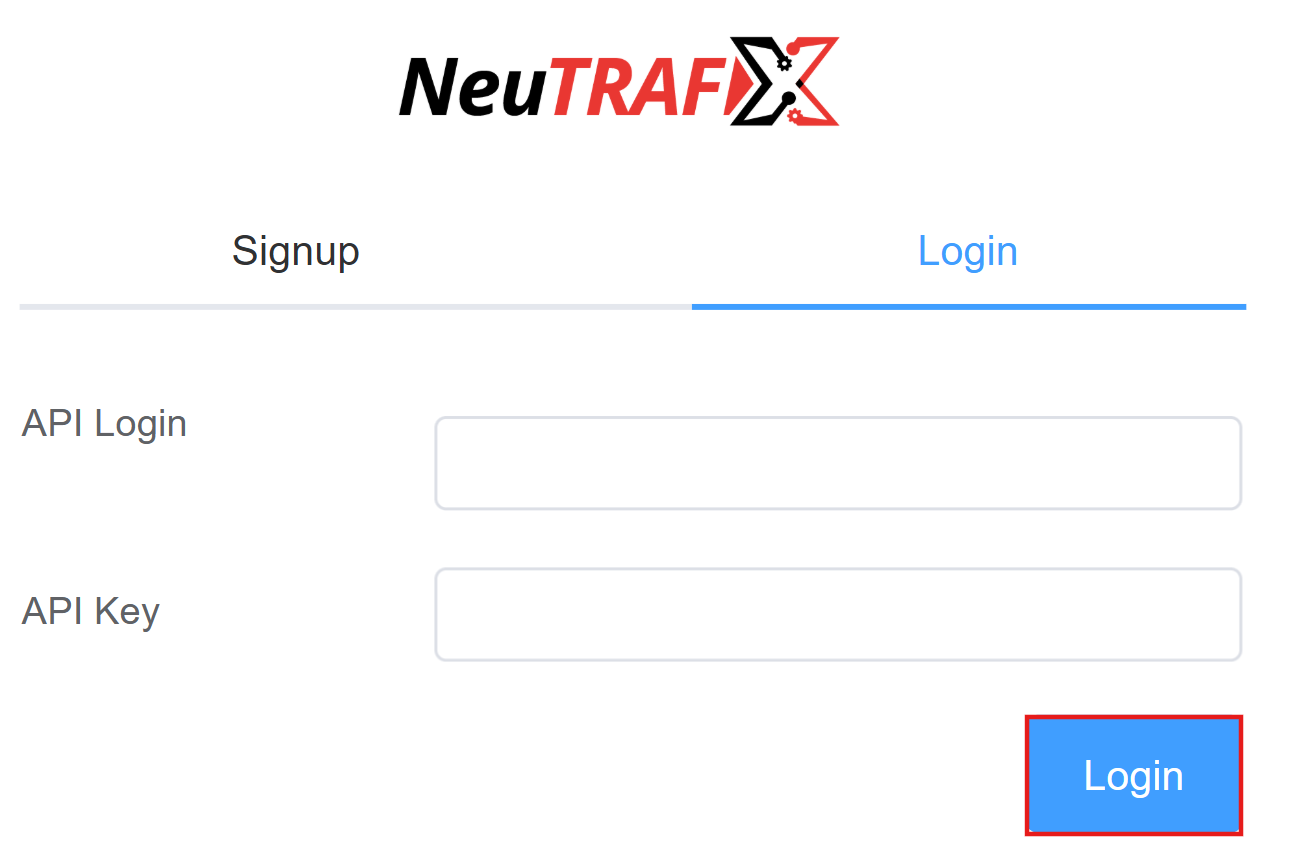
-
If you can't locate the required API credentials, check the Profile section of your NeuTrafix account for the API username and API password. Use the credentials intended for API authentication, not your standard account login credentials.
Troubleshooting
| Issue | Recommended Action |
|---|---|
| API authentication fails | Check that the values entered in API Login and API Key are the API credentials required by NeuTrafix. If authentication fails, verify the credential names and values in the NeuTrafix Profile section or contact the NeuTrafix support team. |
Explore the Route Marketplace
After logging in, the route marketplace displays the available search filters and route results. 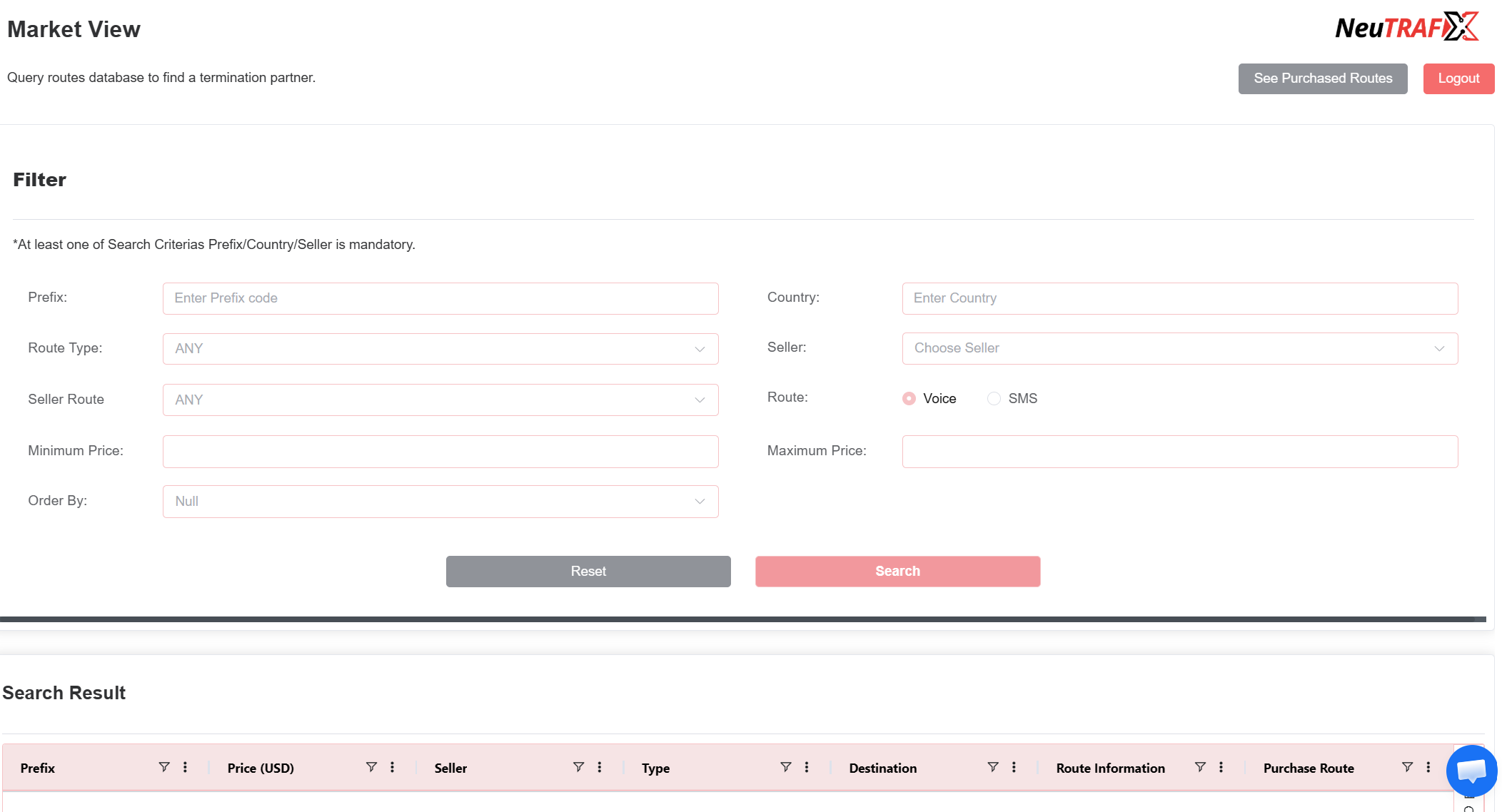
-
Market View: Select
See Purchased Routesto view the list of routes you have already purchased. -
Filter Section: Use the following filters to find routes that match your requirements.
| Field | Description | Usage |
|---|---|---|
| Prefix | Destination dialing prefix | Search for routes covering a specific number range, such as 91, 44, or 1. |
| Country | Destination country | Filter routes available for a specific country. |
| Route Type | Route classification | Filter by route quality or type, such as CLI, Non-CLI, or Premium. |
| Seller | Route provider or company | Display routes offered by a specific seller. |
| Seller Route | Seller-specific route category | Filter routes within a seller's inventory. |
| Route (Voice / SMS) | Traffic type | Select whether to search for Voice or SMS routes. |
| Minimum Price | Lower price limit | Filter routes based on the minimum price. |
| Maximum Price | Upper price limit | Filter routes based on the maximum price. |
| Order By | Sorting criteria | Sort results by price, prefix, seller, or other available criteria. |
-
Search Result Section: Displays routes matching the selected filter criteria.
-
Result Table Columns: The search results table displays the following information.
| Column | Description | Technical Meaning |
|---|---|---|
| Prefix | Destination prefix | Dialing code covered by the route. |
| Price (USD) | Route rate | Cost per minute or message offered by the seller. |
| Seller | Route provider or company | Click the seller name to view the seller's profile details. |
| Type | Route type | Indicates the traffic category or route classification. |
| Destination | Destination name | Country or operator served by the route. |
| Route Information | Route details | Provides technical information about route quality or configuration. |
| Purchase Route | Purchase action | Provides the option to purchase a route. |
| View More | Additional information | Displays further route details when available. |
-
Purchase Route: To purchase a route, follow these steps:
-
Click
Purchasein the Purchase Route column.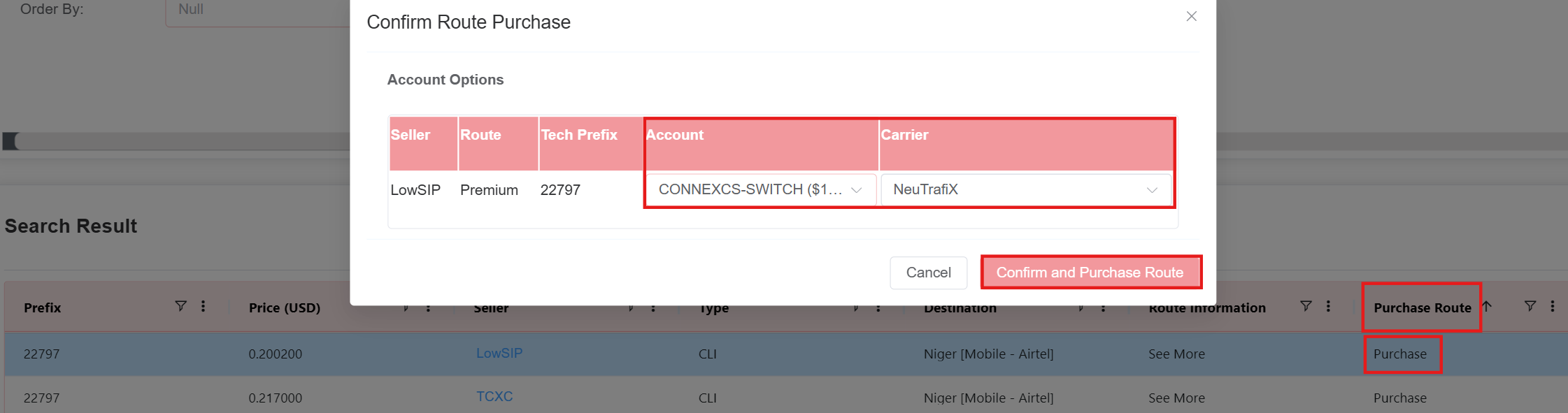
-
In the window that opens, select the Account and Carrier.
-
The carrier defaults to
NeuTrafix. You can select another carrier from the drop-down list if required. -
Click Confirm and Purchase Route to complete the purchase.
!!! Note "You must complete company verification before purchasing routes. If purchasing is unavailable, check the verification status of your company documents."
-
Rate Card Assignment: A rate card is automatically added whenever a new seller is created.
How Rate Card Assignment Works
A NeuTrafix carrier is used to associate seller-specific rate cards with the ConnexCS configuration. Confirm with the application owner whether this carrier is created on the first login or through another initialization process.
When a user purchases a route, the corresponding prefixes are automatically added to the relevant seller's rate card. The rate card then functions like a standard rate card within ConnexCS.
Troubleshooting
| Issue | Recommended Action |
|---|---|
| NeuTrafix isn't visible in the portal navigation. | Confirm that the application is installed and review the Assigned buttons section in App Settings. |
| Installation fails. | Verify your App Store permissions and retry the installation. |
| API authentication fails. | Confirm that the API credentials are correct. Use the API credentials expected by the login dialog rather than standard login credentials. Check the Profile section for the API credentials. |
| Sign-up succeeds, but purchasing is unavailable. | Confirm that the required company documents have been submitted to the NeuTrafix team and approved. |
| The installed version is outdated. | Review the application's version information and available releases in the Connex Store. |
| A custom domain isn't available. | Review the domain configuration and allow the automatic rebuild and republication process to complete. |
| The expected carrier or rate card is unavailable. | Check the route purchase configuration and confirm the carrier and seller-specific rate card settings with your ConnexCS administrator. |