Yoco Payment
Document Metadata
Category: Setup / Application Store & App Deployment
Audience: Administrators, Finance Team, Product Team
Difficulty: Beginner
Time Required: Approximately 10–15 minutes
Prerequisites: Active ConnexCS account with Setup privileges; an active Yoco merchant account with access to the Yoco App / Control Panel; API Developer Integration access to retrieve the Secret Key.
Related Topics: App Store
Next Steps: Install and configure the Yoco app with your Secret Key and surcharge preferences, then verify the Yoco payment button appears correctly in the Customer Portal for end customers to complete transactions.
Overview
Yoco is a payment gateway and merchant services platform that enables businesses to accept, process, and manage digital payments securely through APIs and hosted payment flows.
Instead of handling payment processing, card security, and transaction compliance internally, applications and platforms can integrate with Yoco to initiate charges, collect customer payments, and track transactions programmatically, making payment collection faster, more reliable, and secure.
How it works?
To enable payment-related operations via Yoco, the system requires authentication using a Secret API Key.
This key determines which Yoco account the API requests are executed against and ensures secure access to subscribed services.
Where to Obtain the API Secret Key?
-
The customer logs in to the
Yoco App/Yoco Control Panel. -
Navigate to the API Developer Integration section.
-
Locate the
Secret Keyunder theaccount credentials. -
Copy the Secret Key for use in the integration.
The Secret Key is account-specific and must be kept confidential.
Steps to Use the App
-
Navigate to Setup App Store Yoco and click
Install. A window will open hit theInstallbutton again.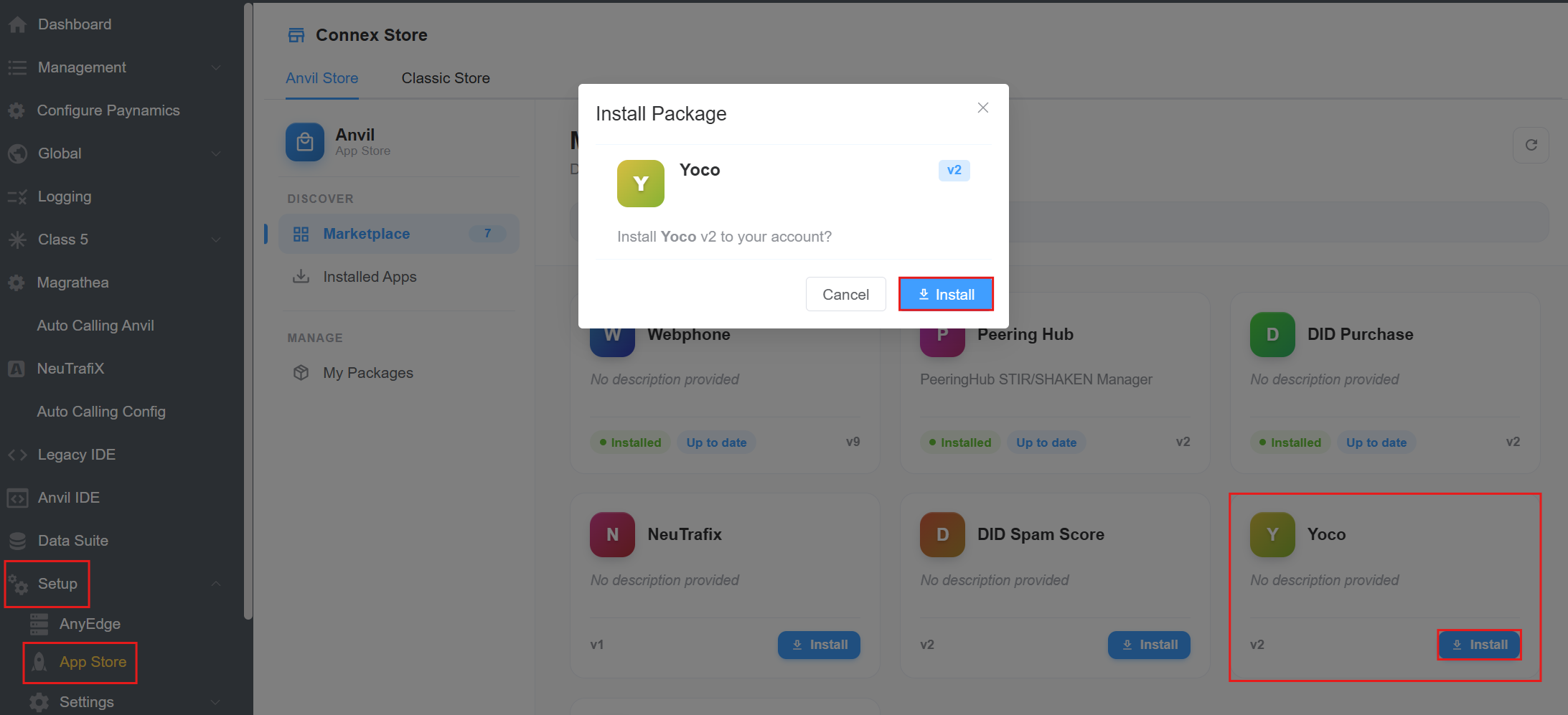
-
Click on the installed App and click on
Config.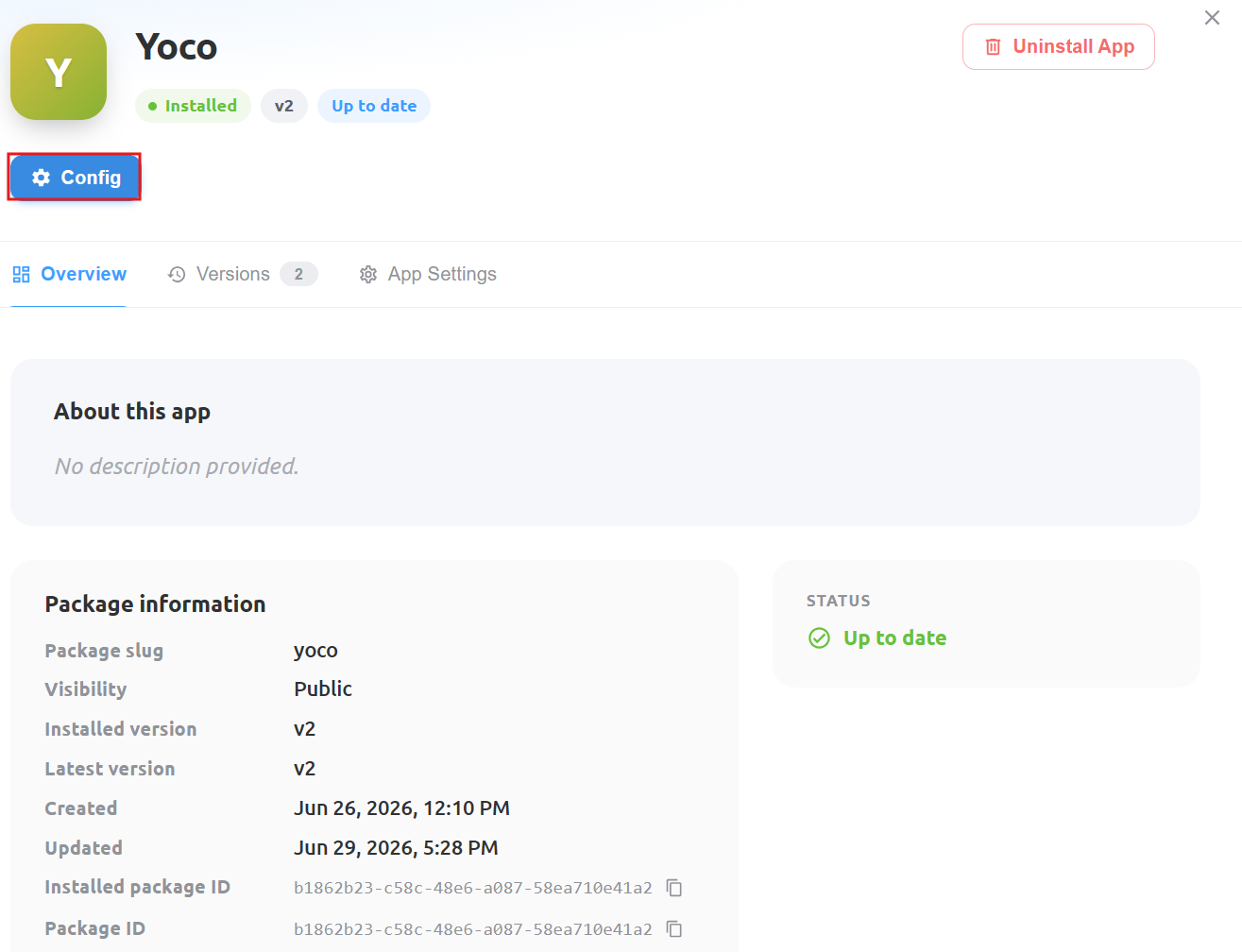
-
A window will open, prompting you to enter the following details:
API User: The selected API user represents the authenticated entity making API requests.- Enter the
Secret Key. This key is required for authentication. Follow the steps here to generate and retrieve the API key. ConnexCS uses this key to securely authenticate and authorise all payment-related API requests. Surcharge: Configure an additional charge to be applied to payments. You can choose one of the following options:- Amount (ZAR): Applies a fixed surcharge in South African Rand (ZAR).
- Percent: Applies a percentage-based surcharge on the transaction amount. Click
Save.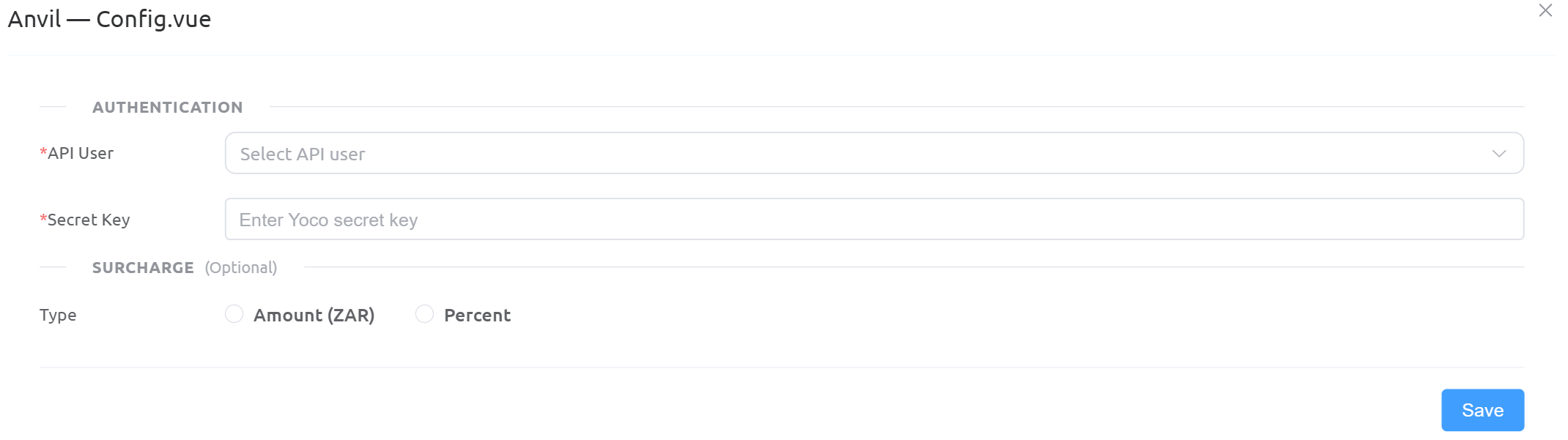
- The YoCco button is displayed in the Customer Portal under the Payments section, where end customers can securely complete their payment transactions.