DID Spam Score
Document Metadata
Category: Setup / Application Store & App Deployment
Audience: Administrators, Support Team, Product Team, Customer Administrators
Difficulty: Beginner
Time Required: Approximately 5–10 minutes for installation and configuration; additional time may be required to process DID spam score checks.
Prerequisites: An active ConnexCS account with access to Setup and App Store; permission to install applications and access the DID management interface; the Spam Score package added to the account; and access to the DIDs you want to check.
Related Topics: App Store, Packages, Global DID Management, Spam Scout Scoring
Next Steps: Install the DID Spam Score app, configure the default email address, select the DIDs to check, submit the spam score request, and review the results.
Overview
The DID Spam Score app is developed by ConnexCS to help customers check the spam scores of their Direct Inward Dialing (DID) numbers through the ConnexCS platform.
The app integrates with Spam Scout scoring to process selected DIDs and retrieve their spam score information. Users can select one or more DIDs and submit a request to check their spam scores.
When more than five DIDs are checked, the configured default email address is used to send the relevant notification. After processing, the app displays the status and spam score for each selected DID. The results can help customers identify numbers that may have been flagged as spam.
The app is available through the Connex Store and can be managed from the Anvil App Store interface.
Chargeable Service
The DID Spam Score service is chargeable. Review the ConnexCS Pricing page for applicable charges.
Why Use the DID Spam Score App?
The app provides a convenient way to check DID spam scores without manually processing each number individually.
It helps users:
- Check the spam scores of multiple DIDs in a single request.
- Identify DIDs that may have been flagged as spam.
- View the processing status and available spam score for each DID.
- Receive notifications when more than five DIDs are checked.
- Access the functionality directly from the ConnexCS DID management interface.
Key Features
- App Store Installation: Install the app through the Connex Store.
- Bulk DID Selection: Select multiple DIDs and submit them for spam score checks.
- Spam Scout Integration: Submit selected DIDs to Spam Scout for processing.
- Email Notifications: Configure a default email address to receive notifications when more than five DIDs are checked.
- Processing Status: View the status of each DID, including whether it was processed or data was unavailable.
- Spam Score Results: Display the returned spam score for each successfully processed DID.
- Application Management: Review the installed version, version history, and application settings.
Benefits
- Simplifies the process of checking DID spam scores.
- Saves time when checking multiple numbers.
- Helps customers identify potentially spam-flagged numbers.
- Provides a centralized interface for submitting requests and viewing results.
- Makes results easier to review through a table showing each DID, its status, and its spam score.
How to Install and Use the DID Spam Score App
Install the App
-
Navigate to Setup App Store Anvil Store Marketplace, locate DID Spam Score, and click
Install.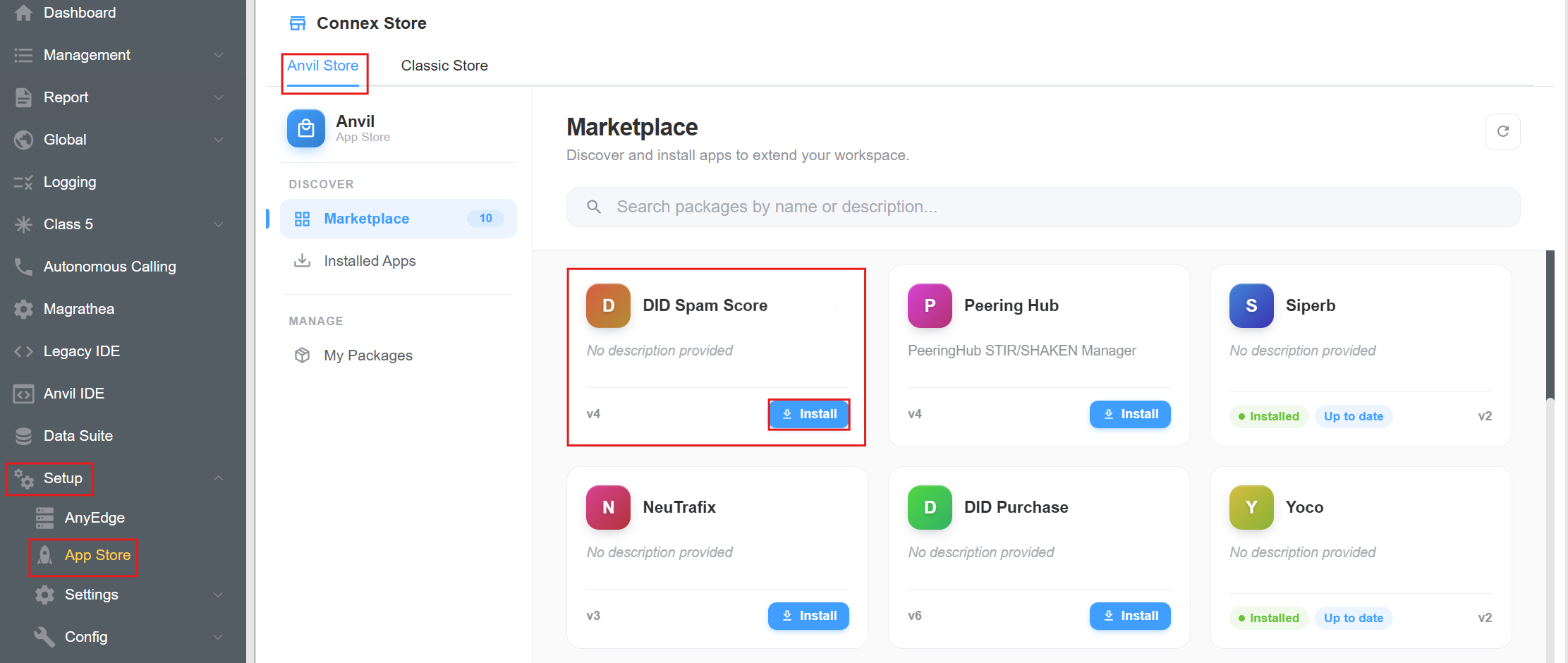
-
An Install Package window will appear. Review the package name and version, then click
Installagain to confirm.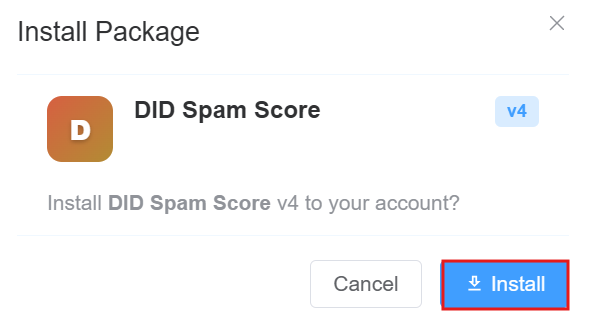
-
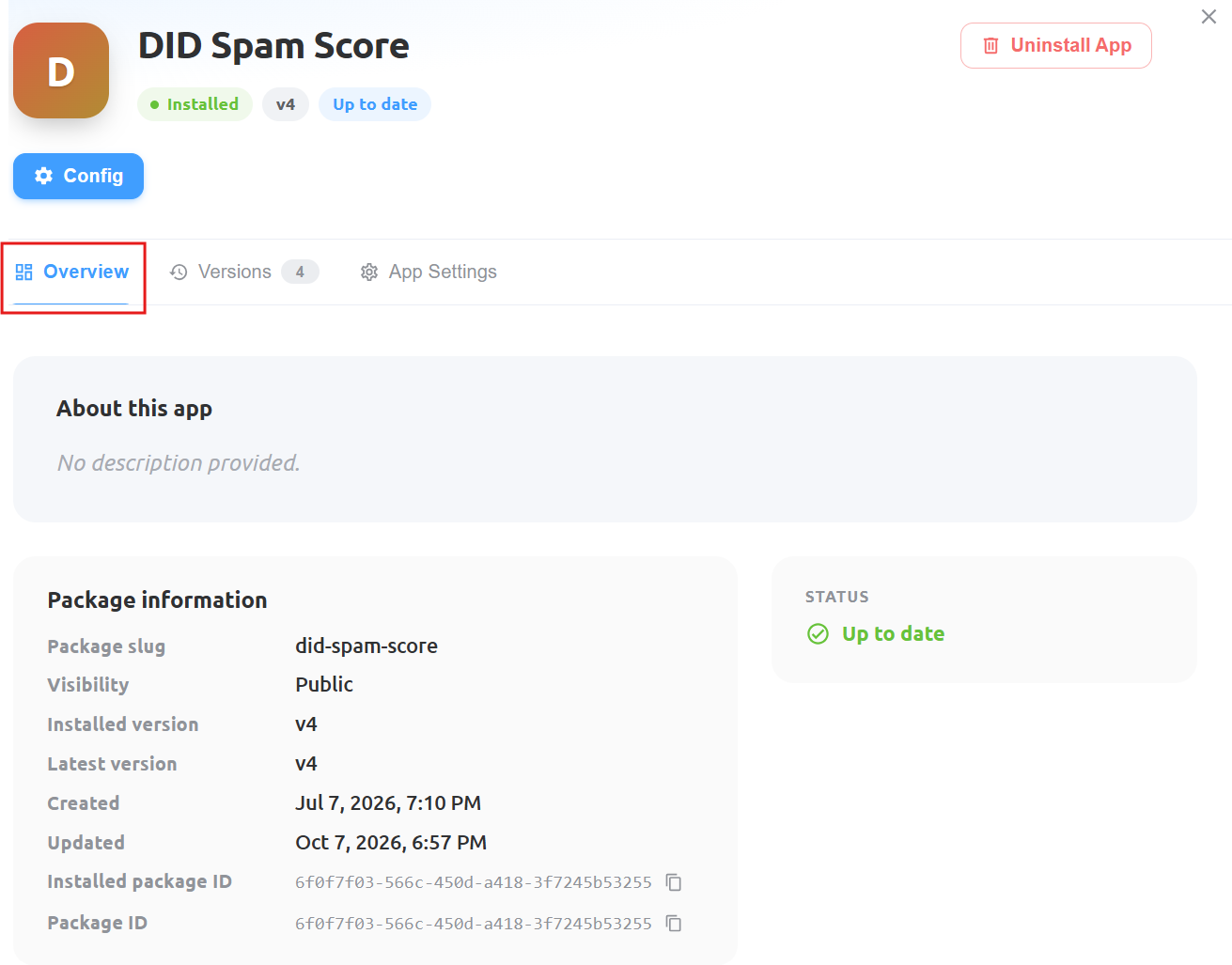
Once installed, open DID Spam Score from the installed applications list. The Overview tab displays the installation status, installed version, latest version, and package information.
-
To review the available application versions, navigate to the
Versionstab. This section displays version numbers, approval status, submission details, and version history.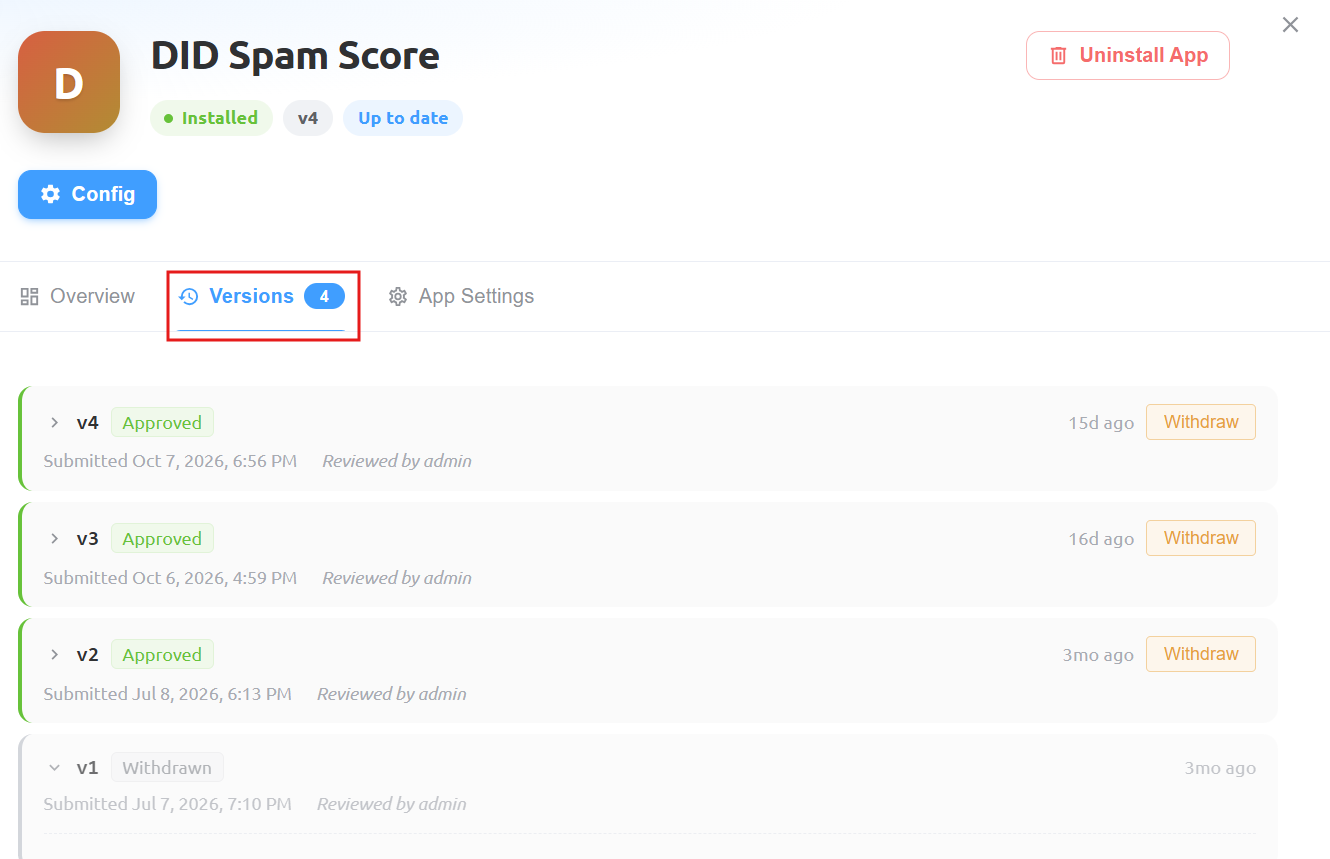
Configure the App
-
Navigate to the
App Settingstab to review the app's configuration. The Assigned buttons section displays the Spam Score button and its location in the portal,/global/did.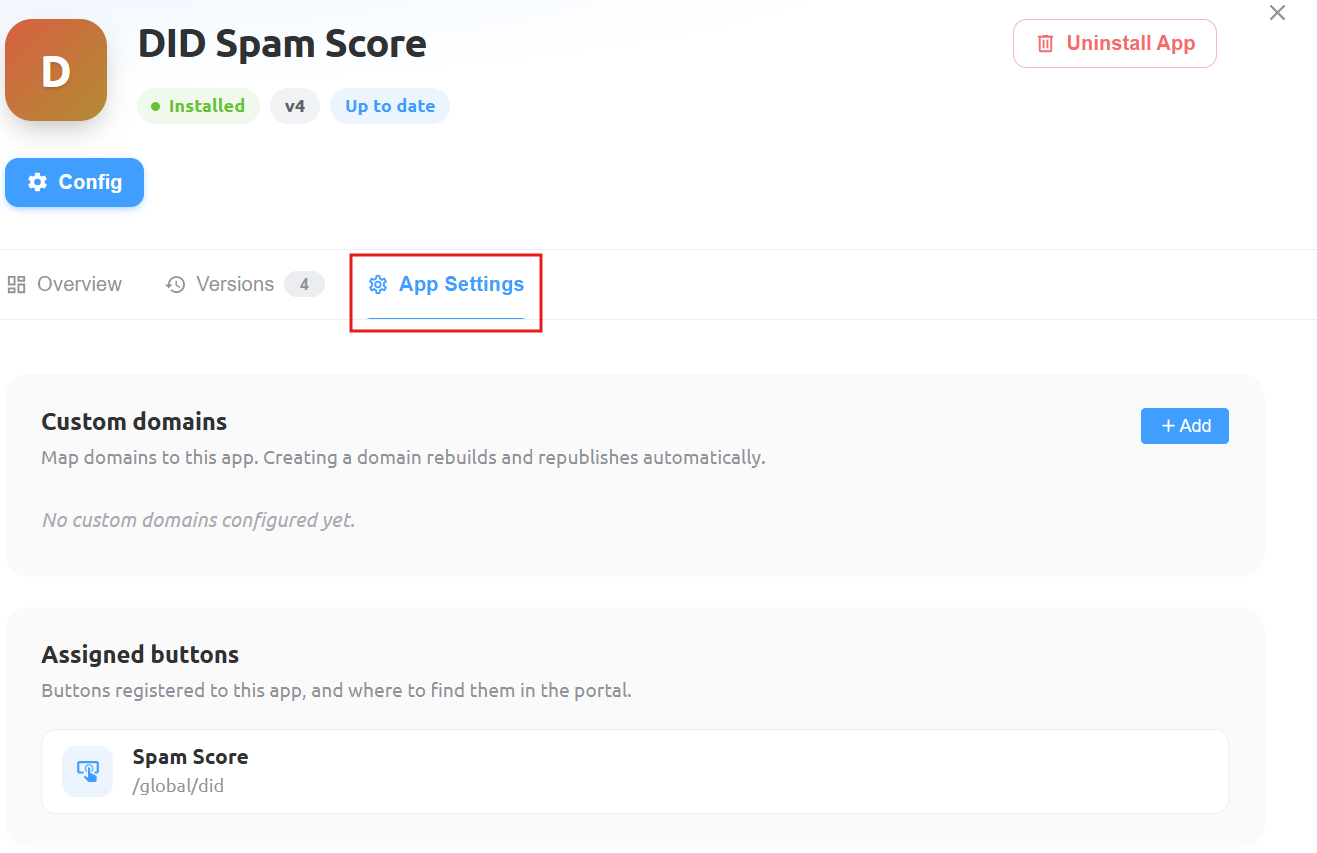
-
Click
Configto open the configuration window. Enter the default email address that should receive notifications when more than five DIDs are checked.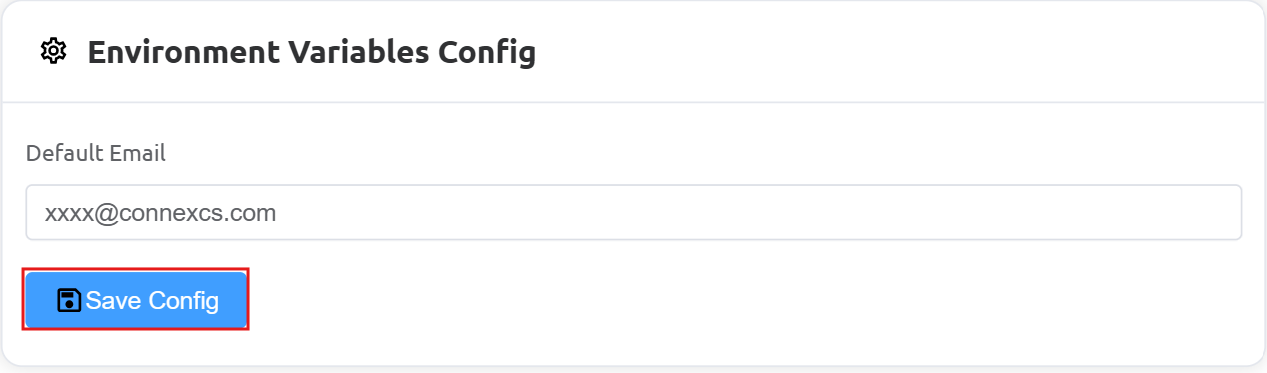
-
Click
Save Configto save the configuration.
Run a Spam Score Check
-
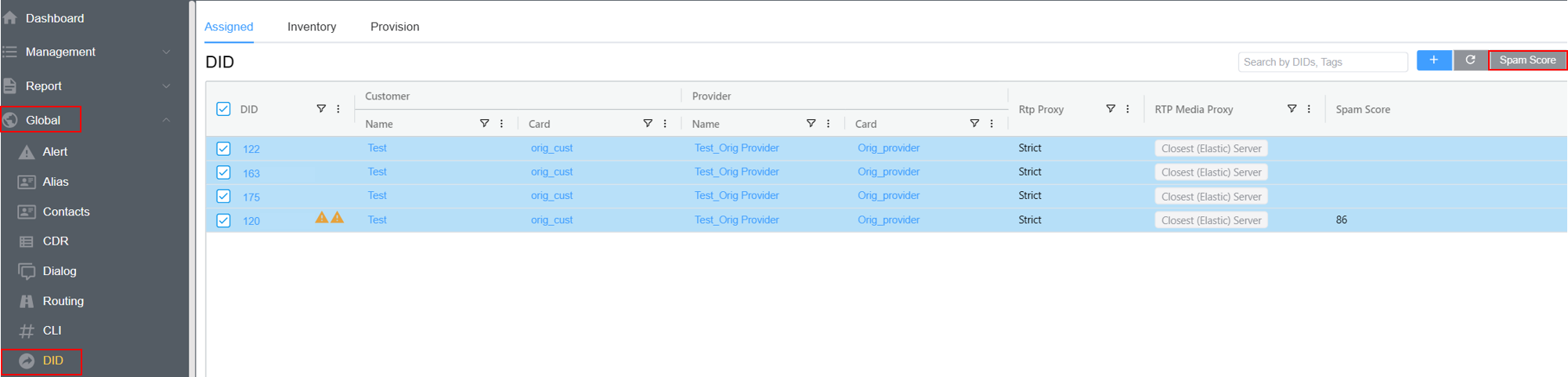
Navigate to Global DID in the ConnexCS portal.
-
Select the DIDs you want to check by using the checkboxes beside the DID entries. You can select multiple DIDs for a single request.
-
Click the
Spam Scorebutton at the top of the DID page. -
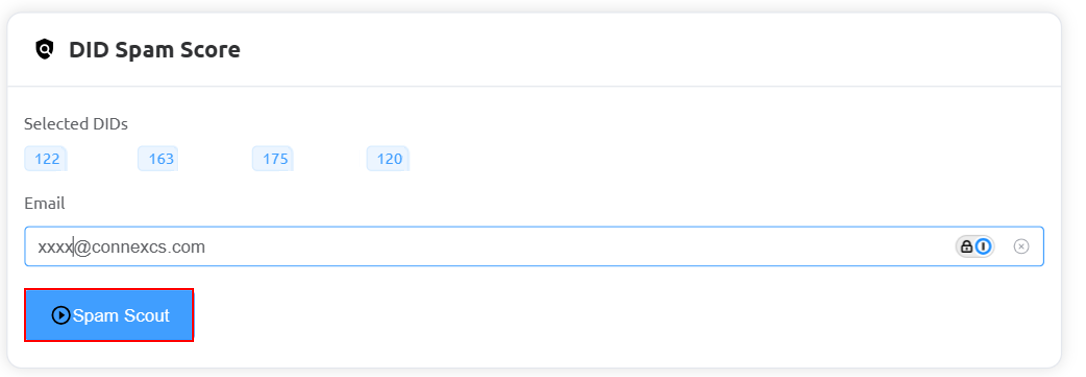
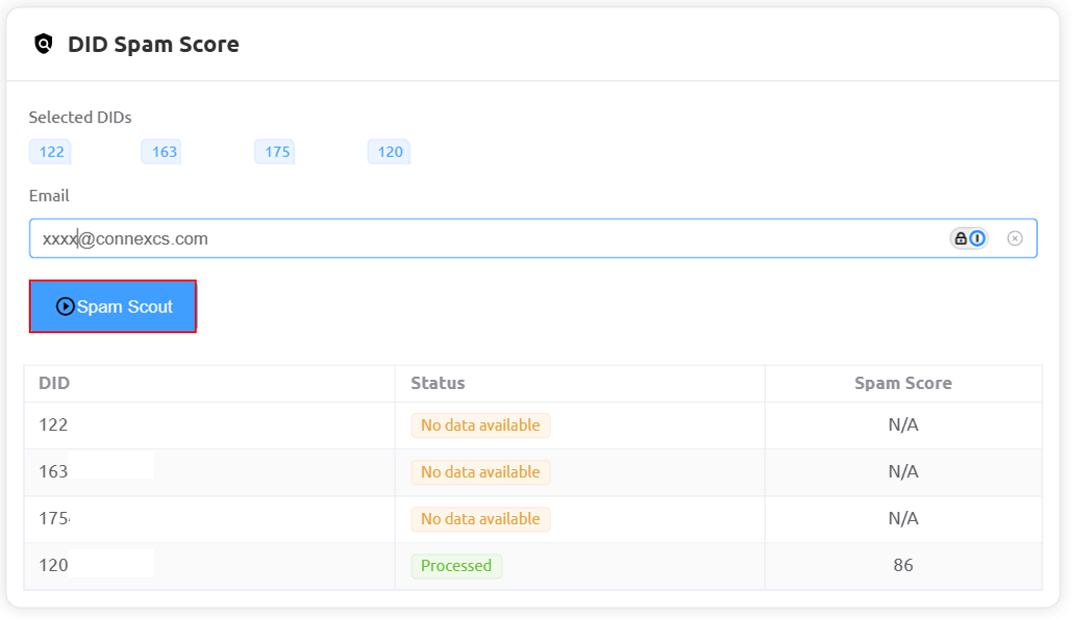
The DID Spam Score window will open and display the selected DIDs.
-
Enter the email address to which the spam score report should be sent, if prompted.
-
Click
Spam Scoutto submit the selected DIDs for processing. -
Review the results displayed in the table. Each row contains the DID, its processing status, and the spam score when available.
Troubleshooting
| Issue | Recommended Action |
|---|---|
| The Spam Score button isn't visible. | Verify that the app is installed and that you have access to Global DID. |
| The request can't be submitted. | Verify that the Spam Score package is available on your account and that the application is configured correctly. |
Results show No data available. |
The service didn't return a score for that DID. Review the result and retry later if appropriate. |
| The report isn't received. | Verify the configured default email address and, if an email address was entered in the request, check that address as well. Check the recipient's spam or junk folder. |
| API access or configuration fails. | Check that the Default Email field contains the correct email address and that the configuration has been saved. |