Global CLI
Document Metadata
Category: Global / Caller Line Identification (CLI)
Audience: Administrators, Operations Teams, Routing Teams, Engineers
Difficulty: Intermediate to Advanced
Time Required: Approximately 15–30 minutes
Prerequisites: Active ConnexCS account with access to the Global section; familiarity with CLI, routing rules, Customer accounts, and SIP calling concepts.
Related Topics: CLI, Routing Overview, Global, Customer Management
Next Steps: Navigate to Global > CLI, review CLIs across Customers, configure CLI rules when required, and use the available Columns, Filters, and Custom Settings options to manage the view.
Global CLI
Overview
The Global CLI section provides a centralized view of CLIs across all Customers.
Caller Line Identification (CLI) rules can be used to control which CLIs are permitted, rewrite CLI information, apply routing-related conditions, and manage additional CLI behavior.
The Global CLI view allows administrators to manage CLI records from a central location instead of navigating to each individual Customer account.
CLI configuration can also be accessed from the Customer account under Routing CLI.
CLI List
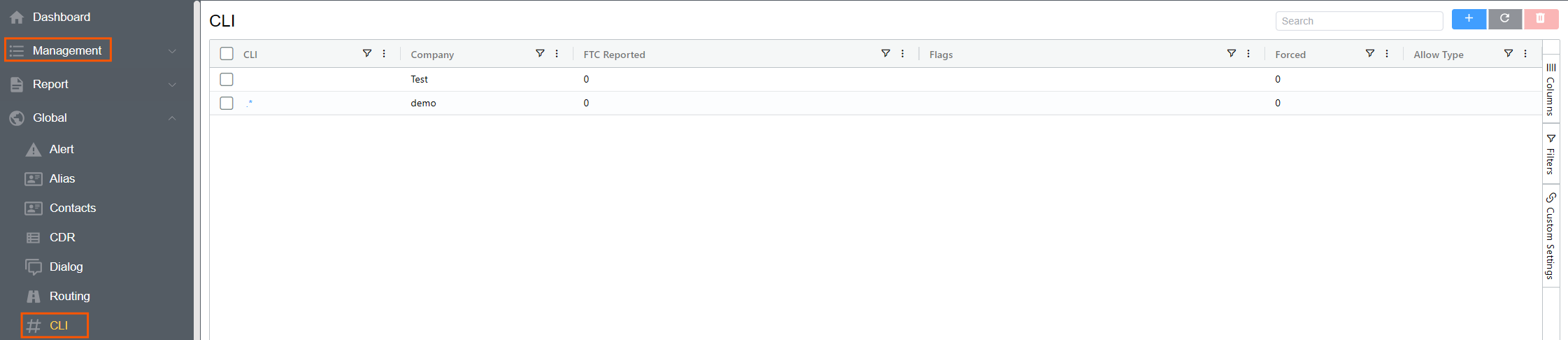
The Global CLI table provides the following fields:
| Field | Description |
|---|---|
| CLI | The CLI or calling number associated with the rule. A number or regular expression can be used to match the required CLI |
| Company | The Company associated with the CLI rule |
| FTC Reported | Indicates the FTC-related reporting status associated with the CLI |
| Flags | Additional flags configured for the CLI rule, such as Performance CLI Selection or STIR/SHAKEN-related options |
| Forced | Indicates whether the CLI is configured as a Forced CLI. A Forced CLI can be used when no other matching CLI rule is found |
| Allow Type | Defines the allowed CLI type, such as Mobile, Paging, VoIP, or Satellite |
Creating a CLI Record
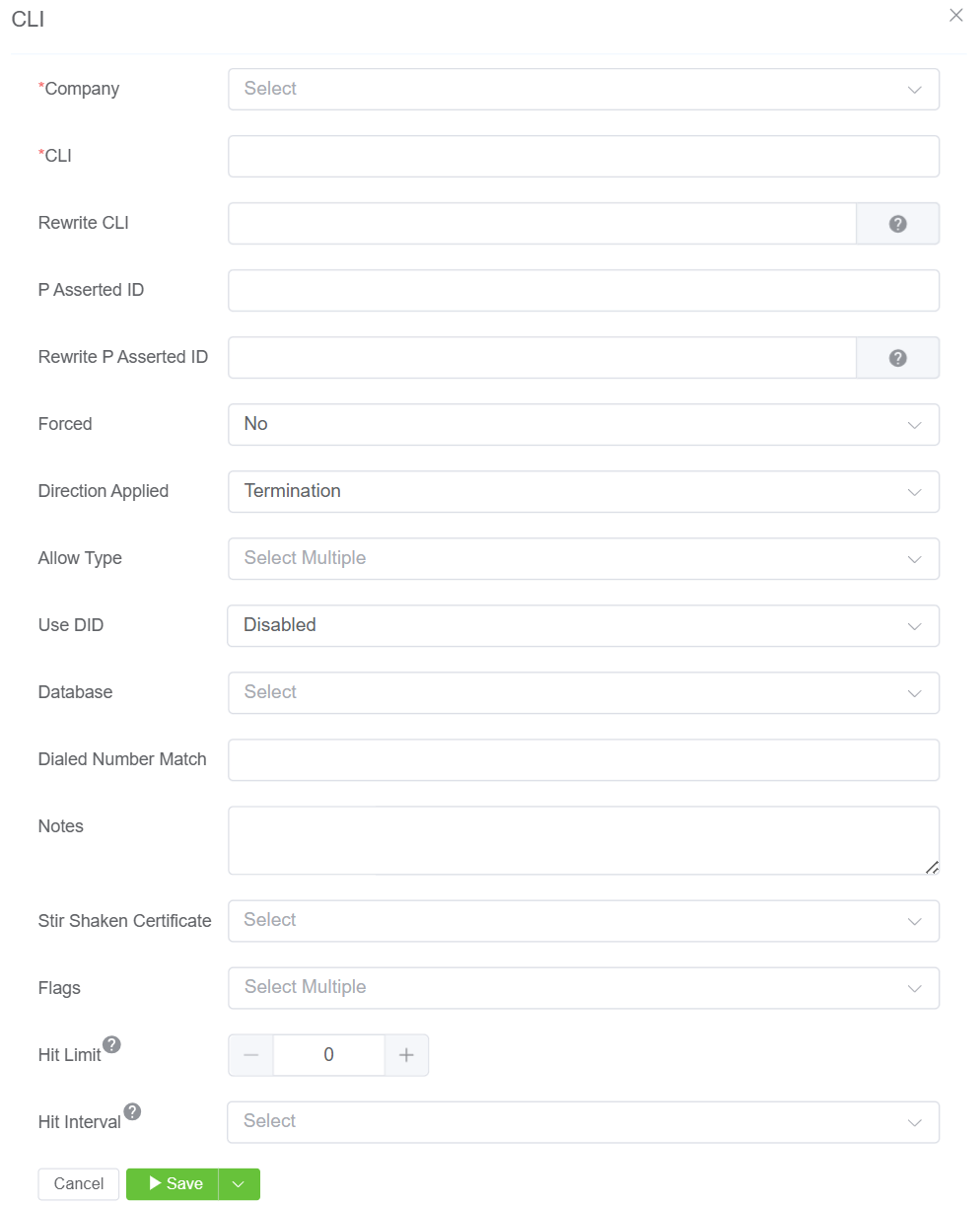
To create a CLI record:
- Navigate to Global CLI.
- Click
+under CLI. - Select the Company from the drop-down.
- Enter the required CLI or regular expression.
- Configure the required CLI options.
- Click
Saveto complete the CLI configuration.
CLI
The CLI field defines the calling number or pattern to which the rule applies.
You can enter a specific number or use a regular expression to match and manipulate multiple CLI values.
Rewrite CLI
The Rewrite CLI field allows the presented CLI to be replaced with another value.
For example:
- CLI:
123456789 - Rewrite CLI:
987654321
The original CLI can therefore be replaced with the configured value.
For advanced CLI manipulation, see Advanced CLI Match & Manipulation.
P-Asserted-ID
The P-Asserted-ID manipulation uses the same syntax as the Replace CLI configuration.
P-Asserted-ID Use Case
To allow all calls but assign a specific number as the P-Asserted-ID, set the CLI to .* and enter the required P-Asserted-ID.
Rewrite P-Asserted-ID
Rewrite P-Asserted-ID allows the P-Asserted-ID SIP header to be rewritten.
P-Asserted-ID is a network-level identity used by telephone networks to identify the originating caller. It can be useful when the caller's CLI or FROM information does not provide the required originating identity.
Forced
Enabling Forced allows a call when there are no other matching CLI rules.
The Forced CLI also replaces the CLI presented with the CLI configured in the rule.
Example
Create a permitted list of CLIs and configure one CLI as Forced. If none of the permitted CLI rules match, the Forced CLI can be used as the fallback CLI.
Direction Applied
The CLI rule can be applied according to call direction.
Outbound Calls (Termination)
For outbound calls, the Customer dials a number and the CLI rules control which caller IDs are allowed to pass.
Inbound Calls (Origination)
For inbound calls, calls entering the system through a DID/DDI can be filtered according to CLI rules.
Example
You can create a permitted list that allows calls only from a particular country, such as allowing incoming CLIs beginning with 44 for UK numbers.
Allow Type
Allow Type allows you to specify the type of CLI that can be used.
Available types can include:
- Mobile
- Paging
- VoIP
- Satellite
The selected type determines which CLI types are allowed by the rule.
Use DID
Use DID allows DIDs from the Customer's account to be used as either a filter or a replacement.
For example, if a dialled number matches a configured pattern, the CLI can be routed to a specific DID.
The CLI can also be specified using a regular expression.
Disabled / Filter
When using the Disabled/Filter option, the following settings can be configured:
| Field | Description |
|---|---|
| Hit Limit | Usage limit for the CLI. |
| Hit Interval | Duration for which the configured hit limit remains active. |
Performance
When using the Performance option, the following settings can be configured:
| Field | Description |
|---|---|
| Performance Top Batch Size | Determines how many of the top CLIs are used together |
| Performance Interval | Defines how long the selected batch remains active. The available interval ranges from 5 minutes to 1 day, using 300-second intervals |
| Performance Ban Time | Defines how long a used DID is paused. The available value ranges from 5 minutes to 90 days, and the value is stored in seconds |
Database
The Database option can be used to add CLI and P-Asserted-ID values from a database.
To use a database:
- Upload the required list of numbers under Developer Database.
- Navigate to Global CLI.
- Select the same database in the Database field.
- Add the database under Rewrite P-Asserted-ID when required.
- Set Forced to Yes.
Make sure the Forced option is set to Yes when using the database configuration as described above.
Dialed Number Match
Dialed Number Match allows a CLI rule to be applied based on the number that was dialled.
The dialled number can be matched using a regular expression.
CLI per Route
If a Tech Prefix is specified in Routing under Ingress Routing Basic Tech Prefix, and the same Tech Prefix is added to Dialed Number Match using ^, the corresponding CLI rule is applied to that specific route.
Notes
The Notes field allows additional information to be recorded about the CLI configuration.
Use Notes to document the purpose or relevant details of a CLI rule for future reference.
STIR/SHAKEN Certificate
A STIR/SHAKEN Certificate can be applied to a Customer account for call verification, including determining whether calls meet the configured verification requirements.
STIR/SHAKEN Attestation
STIR/SHAKEN Attestation defines the attestation level applied to the call.
The available levels are:
- A
- B
- C
Flags
The Flags field provides additional options that can modify how the CLI rule operates.
Available options described in the CLI configuration include:
| Flag | Description |
|---|---|
| Performance CLI Selection | When Forced is set to Yes and a Database is selected, Performance CLI Selection can select the CLI with the best ASR. |
| STIR/SHAKEN Required | Used when no STIR/SHAKEN certificate is selected and STIR/SHAKEN is required |
| STIR/SHAKEN Replace | Used when the configured STIR/SHAKEN certificate should replace a certificate already applied to the call |
Columns
The Columns panel allows you to control which CLI fields are displayed in the Global CLI table.
Available fields include:
- CLI
- Company
- FTC Reported
- Flags
- Forced
- Allow Type
Use the checkboxes to show or hide fields according to your requirements.
The available column controls can also be used to arrange the information displayed in the table.
Filters
The Filters panel allows you to narrow the CLI records displayed in the table.
Filters can be used to focus the view on specific CLI configuration values, such as: CLI, Company, FTC Reported etc. This is useful when reviewing CLI rules for a particular Company or locating records with a specific configuration.
Custom Settings
The Custom Settings panel allows you to customize the appearance of the Global CLI table.
-
Theme: The Theme setting controls the visual appearance of the CLI table.
-
Row Height: The Row Height setting controls the amount of vertical space used for each CLI record.
- Lower row height — Displays more CLI records within the available screen space.
- Higher row height — Provides more spacing between records for easier reading.
Use Cases
The Global CLI section can be used to:
- View CLIs across all Customers.
- Create and manage CLI routing rules.
- Permit specific CLIs or CLI patterns.
- Rewrite CLI values.
- Configure P-Asserted-ID manipulation.
- Configure a Forced CLI.
- Apply CLI rules according to call direction.
- Restrict CLI usage by Allow Type.
- Use Customer DIDs as filters or replacements.
- Configure CLI selection using a database.
- Apply CLI rules based on Dialed Number Match.
- Configure STIR/SHAKEN options.
- Search and filter CLI records.
- Customize the CLI table using Columns and Custom Settings.
Alternate Location
CLI can also be accessed from:
- Management Customer [Customer Name] Routing CLI
The Global CLI view provides centralized access to CLI records, while the Customer-level CLI view provides access to CLI configuration for an individual Customer.
More Information
See CLI for more details.