Dial Phone Number Verification
Document Metadata
Category: Setup / Application Store & App Deployment
Audience: Administrators, Support Team, Product Team, Customer Administrators
Difficulty: Intermediate
Time Required: Approximately 10–15 minutes for installation and initial configuration; additional time may be required to configure routing and CLI registration.
Prerequisites: An active ConnexCS account with Setup and App Store access; permission to install and configure applications; a configured Class 4 switch server and Class 5 server; a valid Caller ID (CLI); and access to the applicable customer billing configuration.
Related Topics: App Store, Class 4 Routing, Class 5, CLI, STIR/SHAKEN
Next Steps: Install the Dial Phone Number Verification app, generate an API token, configure the switch server and Class 5 server, set the Caller ID and verification charge, configure CLI registration options, and test the voice OTP verification workflow.
Overview
The Dial Phone Number Verification app is developed by ConnexCS to integrate phone number verification with the ConnexCS platform. It enables a voice OTP verification workflow in which a user verifies a phone number through a call.
The app uses an API token to authorize operations such as adding Caller IDs (CLIs) and charging customers for verification requests. Administrators can configure call routing, the Caller ID displayed during verification, per-verification charges, and CLI registration behavior.
The application is available through the Connex Store and is managed using the Anvil App Store interface. After installation, administrators can configure the app through its Config button.
Why Use the Dial Phone Number Verification App?
Phone number verification is useful when a service needs to confirm that a user can receive a verification call at a particular number.
The Dial Phone Number Verification app helps administrators:
- Configure the voice verification call route through a Class 4 switch server and a Class 5 server.
- Define the Caller ID displayed on the verification call.
- Generate an API token for authorized application operations.
- Configure optional charges for each successful number verification.
- Register verified numbers as CLIs using the configured authentication and registration settings.
- Configure Caller ID presentation and registration controls.
- Select a STIR/SHAKEN certificate where applicable.
Key Features
- API Token Authentication: Generate a token used by the app to perform authorized operations, including CLI registration and customer charging.
- Token Expiration: Choose an expiration period for the API token.
- Call Routing Configuration: Select the Class 4 switch server and Class 5 server used by the voice OTP workflow.
- Caller ID Configuration: Specify the CLI displayed on the verification call.
- Per-Verification Charging: Configure the amount charged to the customer for each number verification.
- Automatic CLI Registration: Register verified phone numbers as CLIs using the configured token and registration settings.
- Caller ID Controls: Configure P-Asserted-Identity rewriting and forced CLI behavior.
- Registration Limits: Configure a hit limit and hit interval for registration-related controls.
- STIR/SHAKEN Certificate Selection: Select a certificate for the verification workflow when required and supported by the account configuration.
Benefits
- Provides a dedicated integration for voice-based phone number verification.
- Centralizes authentication, routing, and charging configuration.
- Reduces manual effort associated with registering verified numbers as CLIs.
- Allows administrators to define verification charges.
- Provides configurable controls for Caller ID handling.
- Supports certificate selection for applicable STIR/SHAKEN requirements.
How to Install the App
-
Navigate to Setup App Store Anvil Store Marketplace, locate Dial Phone Number Verification, and click
Install.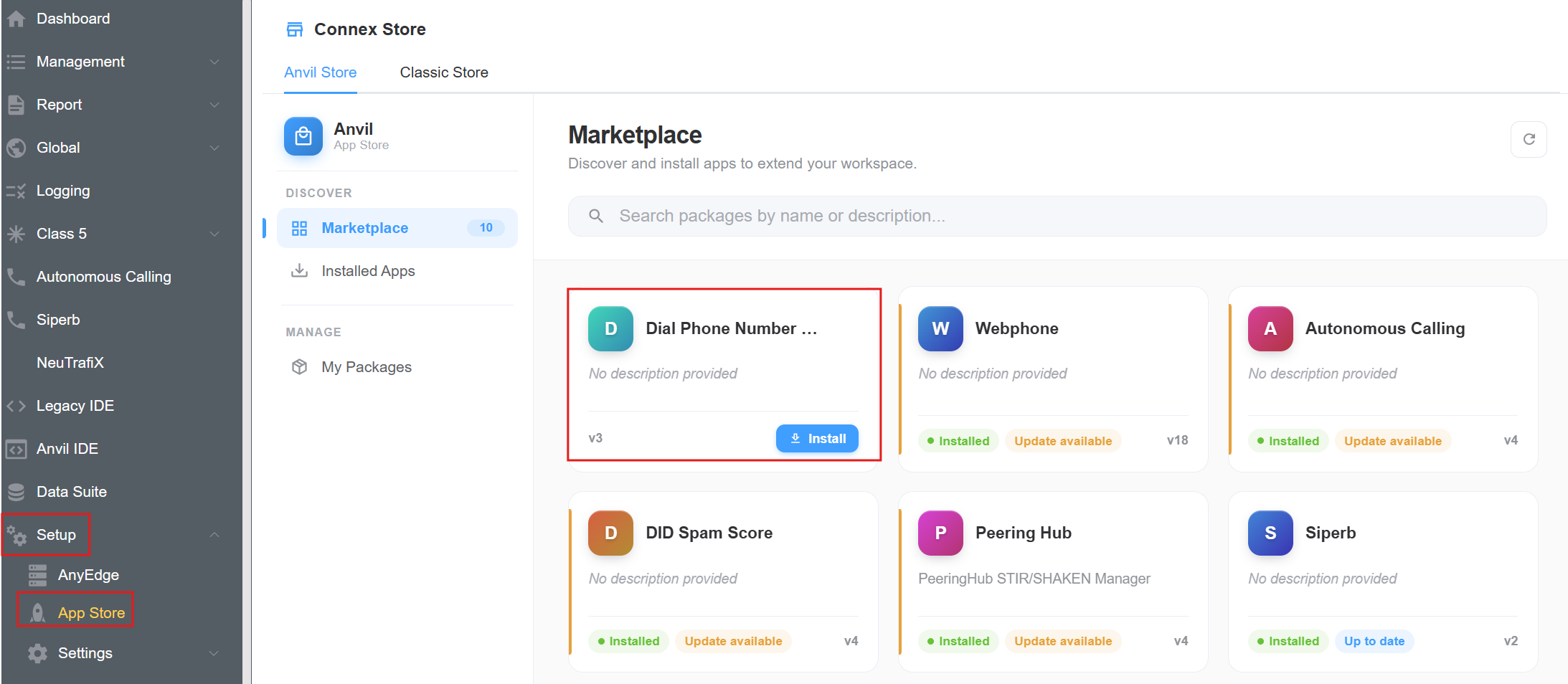
-
An installation confirmation window will appear. Review the package name and version, then click
Installagain.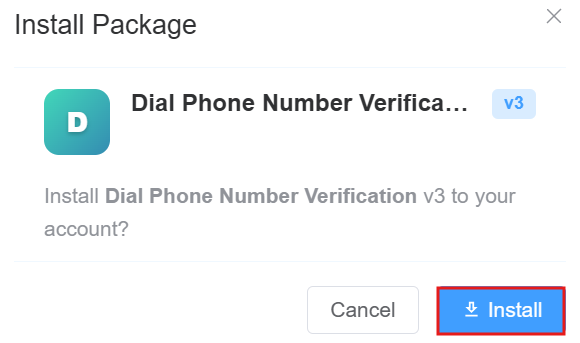
-
Once installed, open the app from the installed applications list. Verify that the application status is Installed and that the displayed version is up to date.
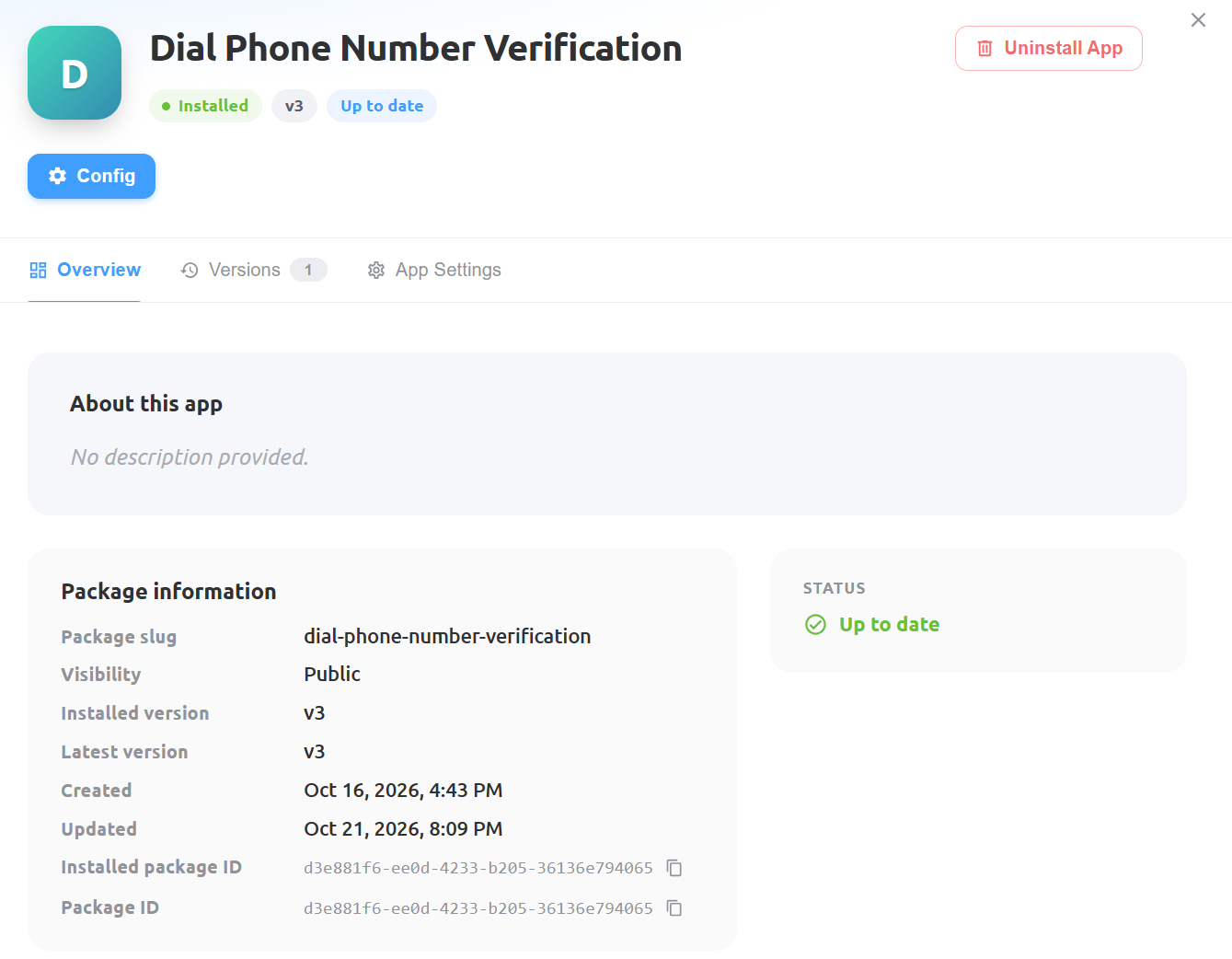
-
To review the application version and its release status, open the
Versionstab. Review the available version information and approval status.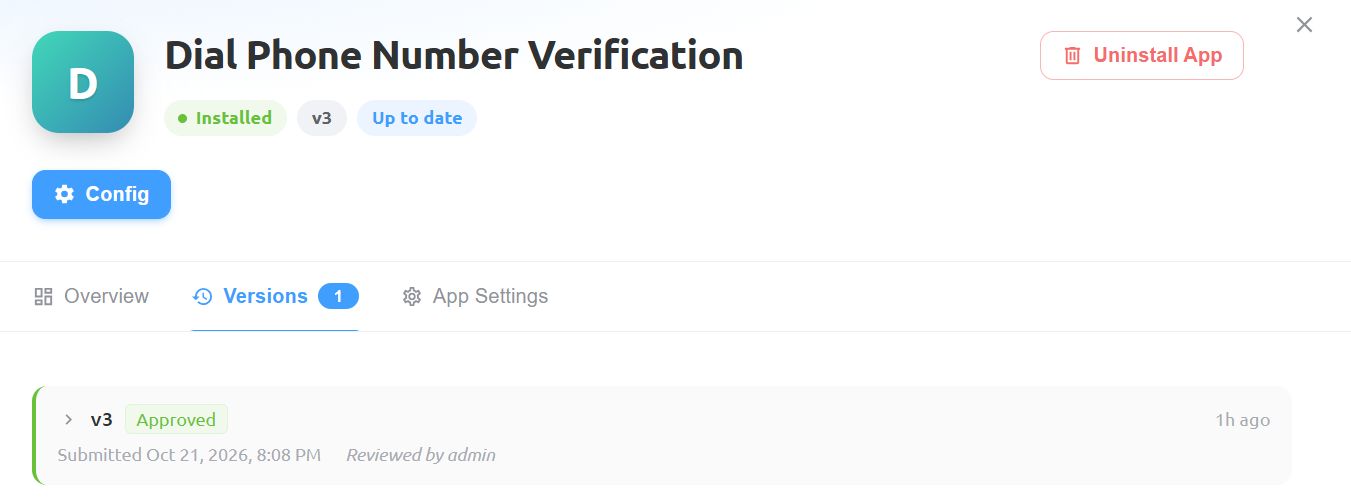
-
To check the app settings or add custom domian click on the
App Settingsoption.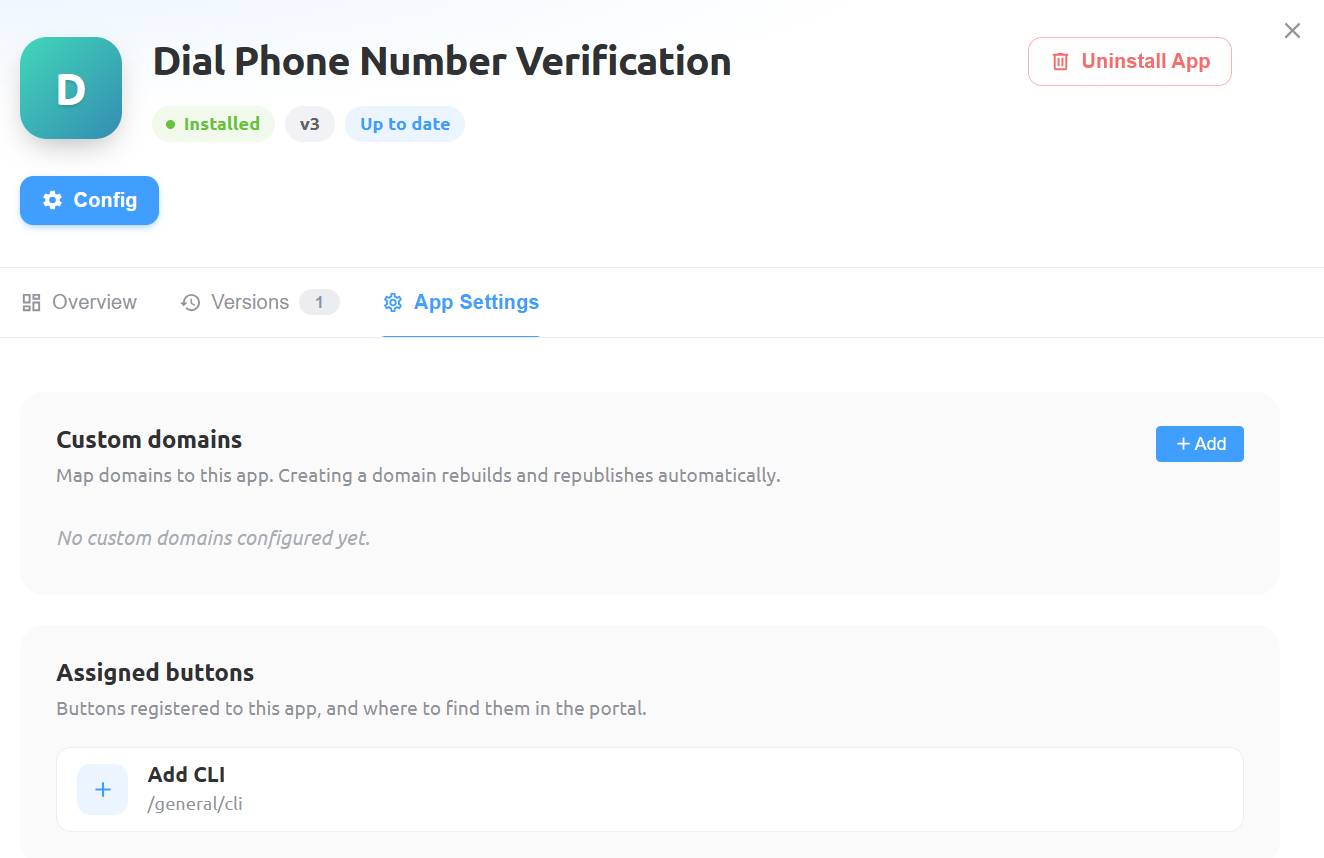
How to Configure Dial Phone Number Verification
-
Navigate to Setup App Store Anvil Store Installed Apps and open Dial Phone Number Verification.
-
Click
Configto open the Phone Verification Settings page.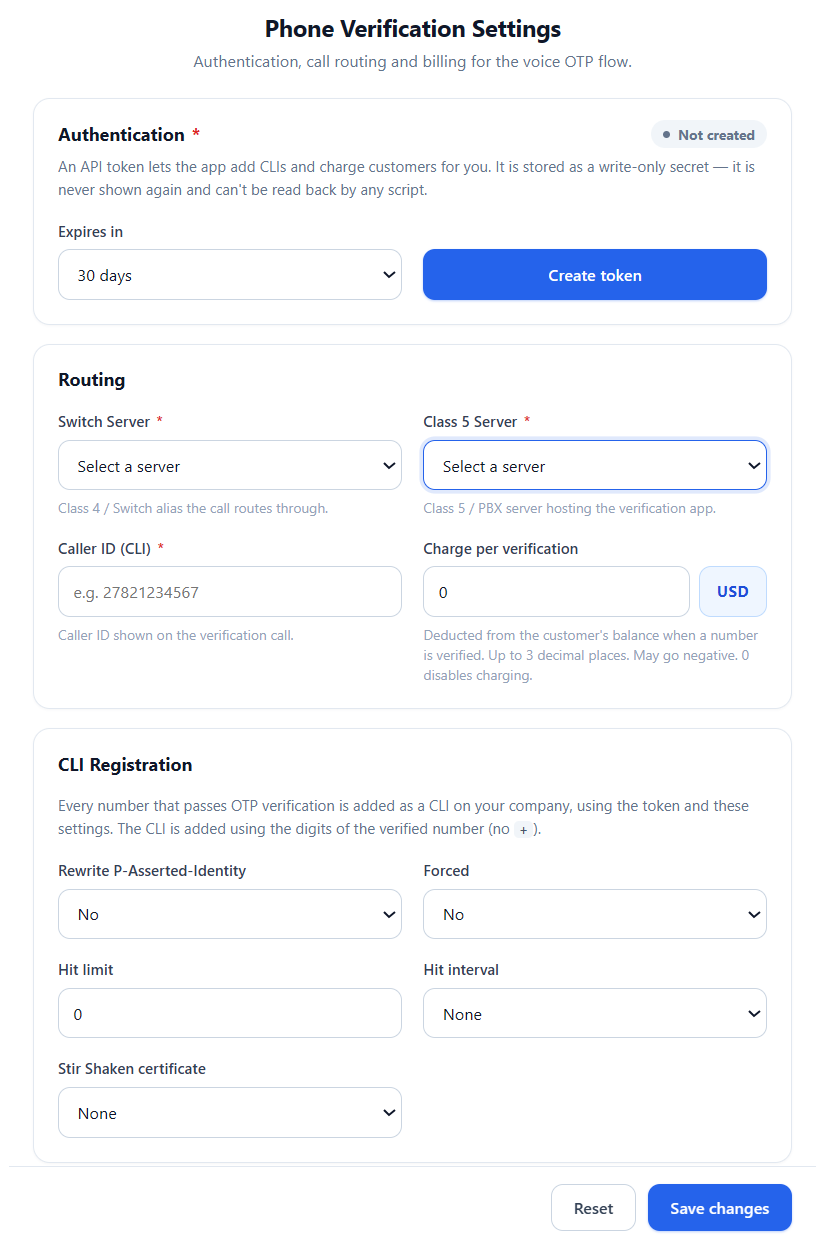
-
Configure the following settings.
Authentication
The Authentication section manages the API token used by the app.
- Token Status: Indicates whether an authentication token has been created.
- Expires in: Select how long the token remains valid. The screenshot shows
30 daysas the selected value. - Create token: Generate the API token required for authorized application operations.
To generate a token:
- Select the required duration under
Expires in. - Click
Create token. - If the token is displayed after creation, copy it and store it securely according to your organization's credential-handling procedures.
The app identifies the API token as a write-only secret. It is not shown again and cannot be read back by application scripts. Store the token securely when it is generated. If it is lost or expires, use the application's supported token-generation process to create a replacement.
Important
The token is used by the app to add CLIs and charge customers. Treat it as a sensitive credential and do not share it in screenshots, tickets, or documentation.
Routing
The Routing section defines the servers used by the voice OTP verification workflow.
| Setting | Description |
|---|---|
| Switch Server | Select the Class 4 switch server through which the call is routed. |
| Class 5 Server | Select the Class 5/PBX server hosting the verification application. |
| Caller ID (CLI) | Enter the phone number displayed as the Caller ID on the verification call. |
| Charge per verification | Specify the amount deducted from the customer's balance when a number is verified. |
| Currency | Displays the currency used for the verification charge. The screenshot shows USD. |
Both the Switch Server and Class 5 Server are marked as required fields.
For Caller ID (CLI), enter the number you want displayed on the verification call, using the format accepted by your ConnexCS configuration.
For Charge per verification, enter the amount to deduct from the customer's balance for each successful number verification. The interface indicates that the amount supports up to three decimal places and that setting the value to 0 disables charging. The balance may go negative, according to the displayed configuration guidance.
Charges are deducted when the verification call is created and the recipient answers it, regardless of whether the OTP is entered.
CLI Registration
The CLI Registration section defines how verified phone numbers are added as CLIs.
The interface states that every number that passes OTP verification is added as a CLI on the company using the API token and the configured settings. The CLI is added using the digits of the verified number, without the + prefix.
Configure the following options as appropriate for your routing and registration requirements.
| Setting | Description |
|---|---|
| Rewrite P-Asserted-Identity | Controls whether the P-Asserted-Identity header is rewritten for the relevant call flow. |
| Forced | Controls the forced behavior associated with CLI registration or handling. Confirm the precise behavior for your configuration before enabling it. |
| Hit limit | Sets the configured limit for registration-related hits. |
| Hit interval | Specifies the interval associated with the hit limit. |
| STIR/SHAKEN certificate | Selects the certificate used for the applicable STIR/SHAKEN workflow. The screenshot shows None as the selected value. |
Use the options according to your organization's Caller ID, routing, and authentication requirements. Confirm the intended behavior with your ConnexCS administrator before changing advanced registration settings.
After configuring Authentication, Routing, and CLI Registration, click Save changes to apply the settings.
Use Reset only when you intend to discard the current unsaved changes or restore the form's previous state, according to the application's behavior.
This application will be visible in the Customer Portal.
How to use Dial Phone Number Verification on Customer Portal
-
Login to Customer Portal.
-
Click on
CLIthenAdd CLI.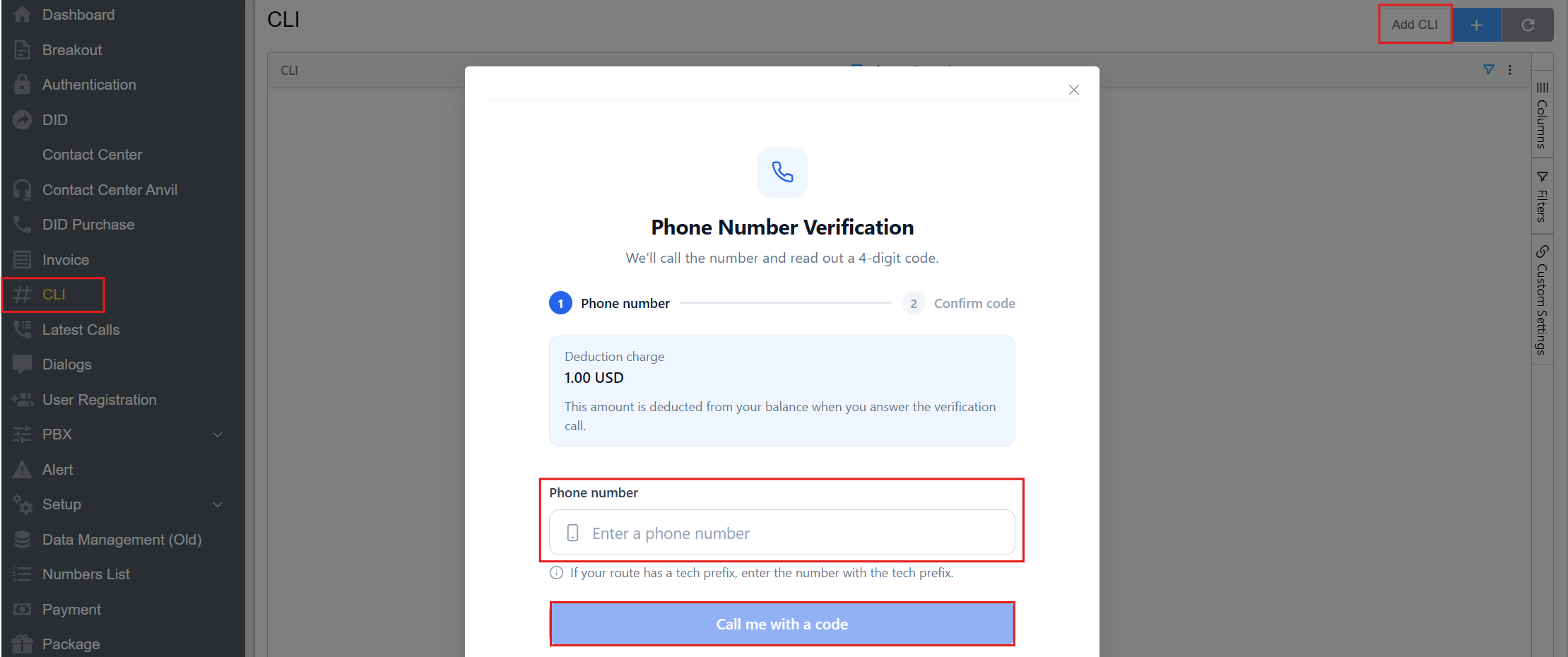
-
The Phone Number Verification window opens. Enter the phone number you want to verify, then click
Call with Codeto initiate the verification call.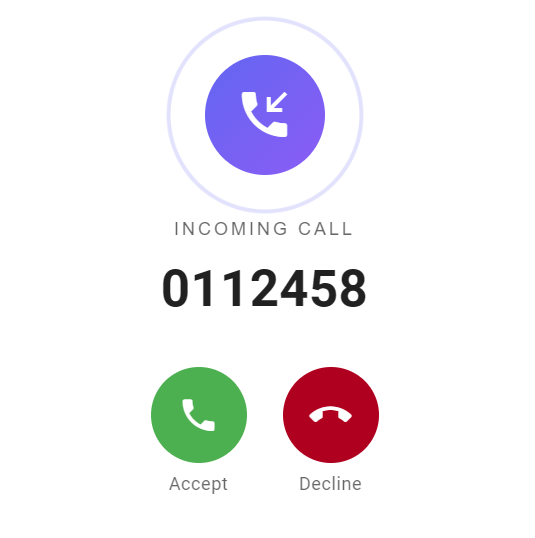
-
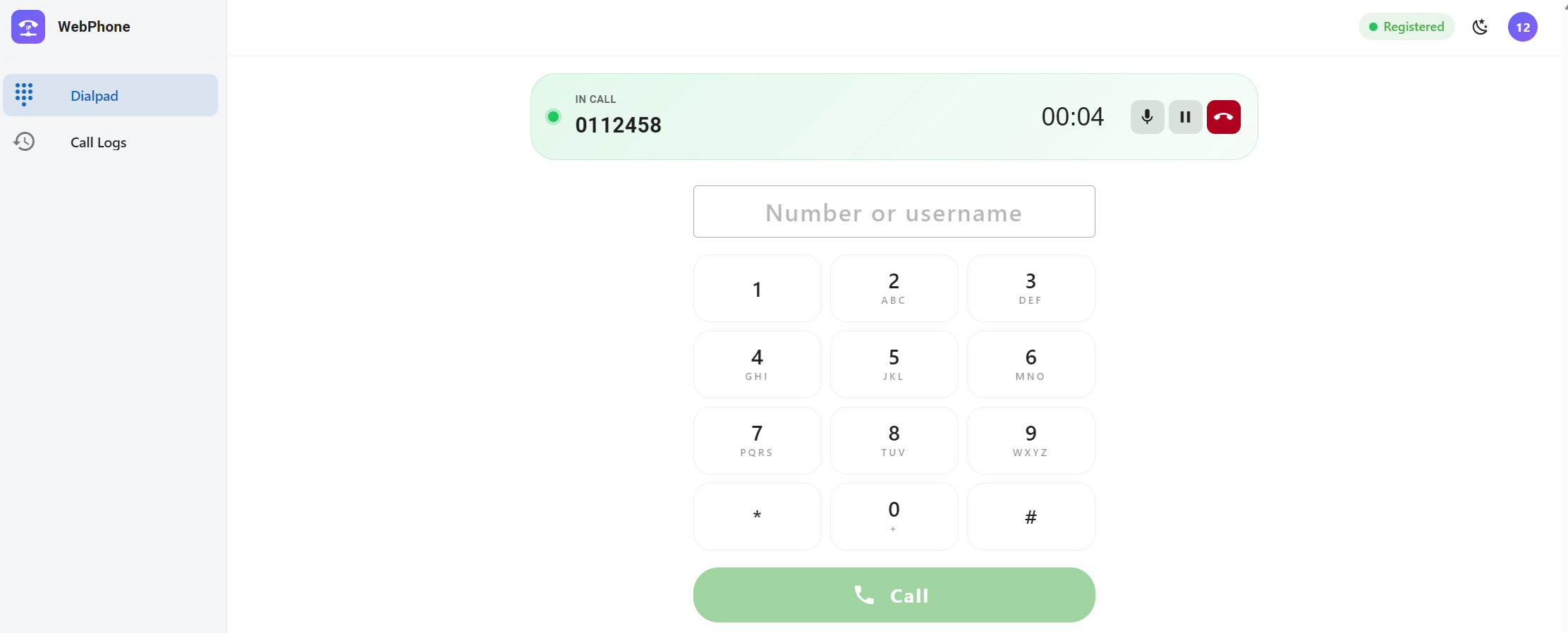
The following screenshot shows an example of a verification call displayed in the WebPhone interface. It is provided for reference; the interface may vary depending on your configuration.
-
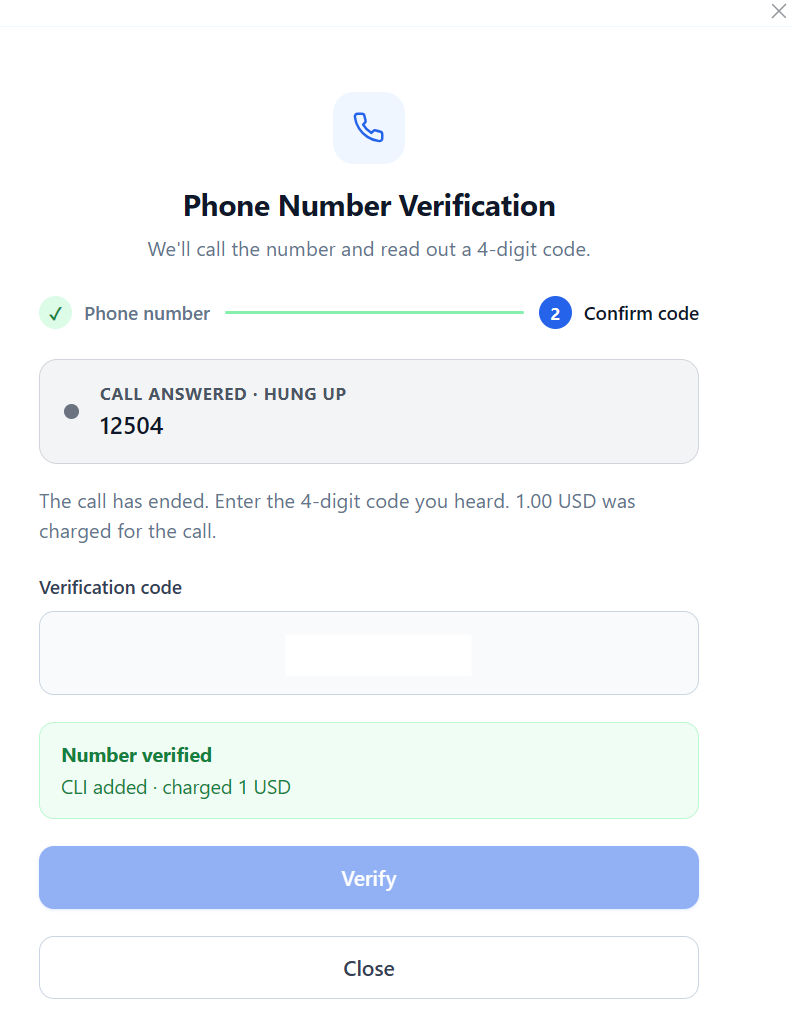
Enter the verification code in the Phone Number Verification window and click
Verify.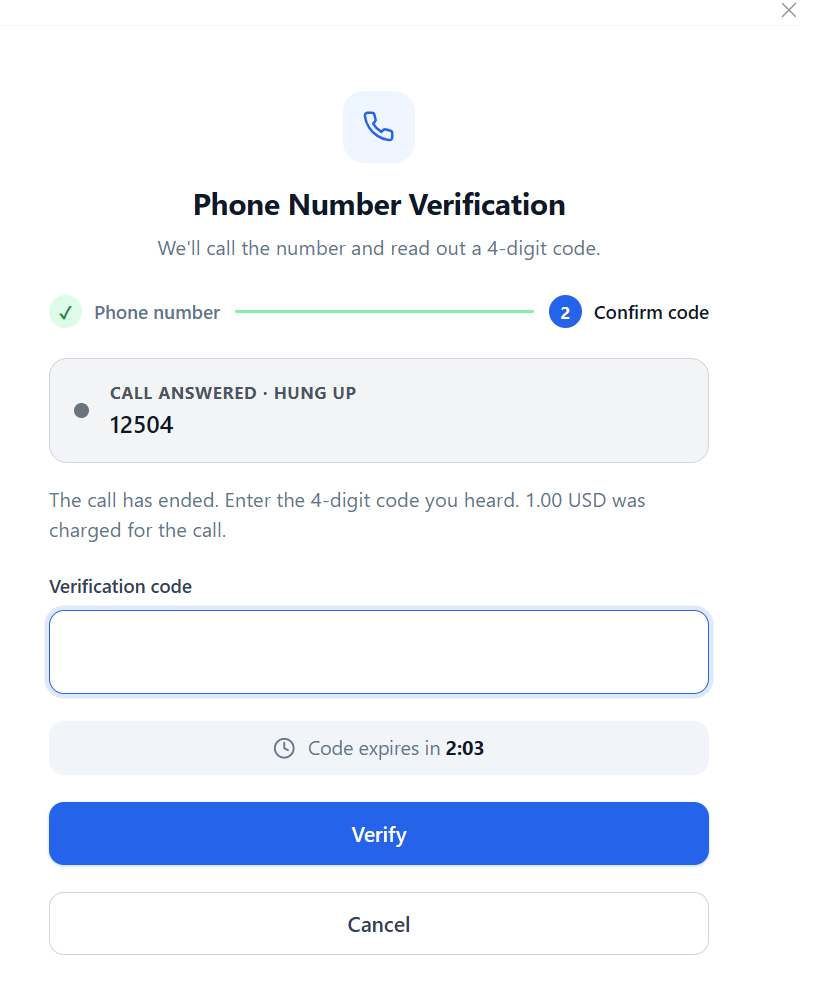
-
The CLI will be added and is visible on the CLI list.