ConnexCS MCP Server
Document Metadata
Category: Integrations → AI & Automation (MCP Server)
Audience: Developers, System Administrators, Operators, SREs, AI Integrators
Difficulty: Intermediate
Time Required: 10–20 minutes
Prerequisites: ConnexCS account with appropriate permissions; MCP-compatible client (e.g., Claude Desktop, VS Code, ChatGPT); ability to authenticate using Opaque tokens, or credentials; basic understanding of ConnexCS tools such as CDR, SIP Trace, and routing.
Related Topics: AI Agent, ScriptForge, Troubleshooting – Signalling, Troubleshooting – Media, API Integrations
Next Steps: Connect your MCP client to the ConnexCS MCP server, authenticate using Opaque Tokens, test example queries (call diagnostics, SIP trace, analytics), explore available tools via natural language prompts, and extend MCP functionality using custom endpoints or integrations.
Overview
The ConnexCS MCP Server allows AI assistants to securely access ConnexCS tools and platform data.
The Model Context Protocol (MCP) is a standardized framework that enables AI agents to interact with external systems using natural language.
With the ConnexCS MCP server, your AI assistant can:
- Retrieve platform data
- Run diagnostics
- Perform analysis
— all through conversational requests.
What You Can Do
Once connected, your AI assistant can help with tasks such as:
- Investigate failed calls
- Run SIP-Trace diagnostics
- Analyze Call Detail Records (CDR)
- Generate call analytics reports
- Identify routing failures
- Retrieve customer usage information
This eliminates the need to manually navigate the UI for troubleshooting and analysis.
Supported MCP Clients
The ConnexCS MCP server works with any MCP-compatible client, including:
- Claude Desktop
- Claude Code
- Visual Studio Code
- Cursor (code editor)
- ChatGPT
- Custom MCP-compatible AI clients
Any client that implements the MCP specification can connect to the ConnexCS MCP server.
Connect Your AI Assistant
Below are setup instructions for some of the most common AI assistants.
Connect to Claude
-
Open Claude Desktop.
-
Navigate to: Settings Connectors.
-
Click Add Connector.
-
Enter the following information:
- Name: ConnexCS
- MCP Server URL:
https://app.connexcs.com/api/cp/mcp/
-
Authenticate using Opaque Tokens.
Your AI assistant is now connected to the ConnexCS MCP server.
Connect to VS Code
You can also connect MCP from Visual Studio Code.
-
Create the following folder:
.vscode -
Create a configuration file:
mcp.json -
Add the following configuration:
{
  "servers": {
    "connexcs": {
      "type": "http",
      "url": "https://app.connexcs.com/api/cp/mcp/",
      "headers": {
        "Authorization": "Bearer YOUR_Opaque_TOKEN"
      }
    }
  }
}
4.Restart VS Code after saving the file.
Authentication
When connecting to the MCP server, authentication is required.
-
Supported Methods
Opaque Tokens:- Navigate to Setup Integrations Opaque Tokens. Generate or copy a key with type set to Access Token. This token is used to authenticate the WebSocket connection from your server.
-
OR You can generate Opaque Tokens from the auth.connexcs.com.
-
Username & Password
Recommended by Client
| Client | Recommended Method |
|---|---|
| Claude Desktop | Opaque Tokens |
| VS Code | Opaque Tokens |
| Others | Any supported method |
How It Works
When you ask your AI assistant a question:
- The AI identifies the required ConnexCS tool.
- The request is sent to the MCP server.
- The server executes the tool.
- ConnexCS APIs return the requested data.
- The AI summarizes the results.
This allows complex diagnostics and analysis to be performed through simple conversational requests.
Examples
You can interact with the system by simply describing what you need and providing any details you already have, such as a customer ID, phone number, or call ID. The system will understand your request and automatically perform the required actions.
-
If you want to check a customer’s balance, you can say:
Question:
Get the balance for customer ID 12345.Expected Output: The system will use the provided customer ID to retrieve the current balance, including the available credit and debit limit.
-
If you need to find a customer, you can say:
Question:
“Find customer Acme Corp.”or,if you already know the ID: “Get details for customer ID 12345.”Expected Output: The system will search and return the relevant customer information.
-
If you are investigating a call issue, you can include the call ID in your request, such as:
Question:
“Investigate this call: [email protected].”Expected Output: The system will use the call ID to perform a full analysis, including SIP trace, call flow, and quality checks.
-
You can also request reports by including filters like date range or customer ID. For example:
Question:
“Show call analytics for customer 12345 from 1st Jan to 31st Jan.”Expected Output: The system will analyze the data and provide insights such as successful vs failed calls and overall performance.
Things You can Do
| Workflow | Steps | Tools Used |
|---|---|---|
| Debug Failed Call | 1. Find the call 2. Full investigation 3. Check quality if needed |
→ searchCallLogs→ investigateCall→ getCallQuality |
| Check Customer Status | 1. Find customer 2. Check balance 3. Review activity 4. Check payments |
→ searchCustomers→ getCustomerBalance→ getCustomerCallStatistics→ getLastTopup |
| Analyze Call Quality | 1. Get success rates 2. Find failed calls 3. Debug SIP issues 4. Check audio quality |
→ getCallAnalytics→ searchCallLogs→ getSipTrace→ getCallQuality |
| Profitability Report | 1. List top customers 2. Get specific details 3. See destinations |
→ listCustomersByProfitability→ getCustomerProfitability→ getCustomerDestinationStatistics |
| Rate Card Analysis | 1. Get customer's cards 2. Get card details 3. Get pricing rules |
→ getCustomerRateCards→ getRateCardDetails→ getRateCardRules |
Exending MCP
If you want to customize or extend MCP functionality, the ConnexCS MCP framework is designed to be flexible and extensible.
The MCP implementation is open source and fully customizable, allowing you to build additional capabilities tailored to your workflows or integrate with your internal systems.
What You Can Customize?
- Add custom tools and actions
- Integrate internal systems or third-party APIs
- Modify how data is retrieved or processed
Steps to Extend MCP
- Install the
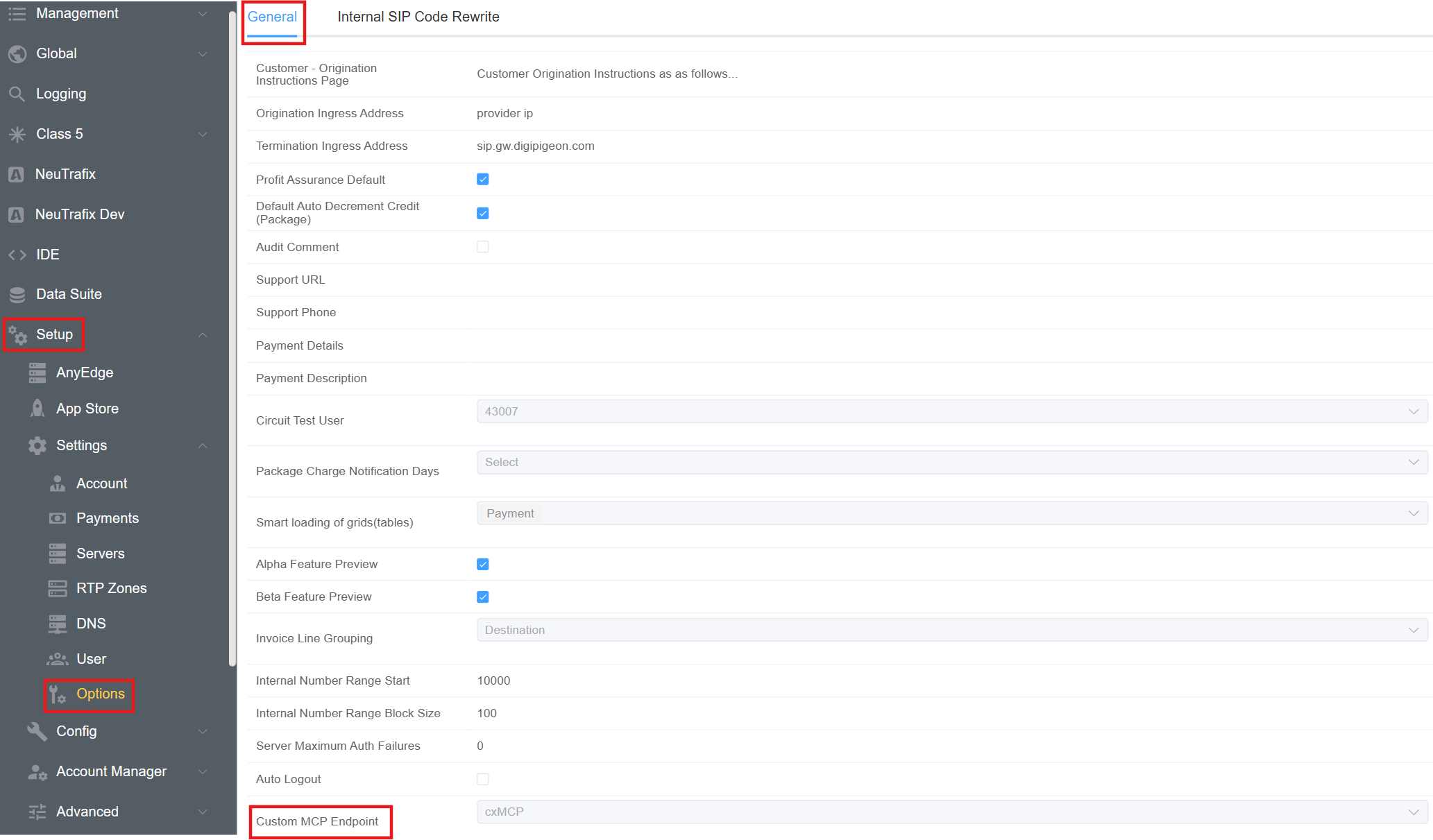
Cx MCP Appfrom Setup App Store Cx MCP. Click here for more deails. - Point the MCP Server to Your App: Navigate to Setup Options General Custom MCP Endpoint. Selct the app from the drop-down menu.
Tip
Because MCP is open source and extensible, you can fully tailor it to match your operational needs—whether that’s advanced analytics, automated troubleshooting, or deeper system integrations.