Global Alerts
Document Metadata
Category: Global / Alerts
Audience: Administrators, Operations Teams, Engineers
Difficulty: Intermediate
Time Required: Approximately 15–30 minutes
Prerequisites: Active ConnexCS account with access to the Global section; familiarity with Alerts and customer or carrier account configuration.
Related Topics: Alerts, Global, Customer Management, Carrier Management
Next Steps: Navigate to Global > Alert, review account-wide Alerts, create or modify an Alert, select the Company that will use the Alert, and use the Test option to simulate it.
Global Alerts
Overview
The Global Alerts section provides a centralized view of all Alerts across the entire account.
Unlike creating an Alert from an individual Customer or Carrier account, Alerts created from the Global section require you to specify the Company that will use the Alert.
This allows administrators to manage Alerts from a centralized location while still associating each Alert with the appropriate Company.
Viewing Alerts
To view Alerts across the account:
- Navigate to Global Alert.
- Review the list of Alerts available across the account.
- Select an Alert to view or modify its configuration.
The Global Alerts view provides account-wide visibility without requiring you to navigate through individual Customer or Carrier profiles.
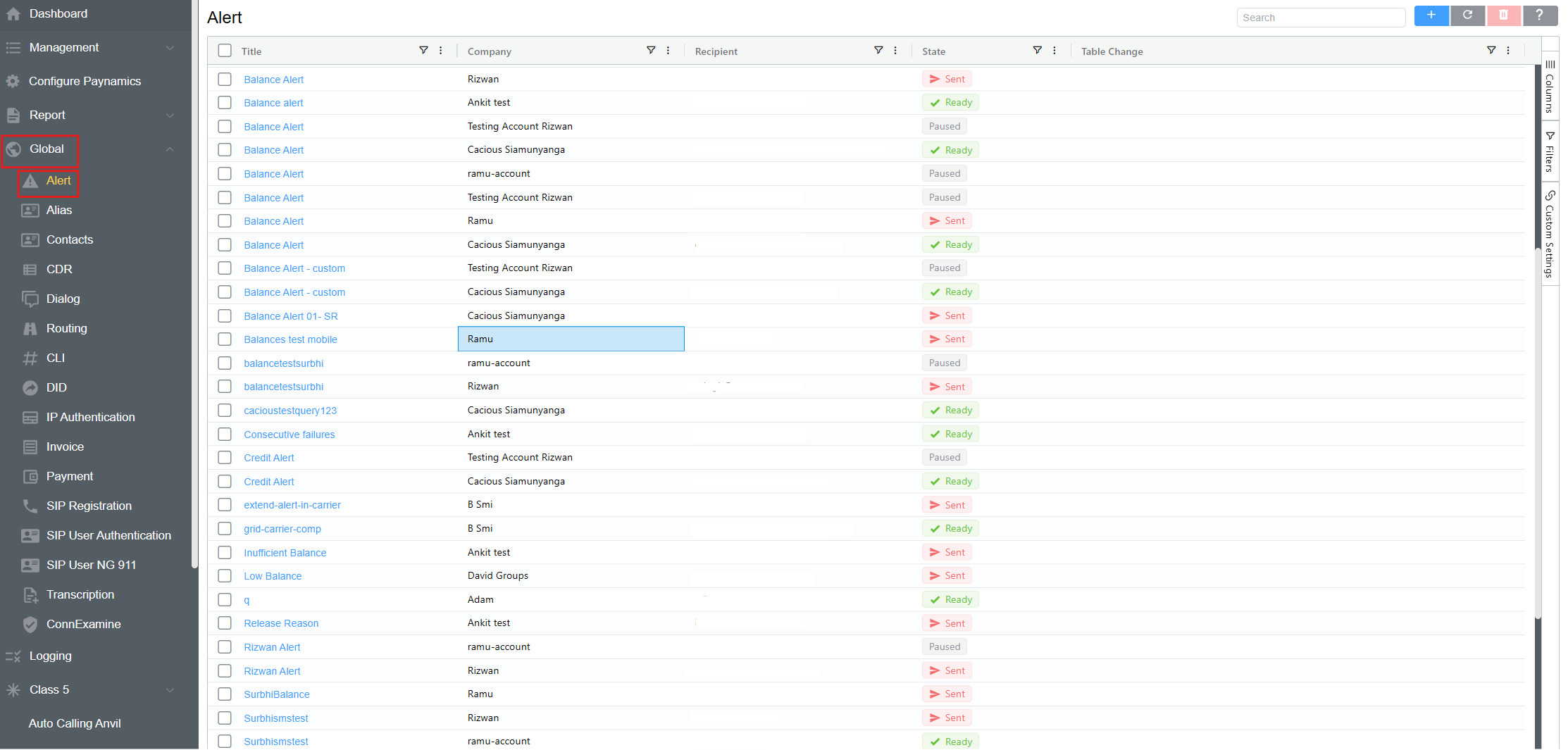
Alert List
The Global Alerts page displays Alerts in a table with the following fields:
| Column | Description |
|---|---|
| Title | Name or title of the Alert |
| Company | Company associated with the Alert |
| Recipient | Recipient configured to receive the Alert |
| State | Current state of the Alert, such as Ready, Sent, or Paused. |
| Table Change | Indicates the configured table-change information associated with the Alert. |
Alert State
The State column indicates the current status of each Alert:
- Ready — The Alert is ready for use.
- Sent — The Alert has been sent.
- Paused — The Alert is currently paused.
Managing Alerts
The Global Alerts page provides controls for managing Alerts, including:
- Search — Search for a specific Alert.
- Add (+) — Create a new Alert.
- Refresh — Refresh the Alert list.
- Delete — Delete selected Alerts.
- Columns — Configure which columns are displayed.
- Filters — Filter the Alert list.
- Custom Settings — Adjust the display settings.
To work with multiple Alerts, select the required Alerts using the checkboxes in the first column.
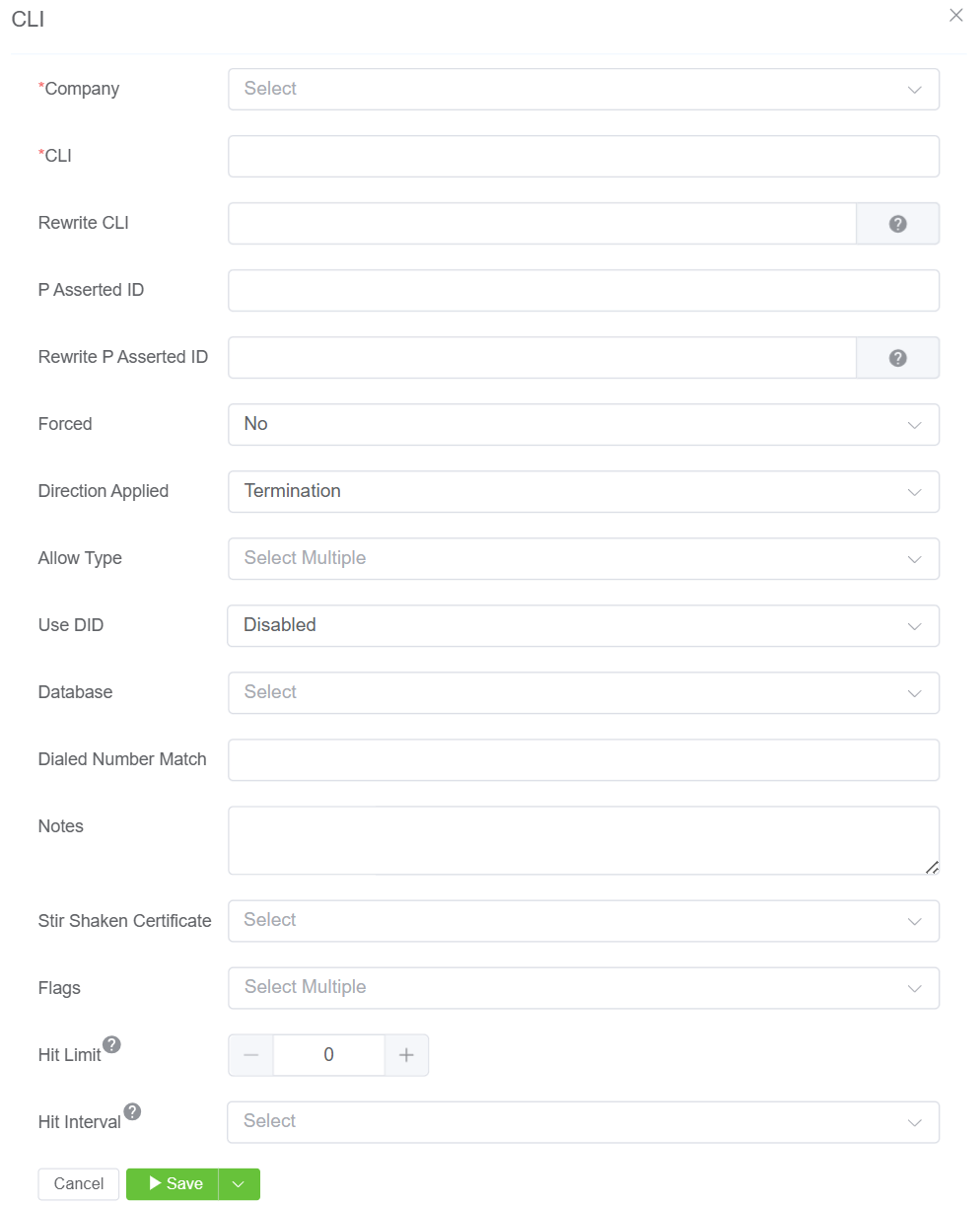
Creating an Alert
When creating an Alert from the Global section:
- Navigate to Global Alert.
- Click to create a new Alert.
- Configure the Alert according to your requirements.
- Select the Company that will use the Alert.
- Save the Alert.
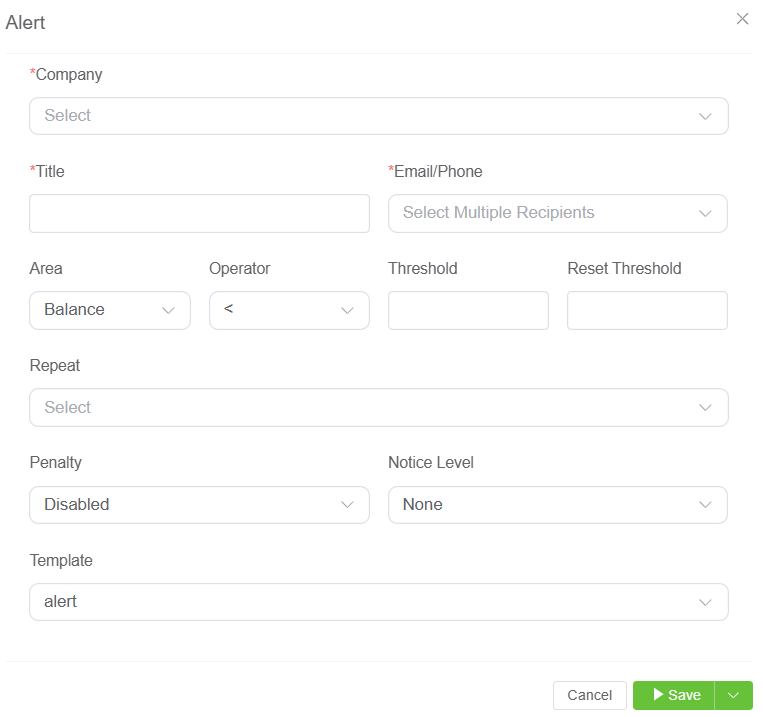
Info
When an Alert is created from the Global section, selecting the Company is required because the Alert must be associated with a specific Company.
Testing
Click Test to simulate the Alert.
The Test option is available only in the Global Alerts section and can be used to simulate an Alert before relying on its normal operation.
Alert Configuration
For detailed information about configuring Alerts and examples of building Alerts, see the Alerts documentation.
Yes. You can add these sections to the Global Alerts documentation:
Filters
The Filters panel allows you to narrow the Alert list based on the available Alert fields.
Filters can be applied to fields such as Title, Company, Recipient, State, and other available columns.
For example, you can use filters to display Alerts for a specific Company or review Alerts with a particular State, such as Ready or Paused.
Custom Settings
The Custom Settings panel allows you to adjust the appearance of the Alert table.
-
Theme: The Theme setting controls the visual appearance of the Alert table.
-
Row Height: The Row Height setting controls the amount of vertical space used for each Alert row.
- Lower row height — Displays more Alerts within the available screen space.
- Higher row height — Provides more spacing between Alerts for easier reading.
These settings change how the Alert list is displayed without changing the underlying Alert configuration or data.
Alternate Locations
Alerts can also be accessed from the following locations:
- Customer [Customer Name] Alerts
- Carrier [Carrier Name] Alerts
The Global Alerts section provides the account-wide view, while these locations provide access within the respective Customer or Carrier account.
Use Cases
Global Alerts can be used to:
- View Alerts across the entire account.
- Manage Alerts without navigating through individual Customer or Carrier accounts.
- Associate an Alert with the appropriate Company.
- Test an Alert using the Global-only Test option.
- Centrally review Alert configuration across the account.