ConnexCS Terminal
Document Metadata
Category: Developer Tools → Terminal → ConnexCS Terminal
Audience: Developers, System Administrators, Operators, DevOps Engineers, Support Engineers
Difficulty: Beginner to Intermediate
Time Required: 5–15 minutes
Prerequisites:
- A ConnexCS account with access to the Control Panel
- Permission to access the ConnexCS Terminal
- Basic familiarity with command-line interfaces (CLI)
- Knowledge of ConnexCS commands and workflows (recommended)
Next Steps: Open the ConnexCS Terminal from the Control Panel, familiarize yourself with the available commands using
help, authenticate if required, and begin executing supported CLI commands for development, troubleshooting, and operational tasks.The ConnexCS Terminal is currently available as a Beta feature. Functionality and available commands may change as the feature continues to evolve.
Overview
The ConnexCS Terminal is an integrated command-line interface (CLI) available directly within the ConnexCS Control Panel. It allows authenticated users to execute supported ConnexCS CLI commands without leaving the web interface.
Once launched, the terminal automatically uses the authenticated Control Panel session, providing a convenient environment for developers and administrators to perform operational tasks, manage applications, and interact with ConnexCS services.
The terminal provides a familiar command-line experience while remaining fully integrated with the ConnexCS platform.
Key Features
- Integrated directly into the ConnexCS Control Panel
- Automatically authenticated using your current ConnexCS session
- Interactive command-line interface
- Execute supported ConnexCS CLI commands
- Access developer and operational tools from within the platform
- Suitable for development, testing, and administrative workflows
Quick Start
New to the terminal? Run these first:
help                  # See all available commands
whoami                # Confirm which account is authenticated
ls                     # See what's in your current virtual directory
docs dialer            # Search the docs for a topic, e.g. "dialer"
Use Cases
Network Diagnostics
Perform network troubleshooting by verifying connectivity, resolving DNS records, tracing network paths, validating TLS certificates, checking SIP endpoint availability, and investigating IP ownership or registration details. These capabilities help identify and resolve network-related issues efficiently.
Call Investigation
Search and investigate call activity, inspect SIP signaling, analyze packet captures (PCAPs), and review call information to diagnose call quality issues and support operational troubleshooting.
Database Management
Access and manage application data by executing database queries, working with Hearth schemas and tables, and managing key-value data used by applications and services.
Script Execution
Execute ScriptForge backend scripts directly from the terminal to test application logic, validate workflows, automate operational tasks, and debug backend functionality.
API Testing
Interact directly with ConnexCS API endpoints for development, testing, debugging, and integration, eliminating the need for external API clients during routine development.
AI Assistance
Use the integrated ConnexCS AI assistant to ask platform-related questions, receive troubleshooting guidance, explore documentation, and obtain contextual assistance while working in the terminal.
Documentation Search
Search the ConnexCS documentation directly from the terminal to quickly locate configuration guides, feature documentation, API references, and technical resources without leaving the Control Panel.
System Administration
Perform routine administrative tasks such as monitoring system activity, reviewing audit logs, inspecting server information, verifying authenticated sessions, and managing operational workflows.
File Management
Navigate the virtual filesystem, manage files and directories, edit Anvil project files, and organize application resources within the terminal environment.
Data Processing
Process, filter, transform, and analyze command output using built-in text processing capabilities, making it easier to work with logs, query results, and operational data as part of development and troubleshooting workflows.
How to use ConnexCS Terminal
- Log in to your account.
- Click on the
CLI Terminalicon. - A command-line terminal appears, where you can execute supported commands and view the results.
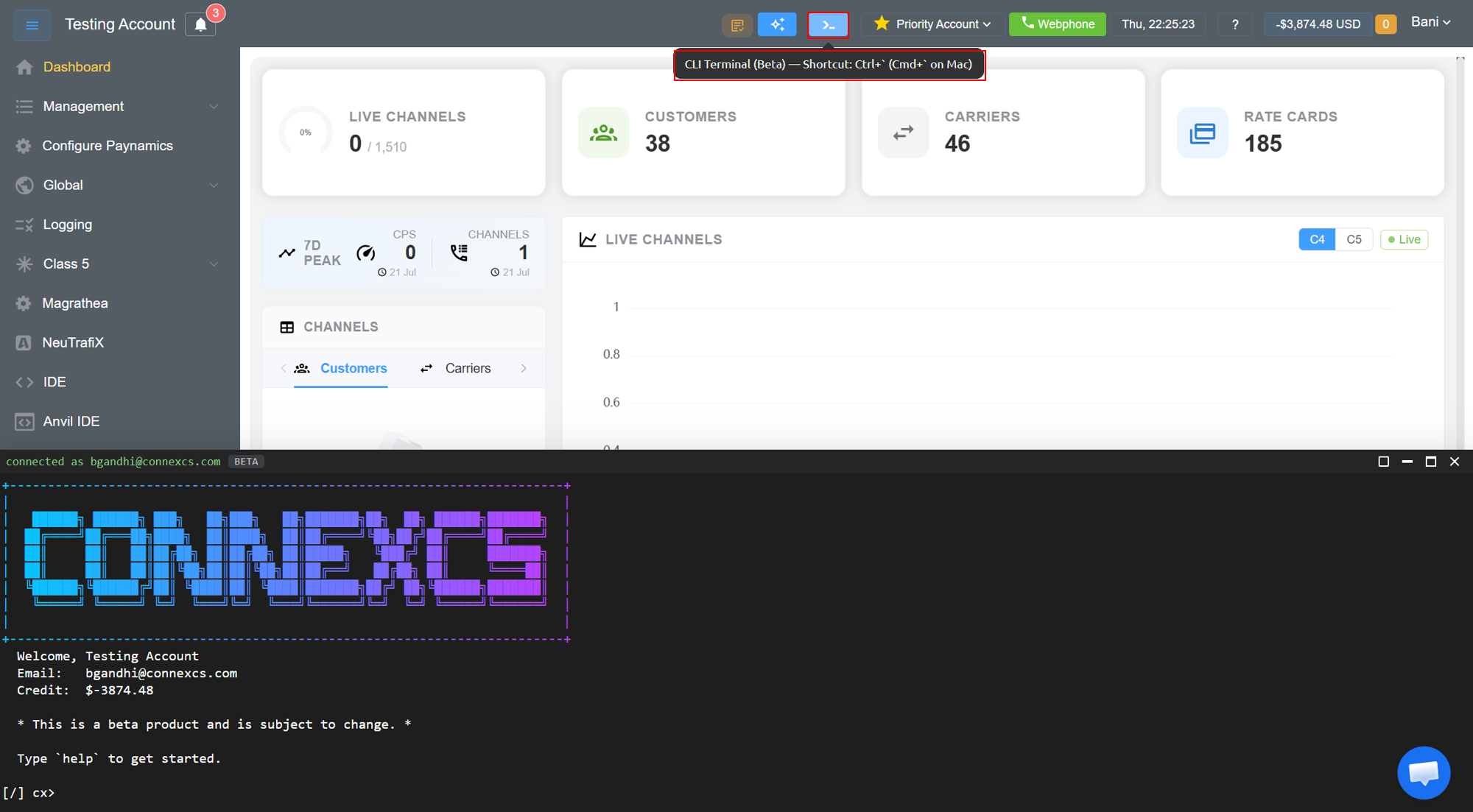
- Type
helpto get started. You will see a list of commands for your use.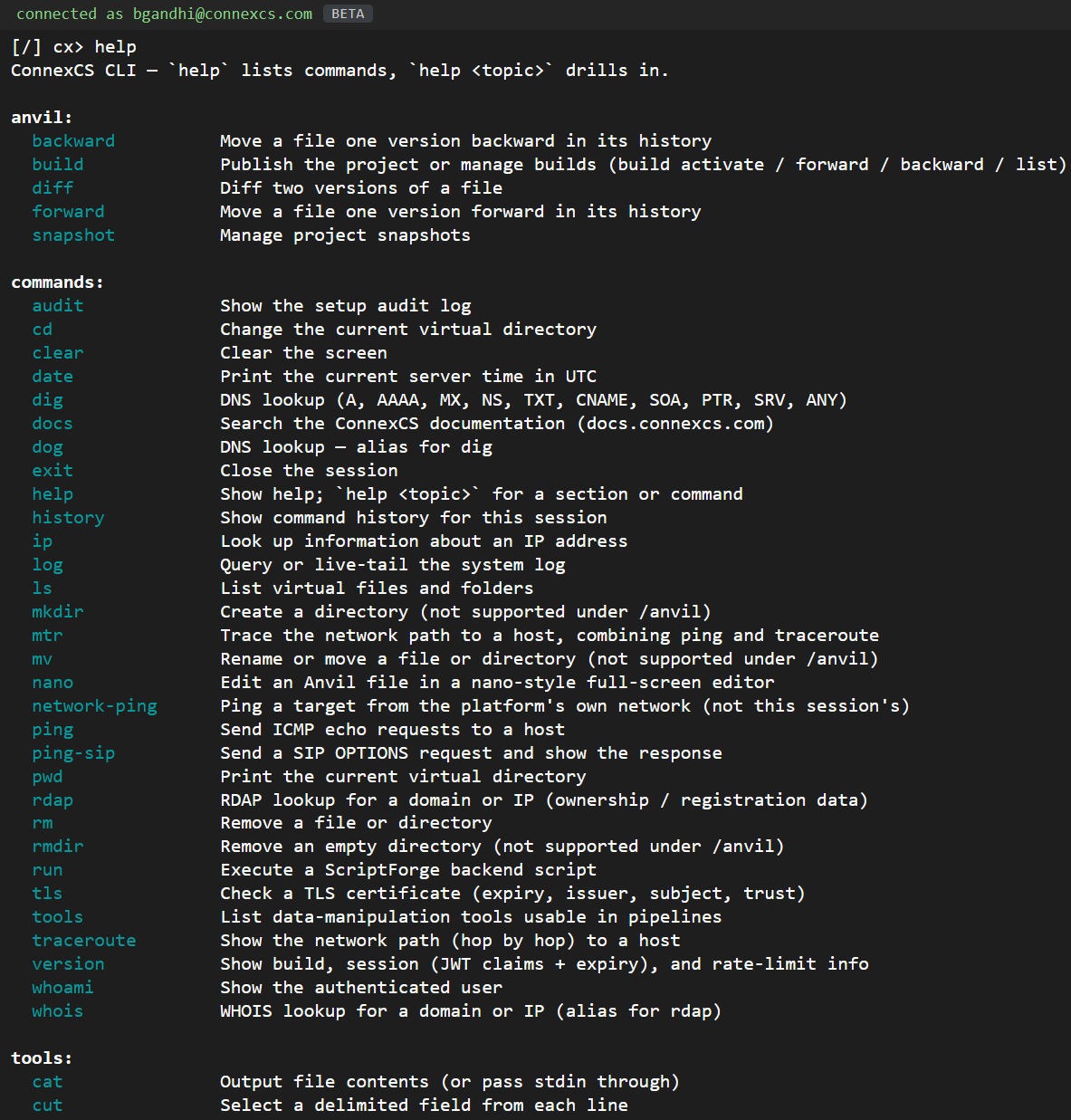
Commands
anvil
anvil commands are command-line interface (CLI) commands that enable users to manage project versions, compare revisions, publish builds, and create or restore project snapshots.
These commands provide version control and build management capabilities directly from the terminal, allowing users to track changes, review modifications, and maintain project history efficiently.
| Command | Description | Example Use Case | Syntax | Example |
|---|---|---|---|---|
backward |
Moves a file one version back in its history, restoring the previous version | You made a mistake in the latest edit and want to revert to the version before it | backward [<file-path>] |
anvil backward /scripts/dialer.js |
build |
Manages published builds of your project. Includes subcommands activate, forward, backward, and list to publish, switch, or view builds |
Publish a new documentation version or roll back to an earlier published build | build activate [build-id] build forward build backward build list [--json] |
anvil build activate 42 |
diff |
Compares two versions of a file and displays the differences between them | Review what changed between Version 5 and Version 7 before publishing | diff <file-path> [<from-version>] [<to-version>] |
anvil diff /scripts/dialer.js 5 7 |
forward |
Moves a file one version forward in its history after it has been moved backward | You reverted a file but later decide to restore the newer version | forward [<file-path>] |
anvil forward /scripts/dialer.js |
reg |
Manages project registry variables | View or update project-level configuration variables shared across an Anvil project | reg [<subcommand>] [...] |
reg |
snapshot |
Creates and manages project snapshots, which capture the state of the entire project at a specific point in time | Create a snapshot before making major changes so you can restore the entire project if needed | snapshot |
anvil snapshot create pre-release-1.2 |
Subcommands for reg
| Subcommand | Description | Example Use Case | Syntax | Example |
|---|---|---|---|---|
delete |
Deletes a registry key | Remove a registry variable that is no longer needed | reg delete <key> |
anvil reg delete api_key |
dump |
Dumps all registry variables for the current project | View every registry variable at once, e.g. for auditing or backup | reg dump [--json \| --plain] |
anvil reg dump --json |
get |
Gets the value for a registry key | Read the current value of a specific registry variable | reg get <key> [--json] |
anvil reg get api_key --json |
set |
Sets the value for a registry key | Create or update a registry variable's value | reg set <key> <value> [--sensitive] [--visibility=private\|public\|proxy] [--ttl=<seconds>] |
anvil reg set api_key abc123 --sensitive --visibility=private --ttl=3600 |
Subcommands for snapshot
| Subcommand | Description | Example Use Case | Syntax | Example |
|---|---|---|---|---|
create |
Creates a snapshot of the current project state | Create a recovery point before making significant changes to your project | snapshot create [label] |
anvil snapshot create pre-release-1.2 |
list |
Lists all snapshots for the current project | Review available snapshots before restoring a previous project state | snapshot list [--json] |
anvil snapshot list |
restore |
Restores a previously created snapshot, replacing the current project state | Roll back the project after an unsuccessful deployment or accidental changes | snapshot restore <snapshot-id> [--yes] |
anvil snapshot restore 8f2c1a --yes |
commands
The terminal provides a comprehensive set of commands for interacting with the platform. These commands enable you to navigate the virtual workspace, manage files and directories, perform network diagnostics, execute scripts, access documentation, and retrieve system information directly from the command line.
| Command | Description | Example Use Case | Syntax | Example |
|---|---|---|---|---|
audit |
Displays the setup audit log | Review configuration changes or verify the platform setup after deployment | audit [--json] [--limit <n>] [--offset <n>] |
audit --limit 20 |
cd |
Changes the current virtual directory | Navigate from your home directory to a project folder before editing files | cd [path] |
cd /anvil/scripts |
clear |
Clears the terminal screen | Remove previous command output to start with a clean terminal view | clear |
clear |
date |
Displays the current server time in UTC | Verify the server time when troubleshooting scheduled jobs or log timestamps | date |
date |
dig |
Performs DNS lookups for common record types (A, AAAA, MX, NS, TXT, CNAME, SOA, PTR, SRV, and ANY) | Verify that a domain resolves to the correct IP address or inspect its DNS records | dig [@server] [type] <hostname> [--json] [--short] |
dig MX example.com |
docs |
Searches the ConnexCS documentation | Quickly locate documentation for a feature or command without leaving the terminal | docs [--json] [query...] |
docs dialer setup |
dog |
Alias for the dig command |
Perform DNS lookups using an alternative command name | dog [@server] [type] <hostname> [--json] [--short] |
dog MX example.com |
exit |
Ends the current terminal session | Close the terminal after completing administrative tasks | exit |
exit |
help |
Displays help information for commands and topics | Learn how a command works or view its available options | help [command...] |
help hearth |
history |
Displays the command history for the current session | Review previously executed commands or repeat a recent operation | history |
history |
ip |
Retrieves information about an IP address | Identify the location, ASN, or ownership details of an IP address | ip [--json] <address> |
ip 8.8.8.8 |
log |
Queries or streams the system log in real time | Monitor logs while troubleshooting a service or verifying system activity | log [query] [--tail\|-f] [--start <t>] [--end <t>] [--limit <n>] [--json] |
log "error" --tail |
ls |
Lists files and directories in the current virtual directory | View the contents of the current directory before opening or modifying files | ls [path] |
ls /anvil |
mkdir |
Creates a new directory (not supported under /anvil) |
Organize project files by creating a new folder | mkdir <path> |
mkdir /scripts/backup |
mtr |
Combines ping and traceroute to analyze the network path to a host | Diagnose packet loss or latency between the platform and a destination | mtr [-4\|-6] [-c count] <host> |
mtr -c 10 example.com |
mv |
Renames or moves a file or directory (not supported under /anvil) |
Rename a configuration file or move it to another directory | mv <source> <target> |
mv config.old.json config.json |
nano |
Opens an Anvil file in a full-screen text editor | Edit a configuration or documentation file directly from the terminal | nano <file> |
nano /scripts/dialer.js |
network-ping |
Sends ping requests from the platform's network instead of the current terminal session | Verify connectivity from the platform to a remote host | network-ping [--json] <host> |
network-ping sip.example.com |
ping |
Sends ICMP echo requests to a host | Confirm whether a server or network device is reachable | ping [-c count] [-i interval] [-W timeout] [-s size] [-q] [-4\|-6] <host> |
ping -c 5 example.com |
ping-sip |
Sends a SIP OPTIONS request and displays the response | Verify that a SIP endpoint is online and responding to SIP requests | ping-sip [-p port] [-c count] [-t timeout_ms] [--json] <host>[:port] |
ping-sip sip.example.com:5060 |
pwd |
Displays the current virtual directory | Confirm your current location before running file management commands | pwd |
pwd |
rdap |
Retrieves domain or IP registration information using RDAP | View ownership and registration details for a domain or IP address | rdap [--json] <domain-or-ip> |
rdap example.com |
rm |
Removes a file or directory | Delete obsolete files or directories from the workspace | rm [-r] <path> |
rm -r /scripts/old |
rmdir |
Removes an empty directory (not supported under /anvil) |
Delete an empty folder that is no longer required | rmdir <path> |
rmdir /scripts/backup |
run |
Executes a ScriptForge backend script | Run an automation or backend script as part of your workflow | run <file> [fn] [--quiet] [--key=value ...] |
run /scripts/dialer.js main --env=prod |
tls |
Displays TLS certificate details, including issuer, subject, expiration, and trust status | Verify a server's SSL/TLS certificate before establishing a secure connection | tls [-p port] [--json] <host> |
tls example.com |
tools |
Lists data manipulation tools available for use in pipelines | Explore the available utilities when building or debugging a pipeline | tools |
tools |
traceroute |
Displays the network path to a host hop by hop | Identify where network latency or routing issues occur | traceroute [-4\|-6] [-m max_ttl] [-w timeout] <host> |
traceroute example.com |
version |
Displays build information, session details, Opaque Tokens, expiration, and rate limit information | Confirm the current platform version or inspect session details | version [--json] [-R\|--refresh] |
version --refresh |
whoami |
Displays the authenticated user for the current session | Verify which account is currently authenticated | whoami |
whoami |
whois |
Performs a WHOIS lookup for a domain or IP address (alias for rdap) |
Check the registration information for a domain or public IP address | whois [--json] <domain-or-ip> |
whois example.com |
Flag Reference — ping
| Flag | Meaning |
|---|---|
-c count |
Number of echo requests to send |
-i interval |
Seconds between requests |
-W timeout |
Seconds to wait for a reply |
-s size |
Payload size in bytes |
-q |
Quiet mode — only summary output |
-4 / -6 |
Force IPv4 or IPv6 |
tools
The tools command provides a collection of built-in utilities for processing, filtering, transforming, and analyzing data within the terminal.
These tools can be used individually or combined in pipelines to manipulate command output, making it easier to inspect logs, process structured data, and automate common workflows.
| Tool | Description | Example Use Case | Syntax | Example |
|---|---|---|---|---|
cat |
Displays the contents of a file or passes standard input directly to the output | View the contents of a configuration file or pipe data to another command | cat [<file>...] |
cat /scripts/dialer.js |
cut |
Extracts specific fields or columns from delimited text | Display only the IP address column from a CSV or log file | cut -f N [-d DELIM] |
cut -f 2 -d "," |
from-json |
Converts structured records into JSON text lines | Export command output in JSON format for further processing or integration | from-json |
hearth center customers \| from-json |
grep |
Filters output by matching lines against a specified pattern | Search logs for error messages or find records containing a specific keyword | grep [-i] [-v] <pattern> [<file>...] |
grep -i "error" |
head |
Displays the first N lines of input (10 by default) | Preview the beginning of a large log or data file | head [-n N] [<file>] |
head -n 20 |
less |
Displays content one screen at a time, allowing interactive navigation | Browse large files without loading the entire file into the terminal | less [<file>...] |
less /scripts/dialer.js |
sort |
Sorts lines of text alphabetically or numerically | Organize log entries, IP addresses, or other text-based output | sort [-r] [-n] [-u] |
sort -n -r |
tail |
Displays the last N lines of input (10 by default) | View the most recent log entries or monitor the latest activity | tail [-n N] [<file>] |
tail -n 50 |
to-json |
Parses plain text into structured JSON records | Convert text-based output into JSON for use in scripts or pipelines | to-json |
log "error" \| to-json |
wc |
Counts lines, words, and characters in the input | Determine the size of a file or count the number of matching log entries | wc [-l] [-w] [-c] |
wc -l |
Pipeline Examples
# Count failed calls matching a query
calls search 12345 | grep FAILED | wc -l

# Get the 20 most recent error log lines, newest last
log "error" --limit 200 | tail -n 20

# Export active call data as JSON for further processing
calls show | to-json

# Sort IP addresses extracted from a log's second column
log "connection" | cut -f 2 -d "," | sort -u
ai
The ai command provides access to the ConnexCS AI assistant from within the terminal.
It enables you to start interactive AI conversations, manage chat history, explore available AI models and MCP servers, review previous conversations, and provide feedback on AI responses.
| Command | Description | Example Use Case | Syntax | Example |
|---|---|---|---|---|
chat |
Starts an interactive AI chat session | Ask questions about the platform, generate scripts, troubleshoot issues, or receive configuration guidance without leaving the terminal | ai chat |
ai chat |
delete |
Deletes an existing AI conversation | Remove completed or obsolete conversations to keep your chat history organized | ai delete <conversation-id> |
ai delete 4f2a1b |
list |
Lists all AI conversations | View previous conversations and resume an earlier discussion | ai list |
ai list |
mcp |
Lists available Model Context Protocol (MCP) servers for AI chat | View the MCP servers available to extend the AI assistant with additional tools and context | ai mcp |
ai mcp |
models |
Lists available AI models and displays daily token usage | Review available language models and monitor your daily AI usage | ai models |
ai models |
score |
Submits feedback for an AI response | Rate the quality or usefulness of a response to help improve future AI interactions | ai score --trace <id> --value <0-1> [--comment <text>] |
ai score --trace 91af3 --value 1 --comment "Solved it" |
show |
Displays the messages within a selected AI conversation | Review previous prompts and responses from an existing conversation | ai show <conversation-id> |
ai show 4f2a1b |
api
The api command enables you to interact with ConnexCS API endpoints without leaving the terminal.
It can be used to send requests, retrieve data, perform administrative operations, and automate platform tasks using the same APIs available to external applications.
This command is useful for testing API endpoints, validating responses, troubleshooting integrations, and executing routine operations directly from the command line.
| Command | Description | Example Use Case | Syntax | Example |
|---|---|---|---|---|
get |
Makes a GET request to an API endpoint | Retrieve resource information, such as customer details, call records, routing configurations, or account settings, without modifying the underlying data | api get <endpoint> [--query key=value ...] [--header key=value ...] [--json] |
api get /customers --query status=active |
Example Use Cases
- Test an API endpoint during development.
- Retrieve platform resources without writing a script.
- Validate API responses when troubleshooting an integration.
- Perform administrative operations from the terminal.
- Automate repetitive tasks using shell scripts or pipelines.
calls
The calls command provides access to call information within the platform. It allows you to view active calls, search Call Detail Records (CDRs) and routing engine logs, terminate active calls, and retrieve SIP trace captures for troubleshooting.
This command is useful for real-time call monitoring, operational support, and diagnosing call routing or signaling issues.
| Command | Description | Example Use Case | Syntax | Example |
|---|---|---|---|---|
kill |
Terminates an active call using its Call ID | End a call that is stuck, fraudulent, or causing operational issues | calls kill <callid> |
calls kill 8a3f2c-91 |
search |
Searches Call Detail Records (CDRs) and routing engine call logs | Locate a call using a phone number, Call ID, or other search criteria when investigating an issue | calls search <query> |
calls search +15551234567 |
show |
Displays all currently active calls | Monitor live calls and verify ongoing call activity | calls show |
calls show |
trace |
Retrieves a SIP trace PCAP for a Call ID and opens it in the viewer (best effort) | Analyze SIP signaling to troubleshoot call setup, routing, or media negotiation problems | calls trace <callid> |
calls trace 8a3f2c-91 |
globalping
The globalping command enables you to perform network diagnostics from a globally distributed probe network instead of your local environment.
It allows you to resolve DNS records, send HTTP requests, perform ping and traceroute tests, run MTR diagnostics, and view the current Globalping rate limits.
This command is useful for verifying connectivity, measuring latency, troubleshooting routing issues, and validating DNS resolution from different geographic locations.
| Command | Description | Example Use Case | Syntax | Example |
|---|---|---|---|---|
dns |
Resolves DNS records for a target using the Globalping probe network | Verify how a domain resolves from different regions around the world | globalping dns [--from <location>] [--limit <n>] [--json] <target> [--type <A\|AAAA\|MX\|...>] |
globalping dns example.com --from "New York" |
http |
Sends an HTTP request to a target from the Globalping probe network | Check whether a website or API endpoint is accessible globally and validate its HTTP response | globalping http [--from <location>] [--limit <n>] [--json] <target> [--method <GET\|HEAD>] [--path <path>] |
globalping http example.com --method GET --path /status |
limits |
Displays the current Globalping rate limits | Monitor your available request quota before running network tests | globalping limits [--json] |
globalping limits |
mtr |
Performs a My Traceroute (MTR) test from the Globalping probe network | Diagnose packet loss or latency across multiple network hops from remote locations | globalping mtr [--from <location>] [--limit <n>] [--json] <target> |
globalping mtr example.com --from "Frankfurt" |
ping |
Sends ICMP echo requests from the Globalping probe network | Measure network latency and verify host availability from different geographic regions | globalping ping [--from <location>] [--limit <n>] [--json] <target> [--packets <n>] |
globalping ping example.com --from "Tokyo" |
traceroute |
Performs a traceroute from the Globalping probe network | Identify the network path and locate routing issues affecting a destination | globalping traceroute [--from <location>] [--limit <n>] [--json] <target> |
globalping traceroute example.com |
hearth
The hearth command provides an interactive interface for managing Hearth databases.
It allows you to browse and manage schemas, create and delete schemas, work with tables, and build data queries through a guided terminal experience.
Instead of requiring manual SQL commands, the interactive interface presents menus and prompts that simplify database management and data exploration.
| Command | Description | Example Use Case | Syntax | Example |
|---|---|---|---|---|
hearth |
Launches the interactive Hearth builder for managing schemas, tables, and queries | Browse schemas, manage tables, and build queries through an interactive interface | hearth |
hearth |
hearth whoami |
Displays your authenticated Hearth identity | Verify the currently authenticated Hearth user before performing administrative tasks | hearth whoami |
hearth whoami |
hearth schemas |
Lists all available Hearth schemas | View existing schemas before selecting one to manage or query | hearth schemas |
hearth schemas |
hearth schemas create |
Creates a new schema | Create a schema to organize application or project data | hearth schemas create <name> |
hearth schemas create billing |
hearth schemas drop |
Deletes an existing schema | Remove a schema that is no longer required | hearth schemas drop <name> [--force] |
hearth schemas drop test_test --force |
hearth tables |
Lists all tables within the specified schema | View the tables available in a schema before querying or managing data | hearth tables <schema> |
hearth tables crm |
hearth tables drop |
Deletes a table from the specified schema | Remove an obsolete or unused table from a schema | hearth tables drop <schema> <table> |
hearth tables drop crm leads_old |
hearth table |
Displays metadata for a specific table | Inspect a table's structure, columns, and metadata before querying it | hearth table <schema> <table> |
hearth table crm customers |
hearth <schema> <table> |
Executes a one-shot query to list records from the specified table. Optional filters can be applied to narrow the results | Quickly retrieve records from a table without entering the interactive builder | hearth <schema> <table> [filter...] |
hearth center customers status=active |
Features
The interactive Hearth interface enables you to:
- Browse available schemas.
- Create new schemas.
- Delete existing schemas.
- Navigate tables within a schema.
- Build and execute data queries interactively.
- Explore database objects without manually writing SQL.
Example Use Cases
| Task | Description |
|---|---|
| Browse schemas | View all available schemas before selecting one to work with |
| Create a schema | Create a new schema to organize application data |
| Manage tables | Navigate to a schema and view or modify its tables |
| Query data | Build queries interactively without manually writing SQL |
| Explore databases | Inspect existing database structures during development or troubleshooting |
Typical Workflow
Launch Hearth
      │
      ▼
Select or Create a Schema
      │
      ▼
Browse Tables
      │
      ▼
Build or Execute Queries
      │
      ▼
View Results
Interactive Menu
When you start the command, Hearth displays an interactive menu similar to the following:
? Schema …
❯ center
  contact_center
  contactcenter
  crm
  test2_test2
  test_test

  Create new schema…
  Drop a schema…
  Exit
From this menu, you can:
- Select an existing schema to manage its tables and data.
- Create a new schema for storing application data.
- Drop an existing schema when it is no longer required.
- Exit the interactive session.
kv
The kv command provides access to a context-scoped key-value store, allowing you to store, retrieve, list, and delete key-value pairs.
The stored data is isolated to the current context, making it useful for managing temporary settings, configuration values, application state, or metadata without affecting other projects or environments.
| Command | Description | Example Use Case | Syntax | Example |
|---|---|---|---|---|
cache-usage |
Displays cache usage statistics for the current context | Monitor cache utilization to understand storage consumption or troubleshoot cache-related issues | kv cache-usage |
kv cache-usage |
delete |
Deletes a key from the key-value store | Remove obsolete configuration values or temporary data that is no longer required | kv delete <key> |
kv delete feature_flag_x |
get |
Retrieves the value associated with a specified key | Read a stored configuration value or application setting | kv get <key> |
kv get feature_flag_x |
list |
Lists all keys available in the current context | Browse the available keys before retrieving or modifying a value | kv list |
kv list |
set |
Stores or updates the value for a specified key | Save configuration settings, feature flags, or application metadata for later use | kv set <key> <value> |
kv set feature_flag_x true |
pcap
The pcap command provides a full-screen viewer for inspecting SIP trace packet capture (PCAP) files.
It allows you to examine SIP call flows, review individual SIP messages, and analyze signaling exchanged during a call.
This command is useful for troubleshooting SIP call setup, routing issues, registration failures, authentication problems, and other signaling-related events.
| Command | Description | Example Use Case | Syntax | Example |
|---|---|---|---|---|
open |
Opens a SIP trace PCAP file in the full-screen viewer | Review a captured SIP trace to investigate call failures, signaling issues, or protocol exchange | pcap open <file> |
pcap open /captures/8a3f2c-91.pcap |
server
The server command allows you to view configured platform servers and run network diagnostics directly from a server's network vantage point.
It also provides quick access to AnyEdge and RTP server information, making it easier to verify connectivity, troubleshoot routing issues, and inspect server configurations.
This command is useful for administrators and network engineers who need to validate server availability, perform remote network tests, or review the infrastructure used by the platform.
| Command | Description | Example Use Case | Syntax | Example |
|---|---|---|---|---|
anyedge |
Lists all configured AnyEdge servers | View available AnyEdge servers to verify deployment locations or troubleshoot edge connectivity | server anyedge |
server anyedge |
list |
Lists all configured servers | Review the servers available in the current environment before performing diagnostics | server list |
server list |
mtr |
Runs an MTR (My Traceroute) test to a target from a server's network vantage point | Diagnose latency, routing issues, or packet loss as seen from a specific server | server mtr <server-name> <target> |
server mtr edge-us-east example.com |
ping |
Sends ICMP echo requests from a server's network vantage point | Verify whether a destination is reachable from a specific server | server ping <server-name> <target> |
server ping edge-us-east example.com |
rtp |
Lists all configured RTP servers | View the RTP servers used for media processing and verify their availability | server rtp |
server rtp |
sql
The sql command enables you to execute SQL queries against supported data areas within the platform. You can list the available SQL areas, run queries directly from the terminal, or enter an interactive SQL session for a specific area.
This command is useful for querying operational data, validating records, troubleshooting issues, and performing ad hoc data analysis without leaving the terminal.
| Command | Description | Example Use Case | Syntax | Example |
|---|---|---|---|---|
areas |
Lists all available SQL areas | View the available databases or data areas before executing a query | sql areas |
sql areas |
<area> "<query>" |
Executes a SQL query against the specified area | Retrieve records, validate data, or troubleshoot issues using a single SQL command | sql <area> "<query>" |
sql billing "SELECT * FROM invoices LIMIT 10" |
<area> |
Opens an interactive SQL session for the specified area | Execute multiple SQL queries interactively without repeatedly specifying the target area | sql <area> |
sql billing |
connexamine
| Command | Description | Example Use Case | Syntax | Example |
|---|---|---|---|---|
adopt |
Claims a Connexamine box using its unique code or IP address, allowing it to be managed from your account | Claim a newly deployed Connexamine box before running diagnostics | connexamine adopt <code\|ip> |
connexamine adopt A1B2C3 |
list |
Lists all adopted Connexamine sessions. You can also select a session to open its live monitoring dashboard | View all available Connexamine boxes and open the dashboard for a specific one | connexamine list [--json \| --plain] then select the connexamine box |
connexamine list |
mtr |
Runs an MTR (My Traceroute) test from a selected Connexamine box and streams the results in real time | Diagnose packet loss or routing issues between the Connexamine box and a remote destination | connexamine mtr <session-id> <target> |
connexamine mtr sess-001 example.com |
ping |
Sends ICMP echo requests from a selected Connexamine box and streams the live output | Verify network connectivity and latency to a remote host | connexamine ping <session-id> <target> |
connexamine ping sess-001 example.com |
rm |
Removes (forgets) a saved Connexamine session from your local client. This does not remove or reset the actual Connexamine box | Clean up old or unused Connexamine sessions from your CLI | connexamine rm <session-id> [-f \| --force] |
connexamine rm sess-001 --force |
show |
Displays the complete telemetry snapshot for a specific Connexamine session, including collected diagnostic information | Review detailed telemetry and health information for a Connexamine box | connexamine show <session-id> [--json] |
connexamine show sess-001 |
Troubleshooting
"command not found"
The command may not be supported yet in this Beta, or may be misspelled. Run help to see the current full command list.
"permission denied" Your account may not have the required role/permission for that command or resource. Contact an administrator to review your access level.
Session expired
If commands start failing with an authentication error, your Control Panel session may have expired. Refresh the Control Panel page to re-authenticate, then reopen the terminal.