Global Invoices
Document Metadata
Category: Global / Invoices
Audience: Administrators, Billing Teams, Finance Teams, Operations Teams
Difficulty: Intermediate
Time Required: Approximately 15–30 minutes
Prerequisites: Active ConnexCS account with access to the Global section; familiarity with invoices, payments, Customers, and billing information.
Related Topics: Invoices, Global, Customer Management, Payments
Next Steps: Navigate to Global > Invoice, review invoice records, view associated payments, and use the available Columns, Filters, and Custom Settings options to manage the invoice view.
Global Invoice
Overview
The Global Invoices section provides a centralized view of invoices across the account.
It allows administrators and billing teams to review invoice information and access associated payments from a single location without navigating through individual Customer accounts.
The Global Invoice view provides basic invoice information such as the invoice ID, Customer name, invoice date, total amount, payment status, and associated invoice payments.
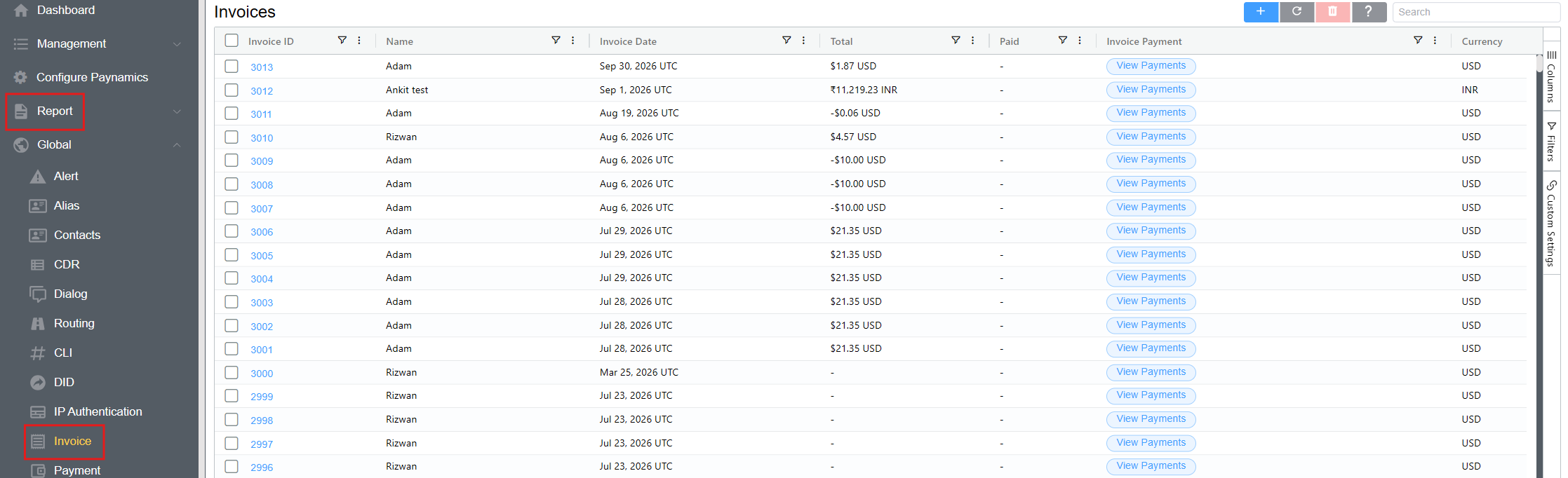
Invoice Fields
| Field | Description |
|---|---|
| Invoice ID | Unique identifier assigned to the invoice. |
| Name | Name of the Customer associated with the invoice. |
| Invoice Date | Date on which the invoice was generated. The interface displays the date in UTC. |
| Total | Total amount of the invoice, including the applicable currency. |
| Paid | Indicates the payment information or status recorded against the invoice. |
| Invoice Payment | Provides access to payments associated with the invoice through View Payments. |
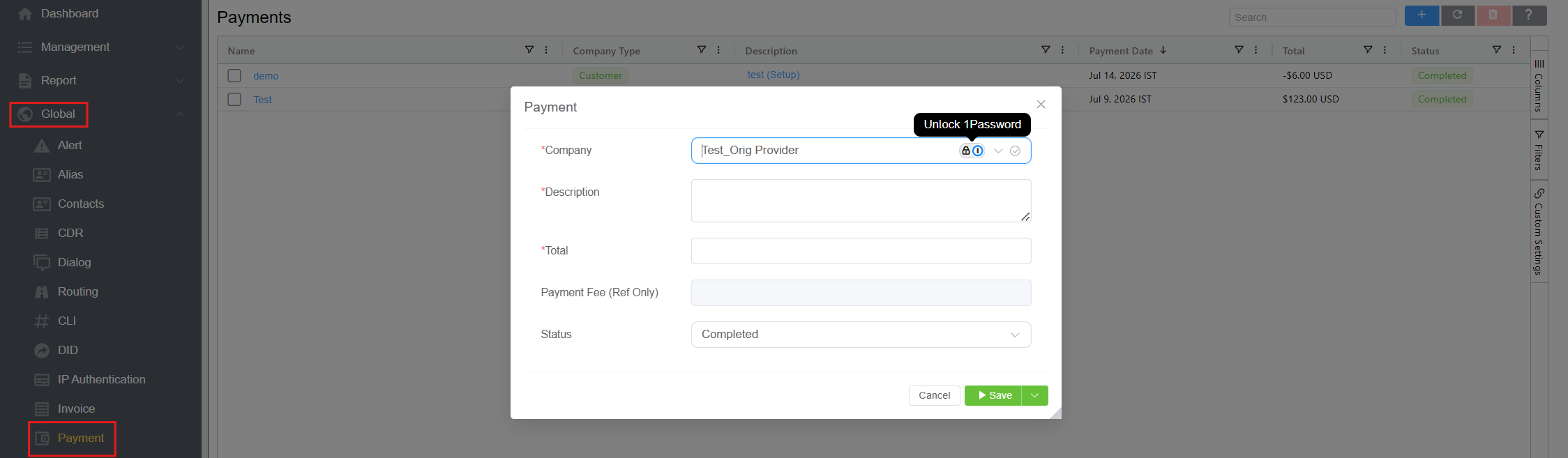
Invoice Payment
The Invoice Payment column provides a View Payments option for each invoice.
Click View Payments to access the payments associated with a particular invoice.
This allows you to review payment information directly from the invoice list.
Searching
Use the Search field at the top of the page to quickly locate an invoice.
Searching can be useful when looking for a specific invoice or Customer without manually browsing through the complete invoice list.
Columns
The Columns panel allows you to control which invoice fields are displayed in the table.
Use the column controls to show or hide fields according to your requirements.
Filters
The Filters panel allows you to narrow the invoice list based on individual invoice fields.
The available filter fields shown in the interface include: Invoice ID, Name, Invoice Date etc.
Expand a field to configure its filter condition.
Filter Conditions
The available conditions shown for the Total field include:
| Condition | Description |
|---|---|
| Equals | Displays invoices where the value matches the specified value. |
| Does not equal | Displays invoices where the value does not match the specified value. |
| Greater than | Displays invoices where the value is greater than the specified value. |
| Greater than or equal to | Displays invoices where the value is greater than or equal to the specified value. |
| Less than | Displays invoices where the value is less than the specified value. |
| Less than or equal to | Displays invoices where the value is less than or equal to the specified value. |
| Between | Displays invoices where the value falls within the specified range. |
| Blank | Displays invoices where the selected field has no value. |
| Not blank | Displays invoices where the selected field contains a value. |
Custom Settings
The Custom Settings panel allows you to customize the appearance of the IP Authentication table.
-
Theme: The Theme setting controls the visual appearance of the IP Authentication table.
-
Row Height: The Row Height setting controls the amount of vertical space used for each IP Authentication record.
- Lower row height — Displays more records within the available screen space.
- Higher row height — Provides more spacing between records for easier reading.
These settings affect only the presentation of the IP Authentication list and do not change the underlying authentication configuration.
Invoice Management
The Global Invoices view provides controls for working with invoice records, including:
- Add (
+) — Create an invoice where permitted. - Refresh — Reload the invoice list.
- Delete — Delete selected records where permitted.
- Search — Locate invoice records.
- Columns — Configure the fields displayed in the table.
- Filters — Narrow the invoice list based on available fields.
- Custom Settings — Customize the table presentation.
Use Cases
The Global Invoices section can be used to:
- View invoices across the account.
- Locate invoices for a specific Customer.
- Review invoice dates and totals.
- Check invoice payment information.
- Access payments associated with an invoice.
- Filter invoices based on available invoice fields.
- Customize the invoice table using Columns and Custom Settings.
- Support billing and financial reviews from a centralized view.
Alternate Location
Invoices can also be accessed from:
- Customer [Customer Name] Invoices
The Global Invoices view provides centralized access to invoices across the account, while the Customer-level view provides invoice information for an individual Customer.
More Information
See Invoices for configuration details.