Call Recording
Document Metadata
Category: Management / Call Recording
Audience: Administrators, Operations Teams, Support Teams, Billing Teams
Difficulty: Intermediate
Time Required: Approximately 15–30 minutes
Prerequisites: Active ConnexCS account with access to Account Settings, Customer Routing, Customer DID, Logging, CDR, and Files.
Related Topics: CDR, Logging, Customer Routing, DID, Files, Media and Session Control
Next Steps: Enable the Call Recording package, configure recording for outbound or inbound calls, and use Logging, CDR, or Files to access recorded calls.
Overview
The Call Recording feature allows ConnexCS to record calls and make the resulting recordings available for review and playback or download.
Call Recording can be enabled for outbound and inbound calls through the relevant call-routing and DID configuration.
Once enabled, recordings can be accessed through several areas of ConnexCS, including Logging, CDR, and Files.
Key Features
The Call Recording feature provides the following capabilities:
- Call recording for outbound calls — Enable recording through the Customer's Routing configuration.
- Call recording for inbound calls — Enable recording through the Customer's DID configuration.
- Call Recording package — Enable the required Wholesale Call Recording (per minute) package from Account Settings.
- Playback from Logging — Access a recording directly from the Call ID details.
- Download from CDR — Add the Call Recording column to the CDR view and access the recording download option.
- Access through Files — Locate recordings through the Files recording folder.
Benefits
Call Recording can help with:
- Call review — Listen to recorded calls when reviewing call activity.
- Troubleshooting — Use recordings when investigating call-related issues.
- Support — Review calls when assisting with customer or operational queries.
- Call verification — Listen to recordings when validating call behavior or outcomes.
- Centralized access — Access recordings through Logging, CDR, or Files.
Call Recording must first be enabled at the account level through the Wholesale Call Recording (per minute) package before configuring recording for inbound or outbound calls.
How to Use This Feature
How to Enable Call Recording?
Before enabling recording for individual calls, the Call Recording package must be enabled for the account.
- Navigate to Setup Settings Account.
- Locate the Wholesale Call Recording (per minute) package.
- Click on Subscribe to enable the package.
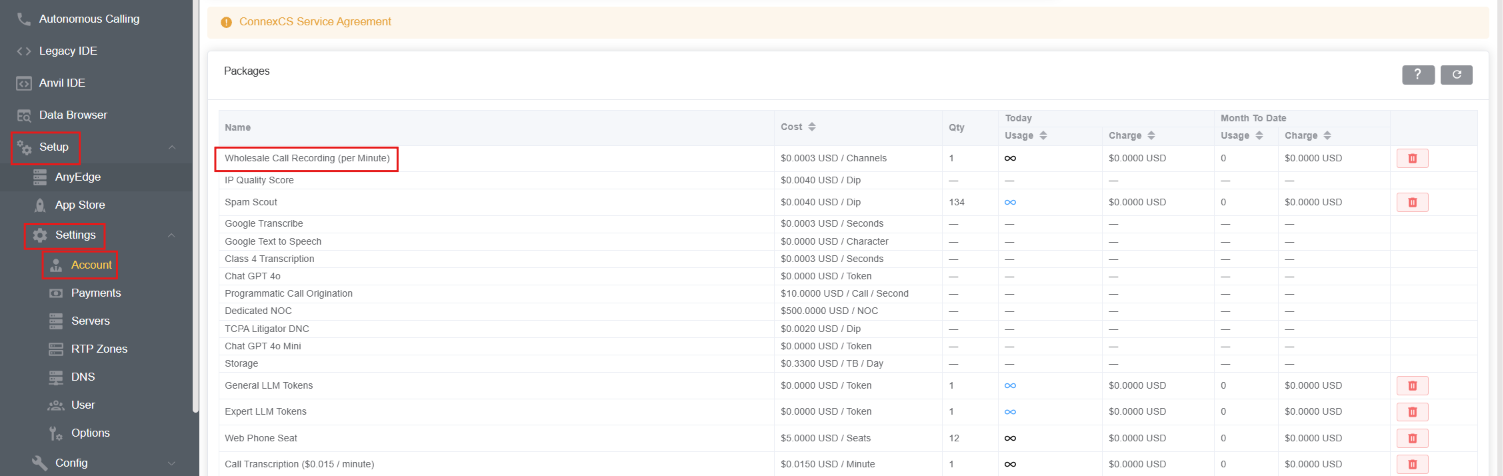
Once the package is enabled, Call Recording can be configured for outbound and inbound calls.
Where to Use/Enable This Feature for Outbound Calls?
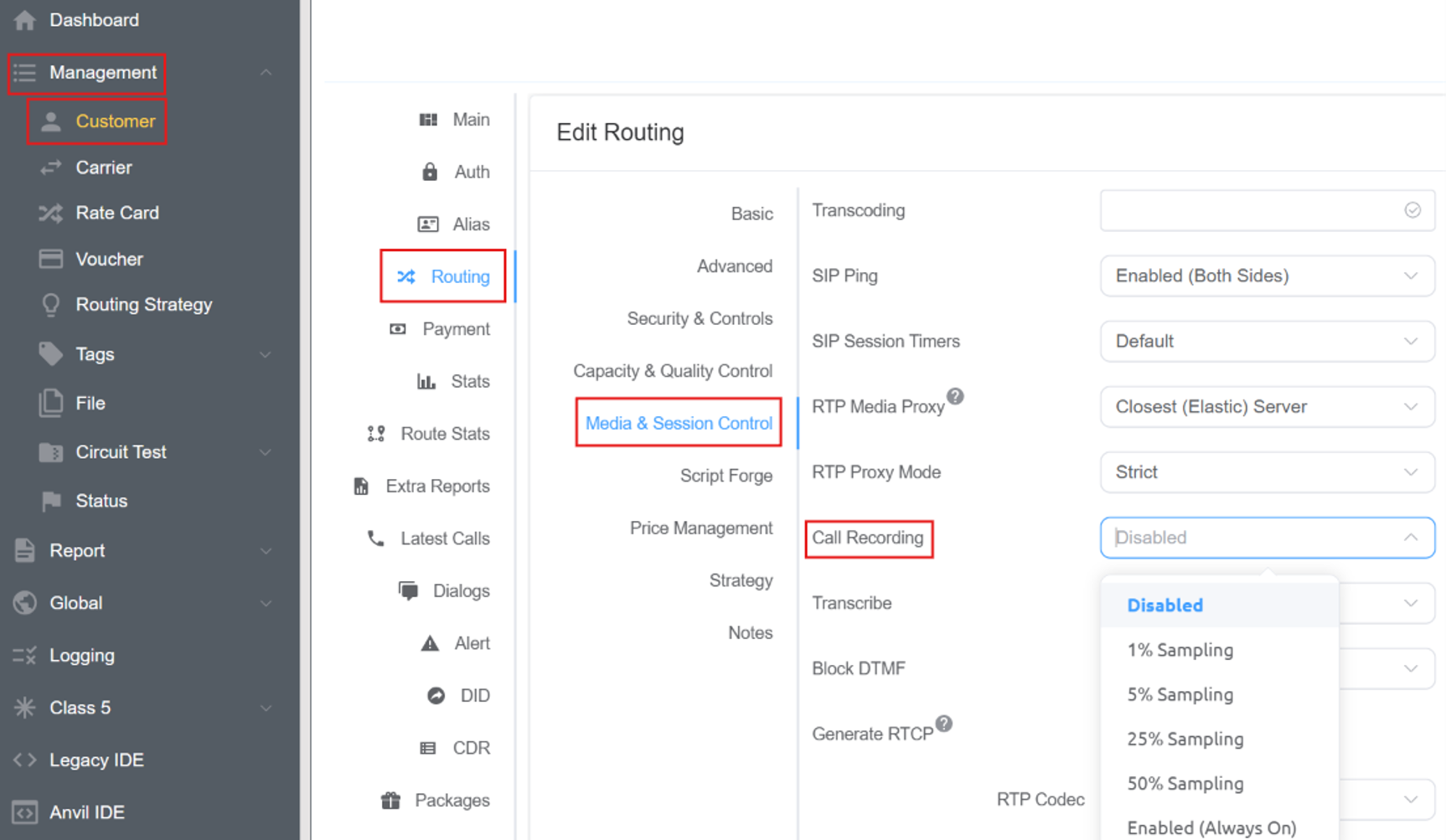
To enable Call Recording for outbound calls:
- Navigate to Management Customer.
- Select the required Customer.
- Navigate to Routing.
- Open Media and Session Control.
- Locate Call Recording.
- Click the dropdown.
-
Enable from various options:
Option Meaning Disabled Call recording is not enabled. 1% Sampling Approximately 1% of eligible calls are selected for recording. 5% Sampling Approximately 5% of eligible calls are selected for recording. 25% Sampling Approximately 25% of eligible calls are selected for recording. 50% Sampling Approximately 50% of eligible calls are selected for recording. Enabled (Always On) Recording is enabled for all eligible calls rather than using sampling.
Example
If 1,000 eligible calls are handled and 1% Sampling is selected, approximately 10 calls would be selected for recording.
With the same 1,000 calls:
- 5% → approximately 50 calls
- 25% → approximately 250 calls
- 50% → approximately 500 calls
- Always On → all eligible calls
Where to Use/Enable This Feature for Inbound Calls?
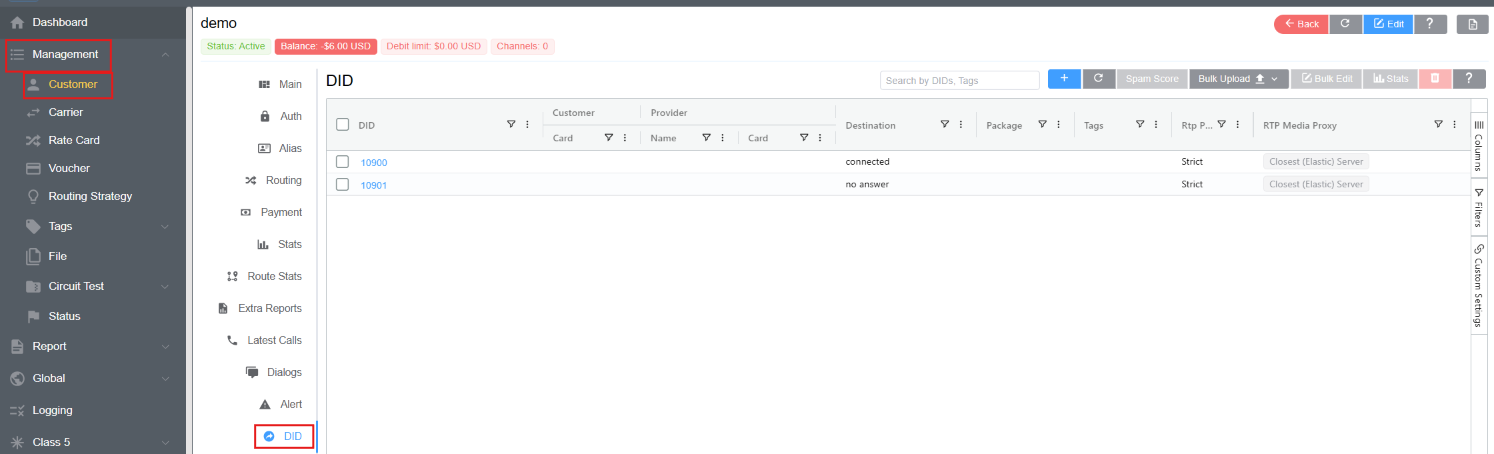
To enable Call Recording for inbound calls:
- Navigate to Management Customer.
- Select the required Customer.
- Navigate to DID.
- Click on the required DID.
- Open Media.
- Locate Call Recording.
- Click the dropdown.
- Enable Call Recording.
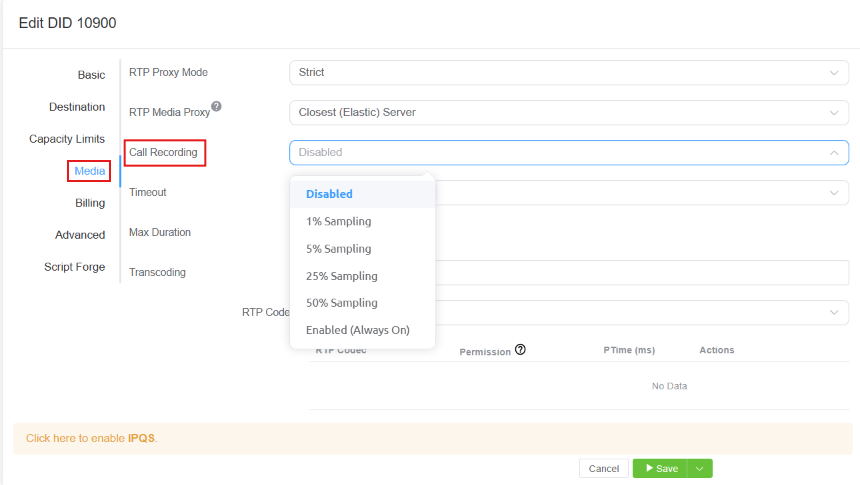
This enables Call Recording for the applicable inbound DID configuration.
Call View Recordings
Once Call Recording has been enabled, recordings can be accessed from several locations.
Option 1: View the Recording from Logging
- Navigate to the Logging section.
- Locate the required Call ID.
- Click the Call ID.
- Locate the Call Recording parameter.
- Use the available playback option to play the recording.
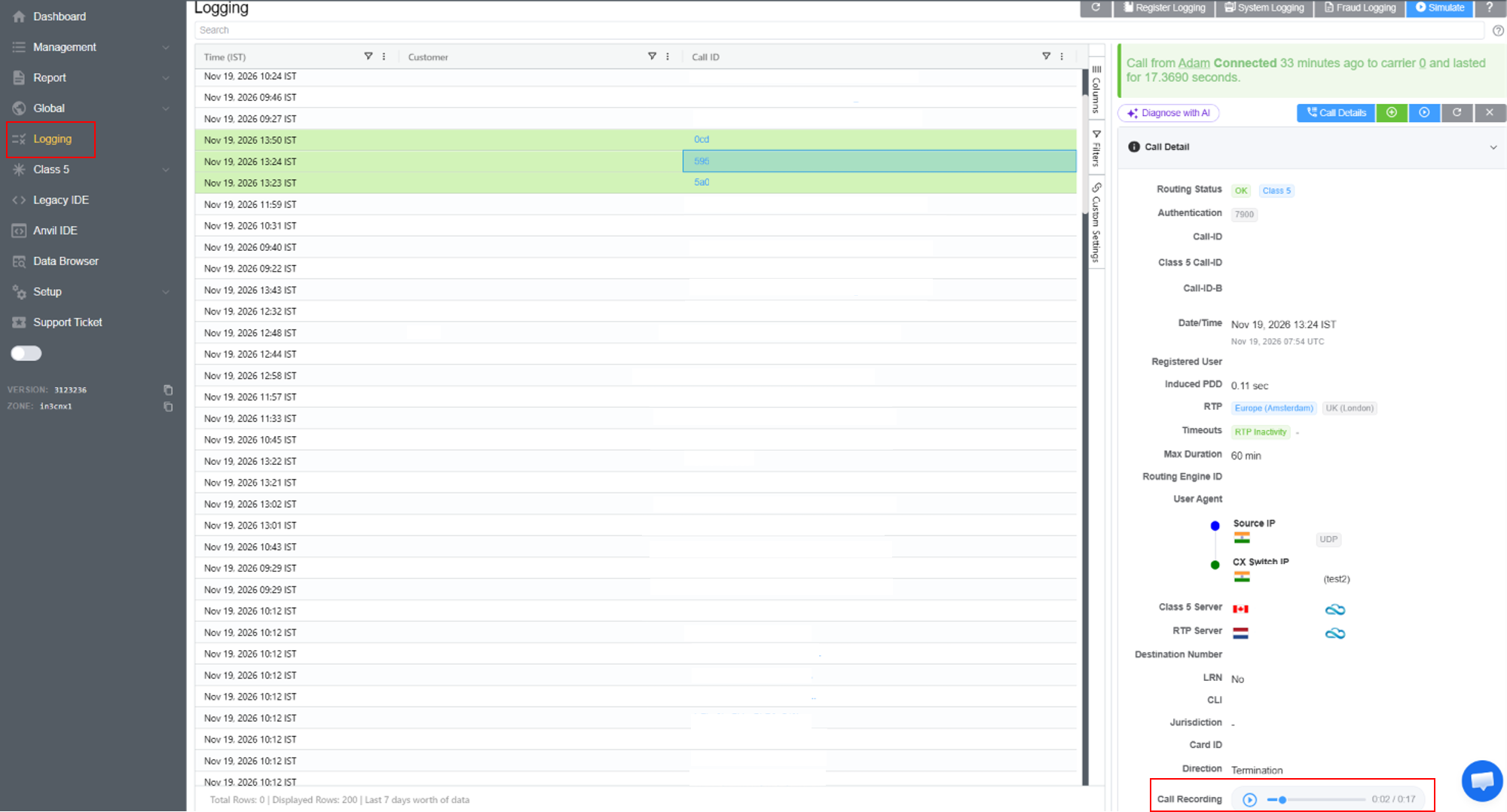
This provides a convenient way to listen to a recording directly from the call's logging information.
Option 2: Download the Recording from CDR
- Navigate to Management Customer CDR.
- Open the Columns panel.
- Add the Call Recording column.
- Refresh the CDR list.
- Locate the required call.
- Use the option available in the Call Recording column to download the recording.
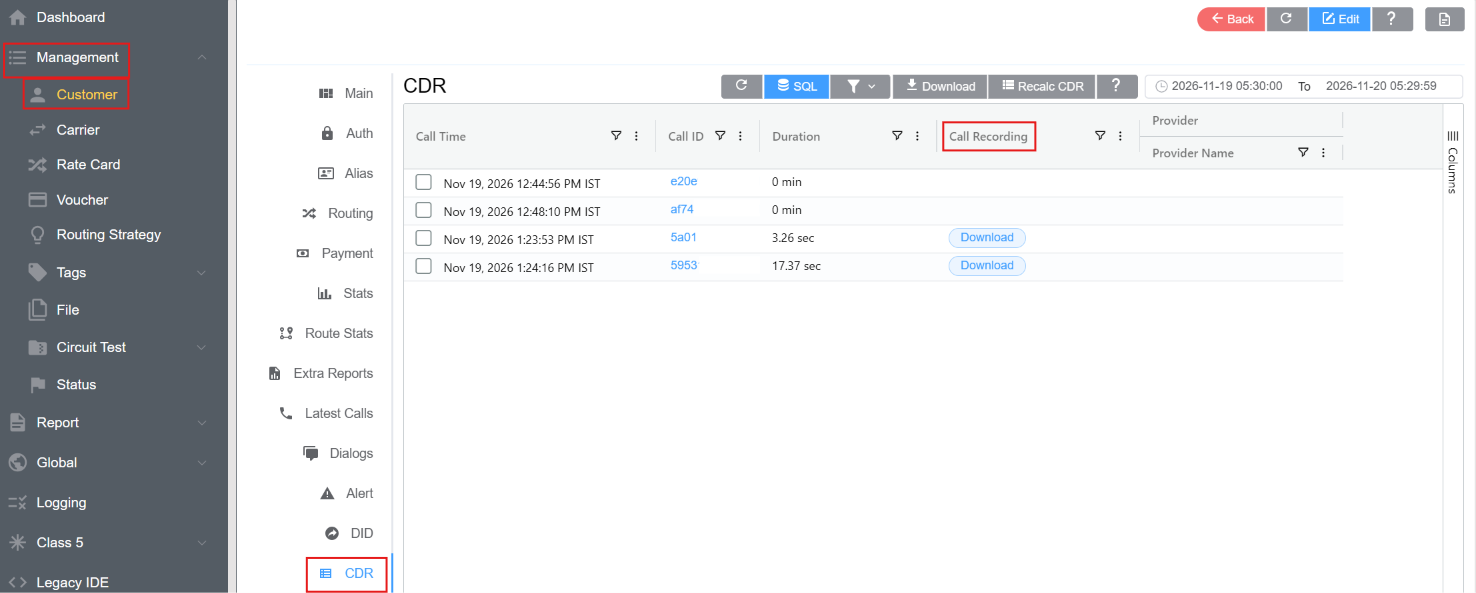
The Call Recording column must be added to the CDR view before the recording download option is displayed.
Option 3: Access Recordings from Files
- Navigate to the Files section.
- Open the recording folder.
- Locate the required recording.
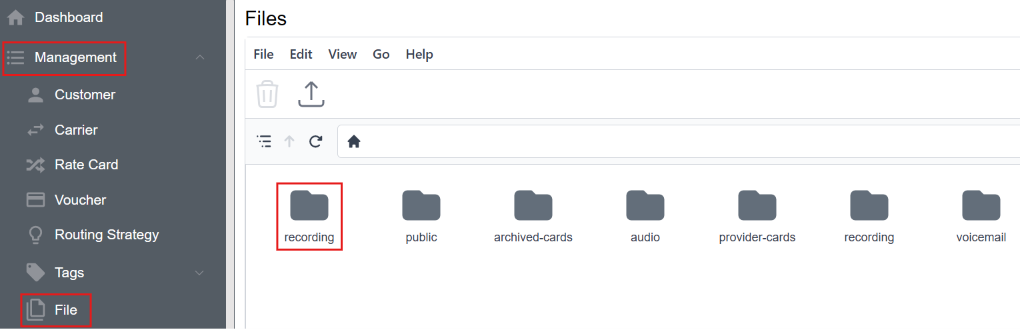
The Files section provides direct access to the stored call recordings.
Call Recording Workflow
The overall workflow is:
Enable Package Configure Outbound/Inbound Recording Make/Receive Recorded Call Access Recording Play or Download Recording
Quick Reference
Account-level enablement: Setup Settings Account Wholesale Call Recording (per minute)
Outbound: Management Customer Routing Media and Session Control Call RecordingInbound: Management Customer DID Media Call Recording</
View: Logging Call ID Call Recording Download: Management Customer CDR Call Recording**Files:**Files recording