Domain
Document Metadata
Category: Applications Platform / Domain Configuration
Audience: Developers, Platform Engineers, DevOps Team
Difficulty: Intermediate
Time Required: Approximately 20–30 minutes
Prerequisites: Access to the ConnexCS Apps Platform IDE, ability to manage DNS records (CNAME) for custom domains, and permissions to deploy apps via the platform
Related Topics: Apps Architecture – Applications Overview, Apps Architecture – Domain Setup Steps
Next Steps: Configure domain: use
.cnx.page subdomain or add custom domain (CNAME → cnx.page) → name entry page "index" → verify access → document conventions and update release processIntroduction
You can set the Domain where your applications will be visible and publicly accessible.
For example, you can use the domain name as test.cnx.page. This domain is provided by us free of charge.
You can also use any custom domain.
Steps for setting up the Domain
- Login to your account.
- Navigate to IDE Select an App/Create an App
+sign Domain.
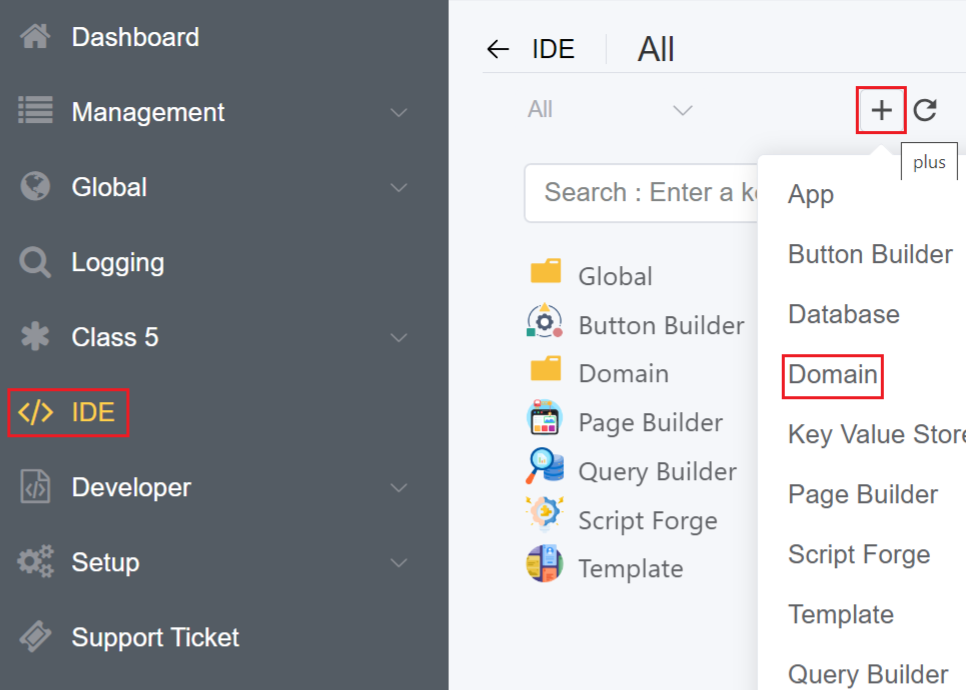
3.A window will pop-up as shown below.
Enter the domain name where your app will be displayed. You also have the option to use your own Custom Domain
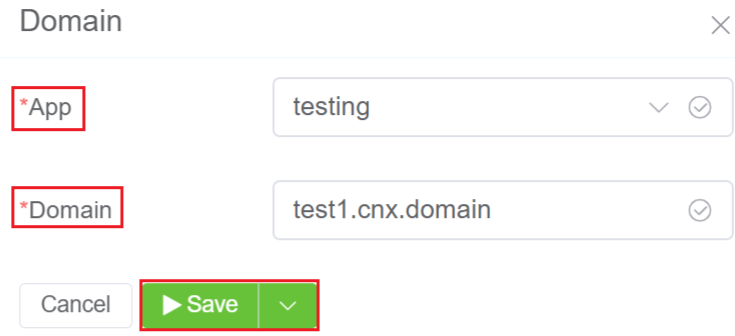
3.Click Save.
Warning
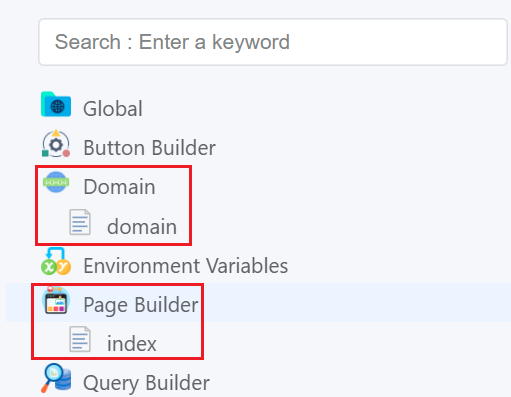
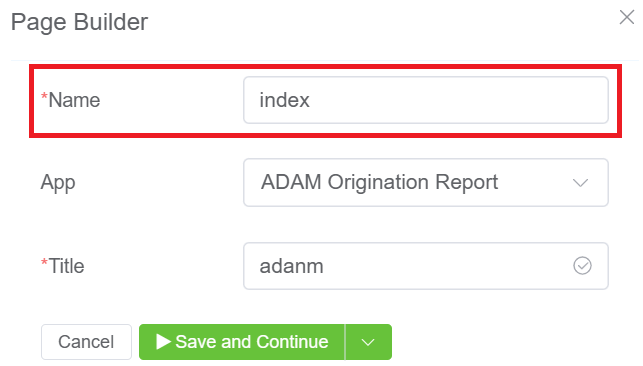
For your application to be visible on the created domain, make sure you take care of the following things:
- The created user-interface in the Page Builder should have the name as index.
Custom Domain Setup
Step 1: Set up the CNAME record
-
Access your domain account at your domain host.
-
Locate the page for updating your domain's DNS (Domain Name System) records.
-
Locate the
CNAMErecords for your domain. -
Add a new domain record such as
app.mycustomdomain.com. -
Point it toward
cnx.page.
Step 2: Add a Domain to App
Click here to check the steps for adding the Domain to your App.