Commission
Document Metadata
Category: Setup / Account Manager / Commission
Audience: Administrators, Revenue & Sales Managers, Support Team
Difficulty: Beginner to Intermediate
Time Required: Approximately 30–45 minutes
Prerequisites: Active ConnexCS account with
Setup → Account Manager access; familiarity with sales account management and commission percentage workflows.Related Topics: Account Manager – Payment
Next Steps: Define commission records for account managers (select user, start date, end date, % value), link account managers to customers via the
Management → Customer screen, test that commissions correctly attribute and report.Setup Account Manager Commission
This feature is presently in the Alpha Version. We're working on it. Please contact us for any queries.
Introduction
The Commission feature lets you give a commission to your Account Manager.
Agent Commission calculates the percentage of the customer spend.
Steps to add Commission to the Account Manager
-
Go to Setup Account Manager Commission.
-
Click on
+button. A window will appear with various fields.2.1 User: Select the user from the drop-down menu.
2.2 Start Date: Select a date you wish to start the commission.
2.3 End Date: Select a date you wish to stop the commission.
2.4 Commission: Put a value (in %) you wish to provide your Account Manager.
-
Click
Saveto save the commission information.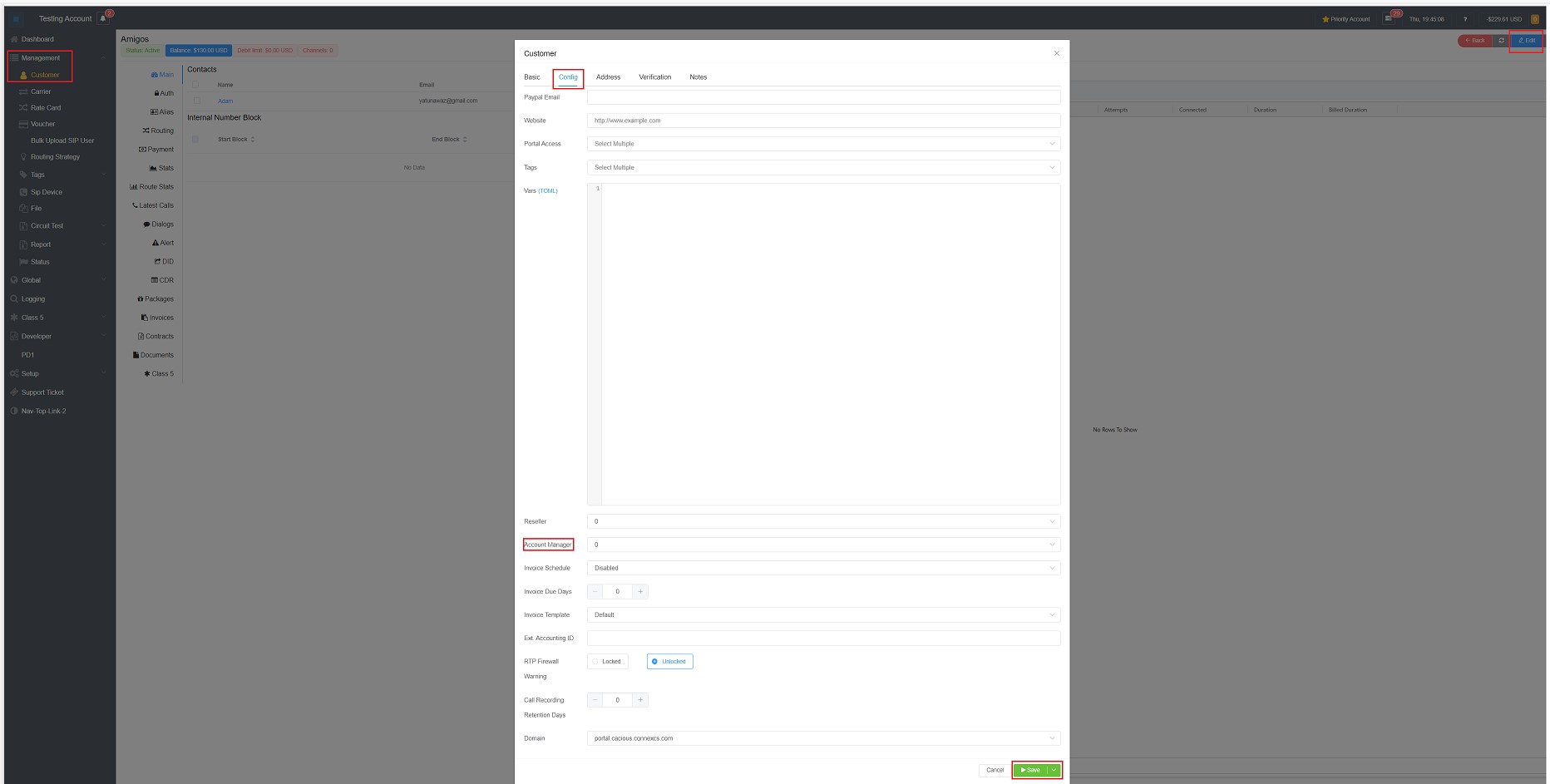
Steps to associate Account Manager with a Customer
-
Go to Management Customer Customer Name.
-
Click on
Edit. -
You will see a window with various fields; click on the drop-down menu of the Account Manager to select one for your customer.
-
Click
Saveto save the commission information.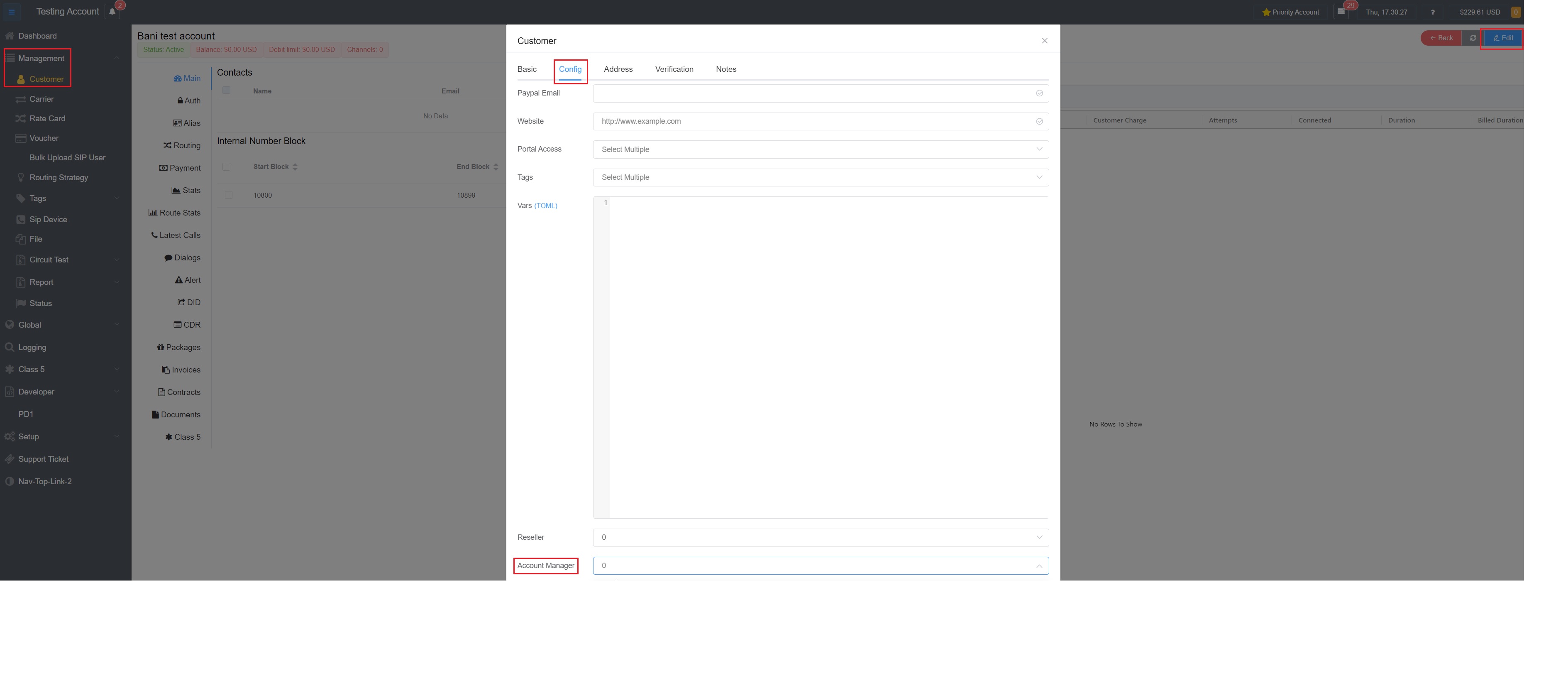
-
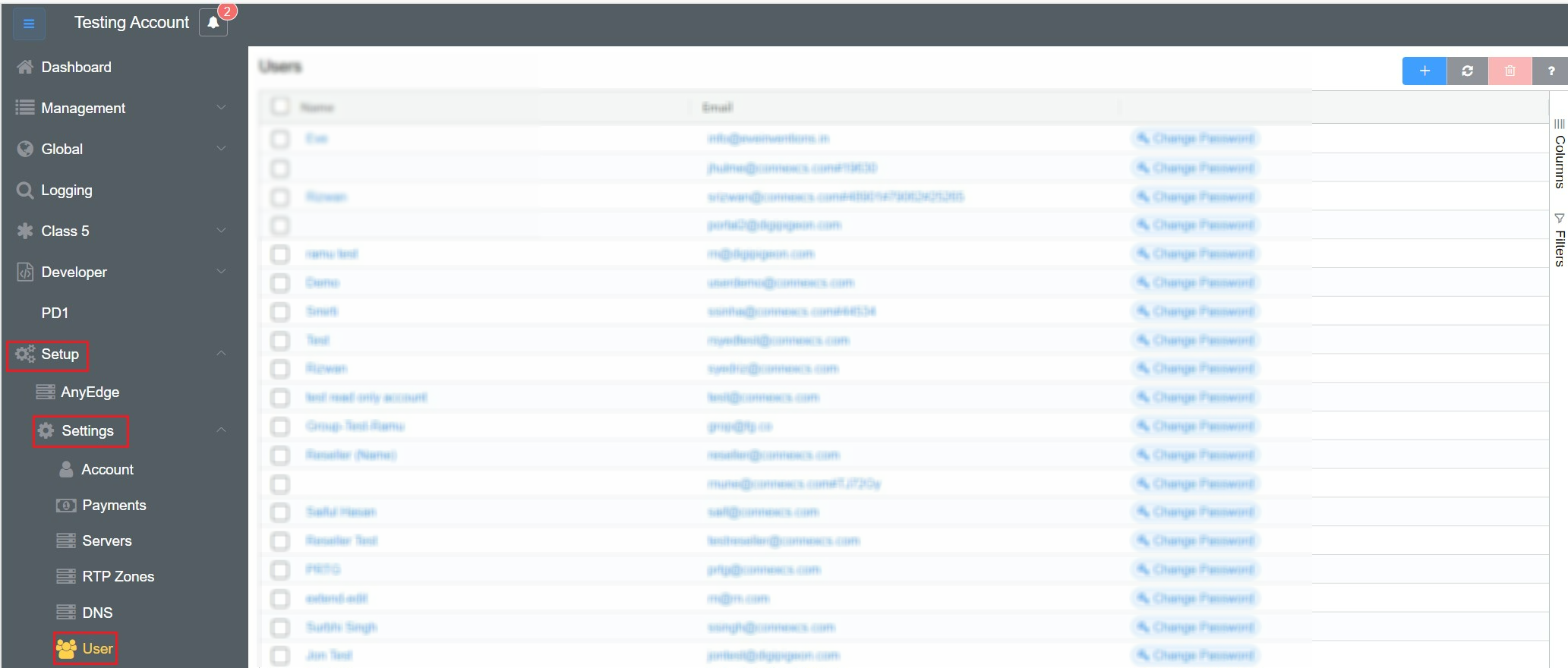
You can select any person as an Account Manager if that person is in the Users list.
-
Go to Setup Settings User.