Payment
Document Metadata
Category: Setup / Account Manager / Payment
Audience: Administrators, Revenue & Finance Teams
Difficulty: Beginner to Intermediate
Time Required: Approximately 15–30 minutes
Prerequisites: Active ConnexCS account with
Setup → Account Manager access; basic understanding of account manager roles and payment tracking.Related Topics: Account Manager – Commission
Next Steps: Navigate to
Setup → Account Manager → Payment, click the + button to record a new payment, select the relevant user (account manager), enter amount, currency and description, then save the payment record.Setup Account Manager Payment
This feature is presently in the Alpha Version. We're working on it. Please contact us for any queries.
Introduction
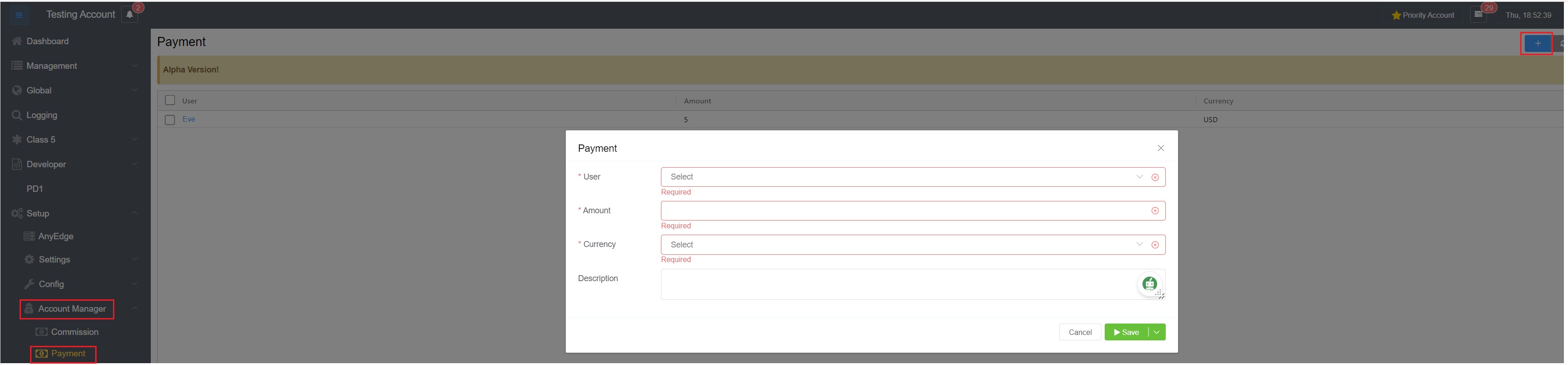
The Payment feature lets you record the information of the payment you've made to your Account Manager.
Steps to add Payment to the Account Manager
- Go to Setup Account Manager Payment.
-
Click on
+button. A window will appear with various fields.2.1 User: Select the user from the drop-down menu.
2.2 Amount: Enter the amount of money you've given to your account manager.
2.3 Currency: You have the option to choose various currencies from the drop-down menu.
2.4 Description: You can add any information about the payment in this field.
-
Click
Saveto save the payment information.