Servers
Document Metadata
Category: Setup / Settings / Servers
Audience: Administrators, Network Engineers, Operations Team
Difficulty: Intermediate to Advanced
Time Required: Approximately 1–2 hours
Prerequisites: Active ConnexCS account with Setup-Settings access; familiarity with SIP server architecture, load balancing, clustering, and media (RTP) servers.
Related Topics: Getting Started – Deploying Servers, Setup / Settings / RTP Zones
Next Steps: Deploy your first server in the appropriate zone, configure cluster membership and capacity limits (Channels, CPS), set up media (RTP) servers if needed, apply certificates and security settings, and monitor real-time server metrics such as status, latency and load.
Setup Settings Servers
Overview
The Servers section displays server infrastructure available on your ConnexCS account, including monitoring, configuration, authentication, load balancing, and management features.
Each server is uniquely configured, offering extensive customization to ensure optimal performance and security.
Key Benefits & Takeaways
-
Robust Monitoring: Real-time latency and ping metrics help ensure optimal server performance.
-
Flexible & Scalable Configuration: Adaptable channel capacity and multi-region deployments cater to diverse customer needs.
-
Enhanced Security: Integrated support for TLS certificates and secure WebRTC communication.
-
Efficient Resource Management: Stateless server design allows quick re-imaging and rapid recovery from issues.
Server Listing & Monitoring
-
Unique IP Addresses: Every deployed server has its own unique IP address.
-
Latency & Ping Information: Displays real-time ping time and ICMP latency. A successful ping shows connectivity; a cross icon indicates a failed ping (refresh may be needed).
-
Server Clusters & Aliases:
-
Clusters: Putting multiple servers together if in a load-balancing configuration. Click here to know more
-
Aliases: Unique names assigned per server.
-
Deploy a Server
Before deploying your first server, make sure to complete the Getting Started checklist.
Once this is complete, you can choose a zone and server for deployment.
Delivery is within 5 minutes.
Available Balance needed for server deployment
To deploy a server, you must have $20 (+ $20 X other servers in your account) available balance.
Impact on services
If you are a serious carrier Never let your account run out of credit. It should go without saying, but if your account runs out of credit, it impacts the service and it's restoration may not be instant.
It's difficult for us to consider any reactivation problems critical if you persistently top-up only enough credit to cover you for the next day.
Server Zone & Data Routing
-
Deployment Zones:
- Servers can be deployed in multiple regions (US, EU, UK, etc.).
- Manual selection allows prioritization of local backends (e.g., US servers for local AMQP server routing).
-
CDR Data Handling:
- Local emission of Call Detail Record (CDR) data minimizes latency.
- Helps avoid cross-continent network bottlenecks, ensuring reliable data transmission.
Server List
The Servers section provides an overview of deployed servers:
- IP: The unique server IP address. To view SIP and ICMP latency, hover over the status icon next to the server IP.
- Type: Typically either Dispatcher (load-balancer) or Switch (cluster member).
- Cluster: Indicates which cluster the server belongs to.
- Channels: The number of available active calls in use.
- CPS: Maximum calls per second.
- Expires: When the test period ends, it disables the server.
-
Status: Indicates if the server is able to process calls.
For example, if an account is unpaid, the Status lists the server as "Expired."
Clusters
Overview
The Cluster feature is designed to join servers together, ensuring that rate limits and resource sharing are synchronized across your infrastructure.
Although you can technically create as many clusters as needed, in most real-life scenarios a single, well-managed cluster is sufficient.
When to use the Cluster feature?
- If you have multiple servers in a load-balancing configuration, we recommend putting them into a Cluster.
- They enable coordinated handling of traffic between different servers.
Customer Example
If customer Joe is allowed 10 calls per second, without clustering, Server A and Server B would each permit 10 calls per second, potentially doubling the limit to 20 CPS if both servers are used. This would violate the intended rate limit of 10 CPS for Joe.
To create a Cluster, click Cluster, and then click to enter the name.
When you deploy a new server, there is an option to select one of the configured Clusters.
Benefits of clustering
- Better control over CPS and Channel load-balancing: If you set CPS to 10, clustered servers will allow 10 CPS total; un-clustered servers will allow 10 CPS per server, going over the allowed CPS with a particular carrier.
-
Shared User Location Information: Un-Clustered servers will have difficulty sharing registration information. It's possible to select "UAC Location Sharing" for each of the un-clustered servers to share this information.
But, this isn't recommended as it requires supplementary communications (and increases overhead) for each server to connect to the User Account Control (UAC) every second to check for new/changed registrations.
Real-Time Transport Protocol Servers
Real-Time Transport Protocol (RTP) Servers handle streaming media.
ConnexCS allows you to route your media through a global array of dedicated media servers.
These servers operate independently of your server.
If your server is in London, you can choose to run your media in New York (if you have customers there). Each regional zone encompasses multiple servers to provide high availability.
To view RTP Servers:
-
Click
RTP Servers.A list of your current RTP servers appears, with columns for IP address, aliases, and zones.
-
Click
Refreshto reload the page to show the most current changes, if any.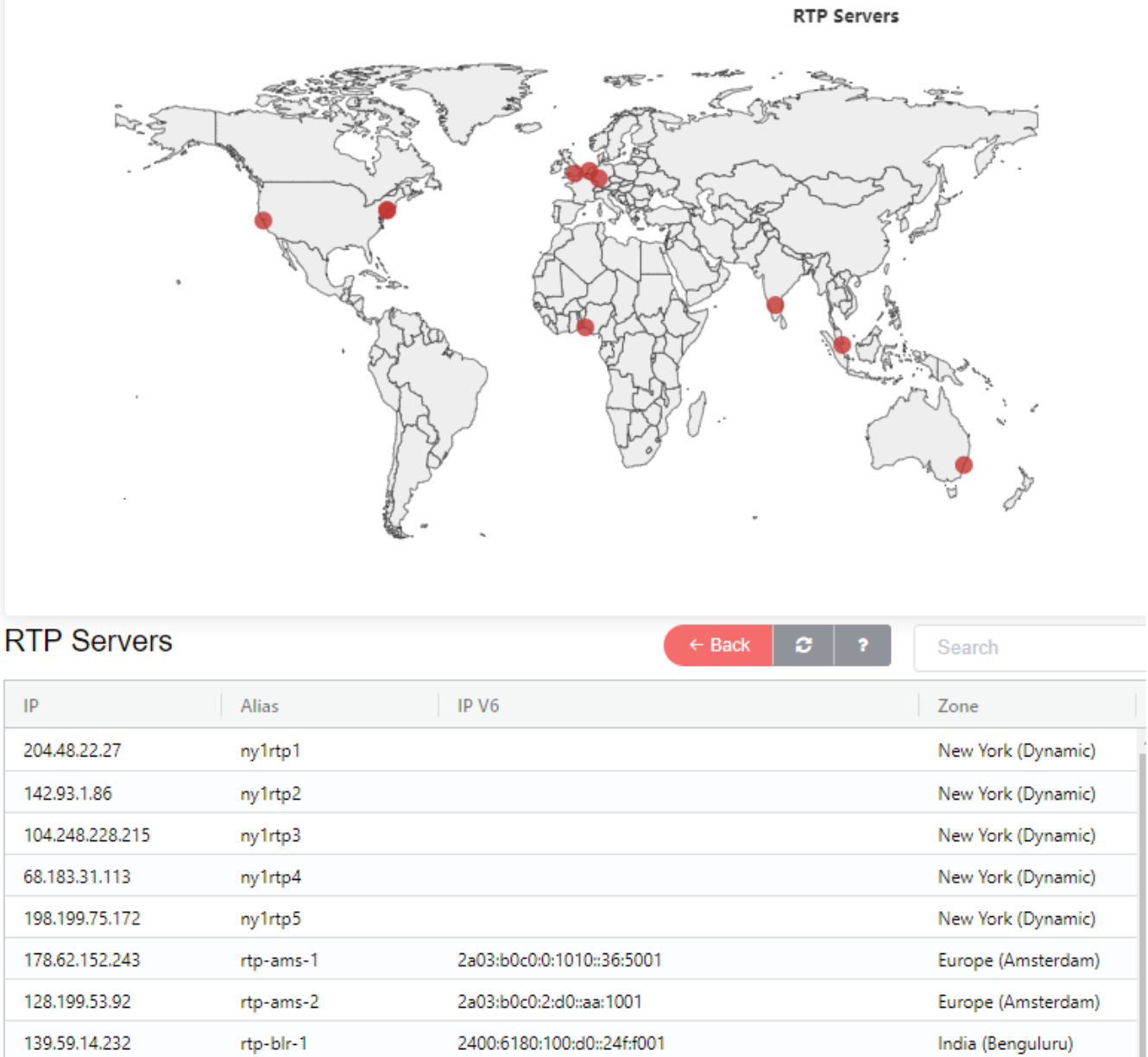
Media Server Selection
You should choose a media server that adds the least latency to the call. If your customer is in Bangalore and your carrier is in New York, use either Bangalore or New York as your media proxy.
Server Details
Click the server's IP address to view details.
Summary
These are the same fields found under Server List above.
Capacity Failover
When enabled, we can specify another server in the cluster to route the traffic, if the server reaches capacity based on the allowed CPS and Channels.
For example, if the CPS or Channels limits have reached, capacity failover will block the next call unless there is another server to route the call.
Server Config
Switch
-
Cluster: Group servers to share information such as dialogues and throughput.
For example, if you set CPS to 10, clustered servers will allow 10 CPS and un-clustered servers will allow 10 CPS per server.
-
Interconnect: Where the server is in the visible routing.
- Portal Page Visibility:
- Determines server presence in the portal for:
- Termination (ingress/egress)
- Origination (ingress/egress)
- Portal Page Visibility:
-
UAC Auth: Enables ConnexCS to register as a UAC (rather than a UAS) with upstream providers with a username and password.
- Core Functionality:
- Implements standard SIP registration (UAC sends a register to UAS).
- Also supports scenarios where a UAS connects to another UAS (effectively switching roles to UAC).
- Enables registration with upstream providers.
- Core Functionality:
-
WebRTC and TLS: Enabled when the FQDN sets live.
They also require a secure certificate.
They're required for WebPhone.
FQDN Usage
- Specifically used for provisioning TLS certificates.
-
WebRTC Integration:
- Key Feature: Allows SIP functionality within a web browser, enables calling directly from the browser.
- Requirements:
- A fully qualified domain name.
- A valid TLS certificate for secure WebRTC communication.
-
Auto Upgrade: When your server is ready for an upgrade, select this box to allow it to perform when your server is at zero channels.
- System automatically applies updates during periods of no traffic.
-
UAC Ping & Performance
- Purpose: Maintains NAT mappings on firewalls using periodic pings.
- Performance Option:
Disable UAC Pingcan provide slight performance improvements by reducing ping frequency. It automatically sends out ping messages every second to registered UACs, retaining open NAT ports. Select this box to disable that functionality.
-
UAC Location Array Sharing: By sharing registration information with servers, not in the cluster, calls connect between two ConnexCS servers.
Clustering servers is the recommended method whenever possible.
If you use this setting, you can disable UAC Ping above to gain some minor performance enhancements.
-
TLS Internals: The routing engine consists of the Requests made to the Transport Layer Security (TLS), useful for high security (TLS) environments.
- Security enhancements:
- Manages booting engine requests over TLS.
- Disabled by default as most traffic is non-TLS, minimizing extra routing benefits.
- Security enhancements:
-
Restrict Direct: Prevents calls from being sent directly to a server. AnyEdge-enabled servers require routing through AnyEdge to communicate with one another thus avoiding direct access errors.
-
TCP SIP Trace: If you want to ensure that ALL your Session Initiation Protocol (SIP) Traces get captured, you can use Transmission Control Protocol (TCP) instead of User Datagram Protocol (UDP).
While providing higher reliability, in high-traffic scenarios there may be a decrease in packet processing time.
Capture Servers:
- SIP trace data is relayed to external capture servers.
- Heavy load on capture servers can cause TCP back pressure issues.
UDP vs TCP
UDP (Default):
-
Implements a “send and forget” method ensuring rapid message dispatch.
-
Reduces risk of call event delays during high server load.
TCP:
-
Ensures delivery through back pressure and acknowledgments.
-
May result in message buildup if the remote server is unavailable.
-
Use AnyReg Server: This is an experimental platform SIP Registrar; use only if you are confident. When used in conjunction with AnyEdge, the AnyEdge server will take the registration information and pass it to AnyReg, avoiding the need to check customer equipment for registration. This negates the need for the UAC options above. It reduces load on customer infrastructure, ensuring quick and global registration response times (e.g., community nodes in Australia).
-
US, EU: Servers in the US zone will process data (ex: CDRs, routing engines) at local servers rather than in some remote zone, avoiding server capacity issues due to longer data transit times.
-
UDP, TCP, TLS Ports: Specify port(s) for each protocol with the protocol default.
- Port Defaults:
- Standard Port Assignments:
- SIP (UDP): Port 5060
- TCP & TLS: Port 5061
- Standard Port Assignments:
-
Custom Port Options:
- Alternative ports can be configured for TCP to bypass local ISP firewall restrictions.
- TLS can be enabled on different ports as required.
For example, to avoid firewall rules or ISP restrictions.
Whenever any of the above settings get modified, it's recommended to hit the Install Server.
Certificates
Select certificates to apply to a server.
Certificate Provisioning:
- Certificates are provided free of charge.
- Provisioning is handled by ConnexCS (sometimes requires manual intervention).
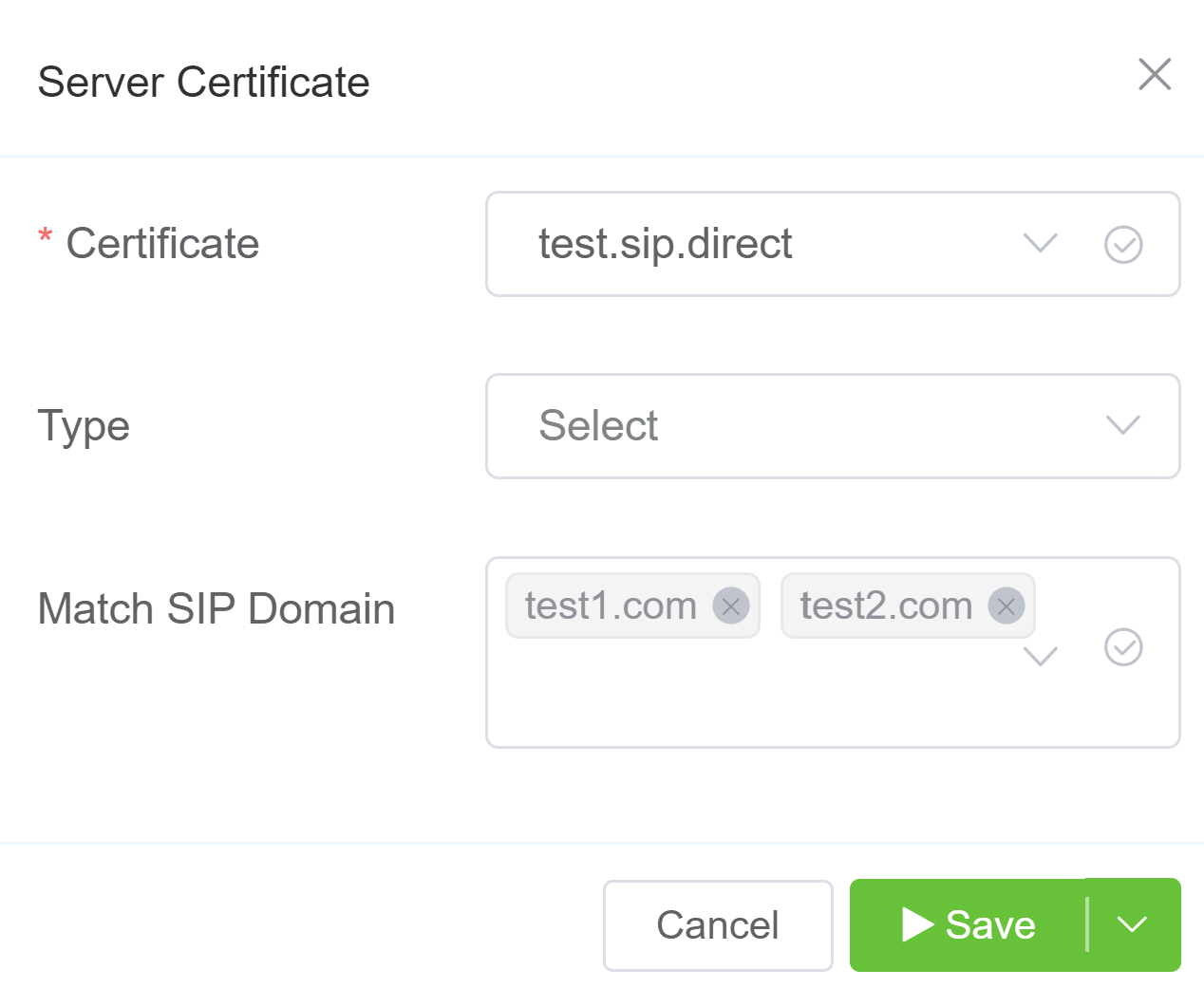
To add a Certificate to a sever,
- Click .
- Certificate: Select from a list of Certificates managed under Setup Information Certificate.
- Type: Select Server or Client as appropriate.
- Match SIP Domain: You can add SIP Domain and it will be associated with mentioned certificates. For example, if you enter test1.com and test2.com, and you communicate with either of these domains, you'll be served with the certificate associate with these domains.
- Click
Save.
Server Actions Menu
Click Actions to open the Server Actions Menu. The following actions are available:
- Install Server: Installs the latest script on your server. Re-image the server to restore a consistent state.
- Start Server: Activates the server (bring the server online).
- Stop Server: Deactivates the server Take the server offline.
- Restart Server: Reboots the server. Generally not recommended for troubleshooting due to the stateless nature of the system.
- OS Cycle: Shuts down the server using the operating system's mechanisms.
- Power Cycle: Shuts down the server using a hard reset (emulating pressing the power button).
Impact on Services
These actions occur in real-time, and performing any of them could affect services.
We recommend you avoid using them unless you understand the results.
Keep in mind that the ConnexCS system is designed to run statelessy, and actions such as reboots, restarts, etc, rarely correct the types of issues seen in less sophisticated systems like PBX or common laptops.
The only exception to this is the use of Install Server, which is used for a clean installation from a standard image.
Stateless Architecture:
- Servers are deployed using consistent images.
- Minimal state retention (no CDR data, persistent databases, or direct user interface access).
Resize Capacity
Use this to update the Channels for the selected server. The update will be active in 15 minutes.
Impact on services
If you increase Channels to 1001 or more, the server will reboot as soon as you click Save. All calls will stop, and the server can take up to 10 minutes to finish rebooting and begin services again.
Run Server Update
Update Mechanism:
When an update is pending, the service is flagged as stale. The system automatically applies updates once the account is idle.
It ensures that servers remain current with minimal manual intervention.
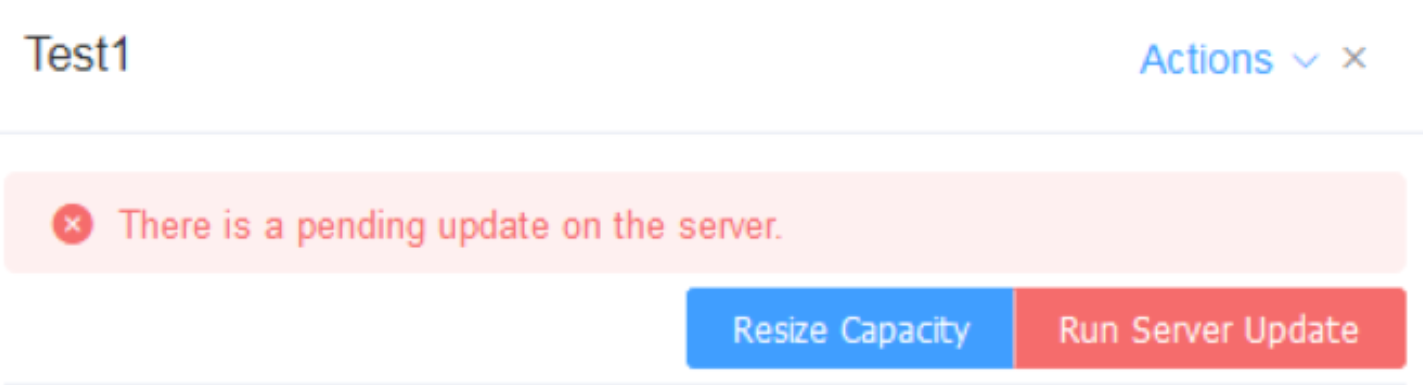
This only needs to run when the system indicates "There's a pending update on the server" at the top of the server details."
Network Tools
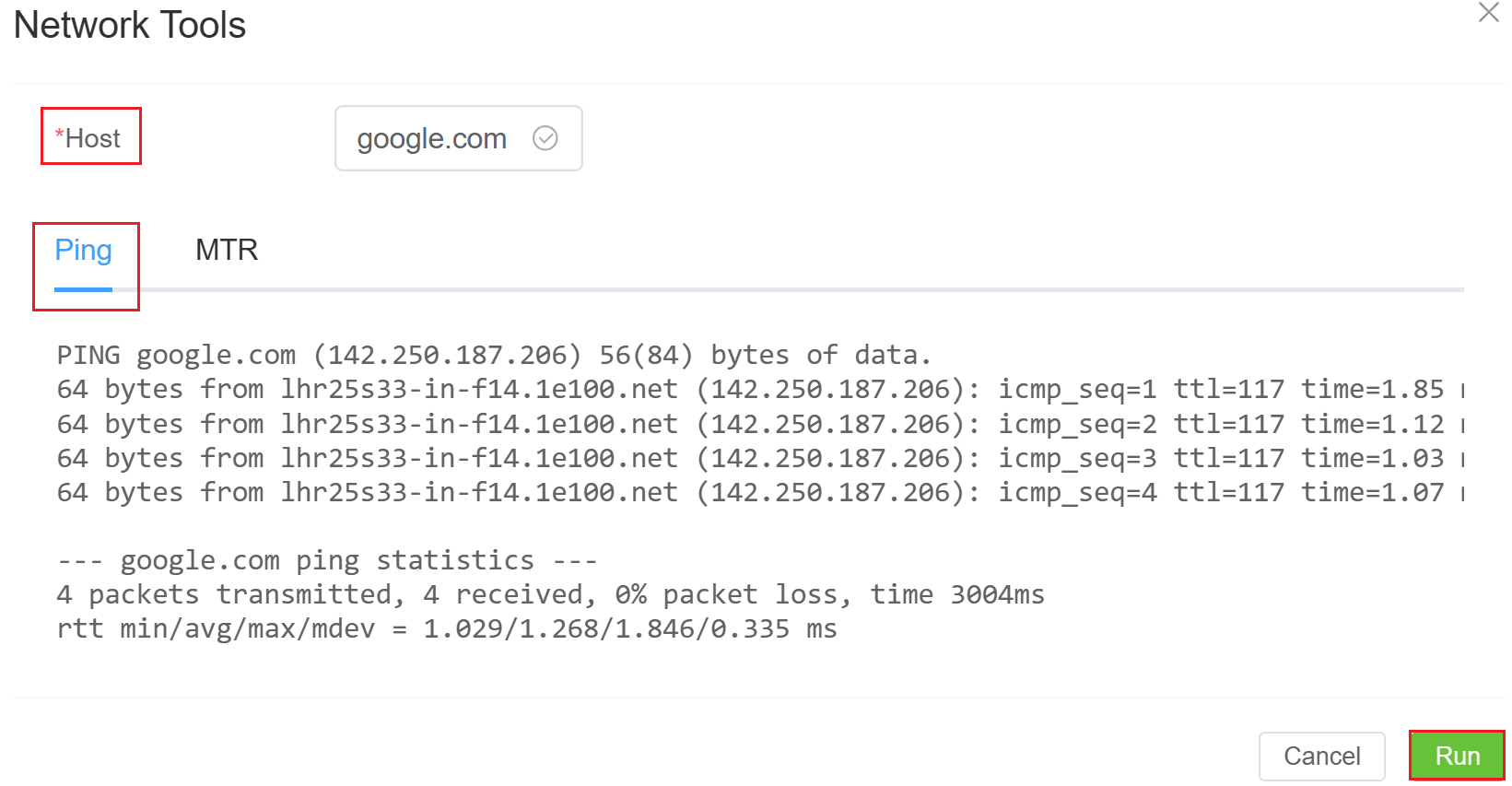
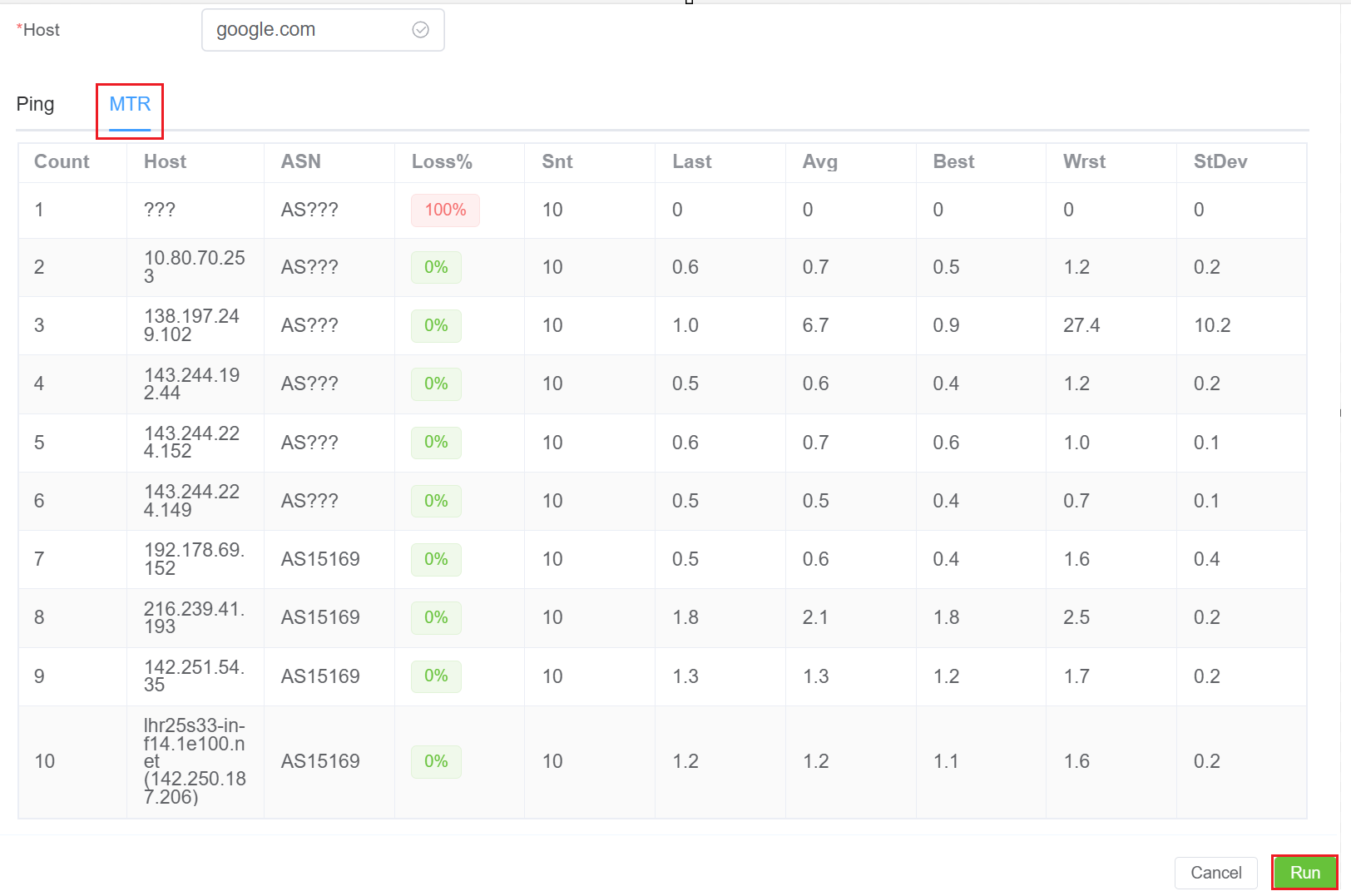
You can use Ping and MTR to test network connectivity and performance.
- Navigate to Setup Settings Servers.
- Click on
 icon next to your IP address.
 - A window will pop-up where you enter the Hostname or IP Address.
4.Click Run to see the results.
Server Clustering and User Location Registration
User Location Registration
When a call initiates, this generates a SIP INVITE sent to the remote server. When users connect from dynamic IP addresses, there must be a way to map a known constant address (for example, a username) to a dynamic endpoint such as an IP address or port. User Agent Client (UAC), or a softphone / hard phone, helps in accomplishing this by connecting to the ConnexCS server with a REGISTER message, which includes their current location and their username, along with extra information. The information is then stored, and made available as a lookup. When someone calls a user, it routes the call to their IP address.
Network Address Translation Keep Alives
When a user endpoint registers with UDP via NAT, it creates a port mapping. Thus, the NAT will time out (and the call will disconnect) if the connection isn't maintained by keep-alive by traffic. ConnexCS will periodically send keep-alive messages to the registered UAC, as either UDP or full SIP OPTIONS messages. While both work in this scenario, the SIP OPTIONS ping will reply to the ConnexCS Server. From this ping, we can monitor the latency of the connection and discern if NAT has destroyed the connection or if the user has gone offline without notifying the system. Once a user is registered via UDP, the connection is verified once again.
Deployment Options
- Single Server: No additional configuration is needed for a single server.
- Server Array: For multiple servers, decide whether users registered with Server A can call users on Server B. If so, set the UAC Location Array Sharing option (found under Server Config) for the servers that will make the registrations.
-
Server Cluster: Servers in a cluster share all user location registrations. This is the best solution for scaling to thousands of registrations.
Recommendation: You won't be able to route calls to users registered against any servers outside the cluster.
Ping Overhead
Due to design constraints that occur with multiple servers in an array, NAT Keep Alive Pings can be quite intensive. You could use Disable UAC Ping from the server page, upgrade to a cluster, or use a single registration server to solve this.
We can help with more intricate measures on a case-by-case basis.
APIBAN Integration
APIBAN integration with ConnexCS is a third-party system provided by apiban.org.
It automatically blocks malicious traffic to your servers.
APIBAN proactively prevents unwanted SIP traffic by identifying and blocking IP addresses of known bad actors before they can target your system.
These bad actors are identified through globally deployed honeypots and curated by APIBAN to ensure comprehensive protection.