Payments
Document Metadata
Category: Setup / Settings / Payments
Audience: Administrators, Finance & Billing Teams
Difficulty: Intermediate
Time Required: Approximately 30–45 minutes
Prerequisites: Active ConnexCS account with Setup-Settings access; familiarity with billing workflows and online payment methods.
Related Topics: Billing Guide, Credit Control, Voucher
Next Steps: Navigate to
Setup → Settings → Payments, add or remove payment cards, review and manage invoices, process payments via PayPal or credit-card, and apply voucher codes.Setup Settings Payments
Overview
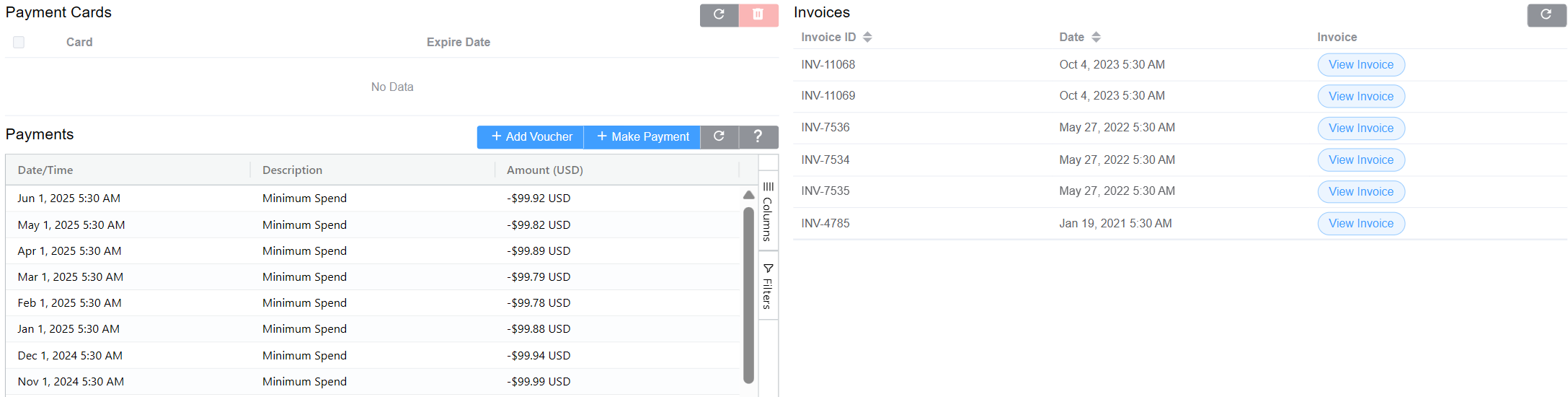
The Payments section provides an overview of transactions, invoices, and payment methods.
Use the Payments view to manage payments to ConnexCS and other related functions.
Key Features
-
Payment Cards: When you make a payment using a credit card, it stores the credit card details. It stores credit card details used for payments.
To remove a card, right-click and delete.
-
Payments: View Payment details like Date/Time, Description (why was the payment made) and Amount.
-
Voucher Redemption:
- Users can apply vouchers provided by ConnexCS:
- Enter the voucher code.
- Click Submit to apply.
- Invalid vouchers will prompt an error message.
- Users can apply vouchers provided by ConnexCS:
-
Make Payment: Users can make a new payment by selecting the relevant option Credit Card/PayPal.
-
Invoices: Displays a list of all invoices associated with the account.