Payments
Document Metadata
Category: Customer Account Management / Payments & Billing
Audience: Administrators, Engineers, Support Team
Difficulty: Intermediate
Time Required: Approximately 30–60 minutes
Prerequisites: Active ConnexCS account with Customer-module permissions; ability to manage customer accounts and access payment/top-up functions
Related Topics: Billing Overview, API / Payment Integrations
Next Steps: Add & Manage Payments for a Customer, Configure Global Payments and Integration with Processors
Management Customer [Customer Name] Payments
The Payments section enables users to efficiently add, track, and manage transactions, including a complete history of previous payments.
Global Payments
You can also manage Payments under Global Payments, which displays all Payments across the account.
Add Payment
To add a new payment
-
Click
-
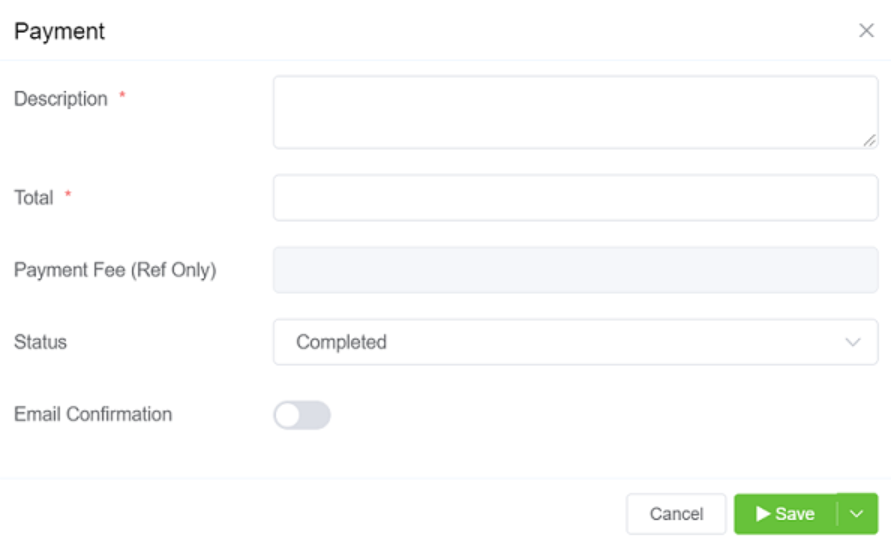
Description is the name of the payment.
If you wish to hide any information on the customer portal, use # followed by the text to hide.
Example
PayPal 87878787744XXX #payment from the demo.
Note
Add a # symbol for starting a private comment to store private information along with the public information.
-
Total is the amount of the payment.
- Payment Fee (Ref Only) For payments made through PayPal or another external payment system, the Payment Fee field is automatically filled.
- Status allows you to set the Payment to:
- Pending: Not included in balance calculations
- Cancelled: Ignored in balance calculations.
- Completed: Marked as an active payments.
- Email Confirmation: If enabled, once you save the Payment, an email is generated to all Contacts configured on the customer informing them that the payment has been received and applied to the account.
-
-
Click
Save.
Pending Payments
- When a customer places a payment through their bank, it shows Pending status.
- The customer can manually update the status from Pending to Completed after confirming the bank transfer.
- Ensures accurate tracking and verification of bank payments before they reflect in the system.
Negative Payments
If a customer has made any kind of purchase on the account, it's shown as a negative amount on the main Payments page > Total section.