Latest Calls
Document Metadata
Category: Customer Analytics & Monitoring / Real-Time Call Tracking
Audience: Administrators, Engineers, Support Team
Difficulty: Beginner to Intermediate
Time Required: Approximately 15–30 minutes
Prerequisites: Active ConnexCS account with Customer Portal access and permission to view call logs
Related Topics: Customer → CDR, Customer → Dialogs
Next Steps: After checking real-time call activity, drill into individual call details, export the list if needed, or continue to CDR and Dialogs for deeper analysis
Management Customer [Customer Name] Latest Calls
Overview
The Latest Calls tab provides records of incoming and outgoing calls, along with powerful debugging tools. You can view recent calls and their full SIP traces, as well as simulate calls for testing and troubleshooting.
See Logging section for details on these functions. To view Latest Calls for all customers, go to the Logging section in ConnexCS.
Features & Insights:
-
Displays:
- Carrier handling the call.
- Caller and receiver numbers.
-
Useful for:
- Debugging real-time call flow.
- Analyzing SIP trace logs at the packet level.
-
Allows users to:
- Simulate calls.
- View raw call data.
Simulate Calls
To simulate a call:
- Click on the
Call ID. - Click
Simulate. - Complete details for Dialed Number, CLI/ANI, Switch IP etc.
- Click
Simulate.
(CLI: Command Line Interface; ANI: Automatic Number Identification*)
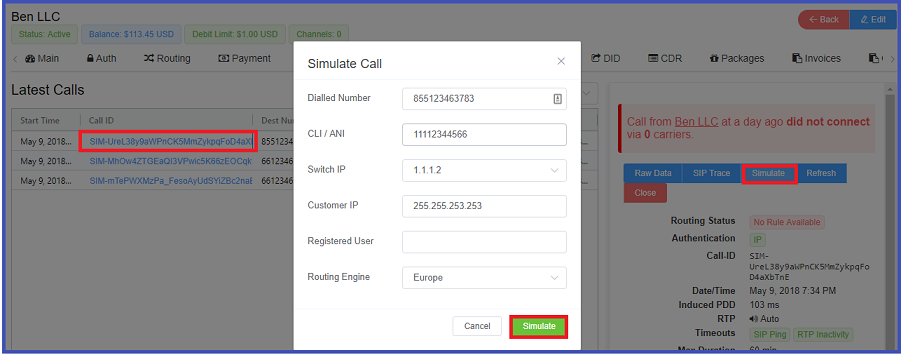
The simulate button simulates a closed circuit call. This closed circuit call identifies the Routing Issues.
Know More
- To know more about Providers click here.
- To know more about Billing click here.
- To know more about Logs click here.
- To know more about Graphs click here.