Direct Inward Dial
Document Metadata
Category: Customer Portal / DID Management
Audience: Administrators, Customer Success Team, Support Team
Difficulty: Intermediate
Time Required: Approximately 20–30 minutes
Prerequisites: Active ConnexCS Customer Portal account with permissions to manage Direct Inward Dialing (DID) resources
Related Topics: Customer Portal – Dashboard Overview, Customer Portal – CDR
Next Steps: Review your DID inventory, confirm assignments and routing, correct any unassigned or misconfigured DIDs, update routing aliases as required, and schedule regular audits to optimise DID usage and ensure compliance.
Overview
A DID number is one that exists on the public telephone network.
When dialed, the carrier delivers through the platform and to you, based on the settings configured here. This allows inbound calls to bypass a Private Branch Exchange (PBX) or another routing to connect directly to the destination number.
Steps to edit DID
To edit DID (Direct Inward Dial):
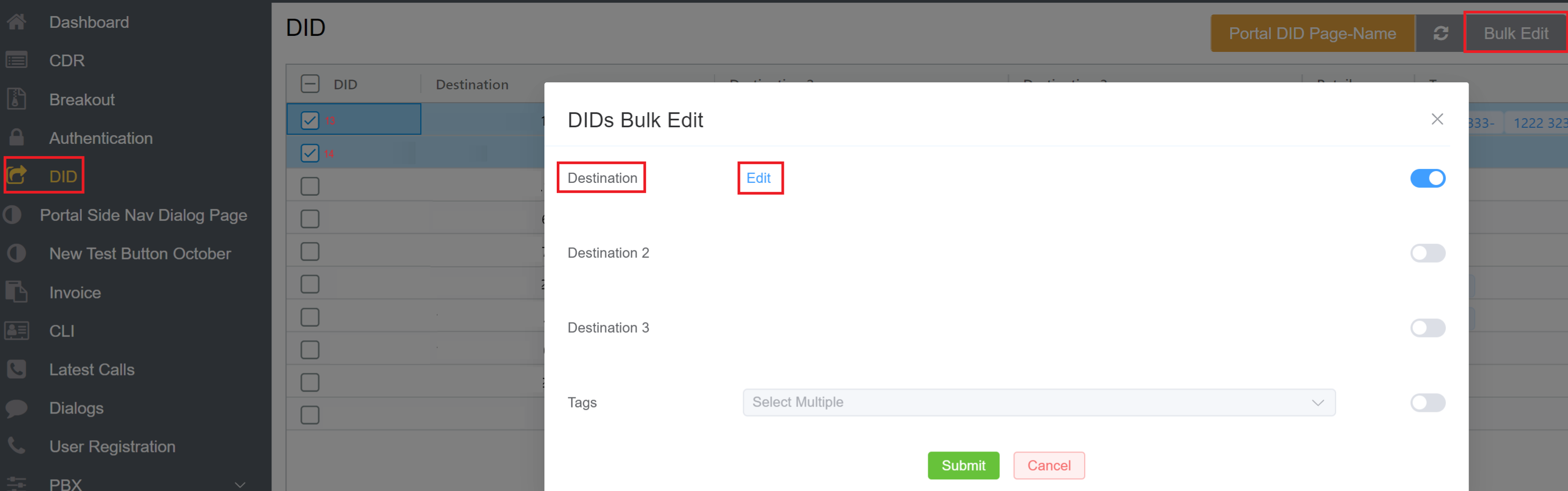
- Click on a DID number to select a single DID, or select multiple DIDs and click
Bulk Edit. -
For a single DID, click the number, enable the toggle, and then click the Edit (beside Destination) button that appears. A new window will open displaying the following fields.

- URI: Set the Destination DID (number or extension) and Destination IP to forward calls to, or a specific Session Initiation Protocol (SIP) Uniform Resource Identifier (URI).
- External: Prefix sends the call back out to the internet and then the number to send the call to.
- Internal: Send internally to an extension, a Class5 feature, or even to another customer.
- Circuit Test: Enables users to verify the integrity and performance of call routing. By pointing a Direct Inward Dialing (DID) number back to the Circuit Test system, users can evaluate critical metrics such as MOS, DTMF, and Caller ID consistency. This process ensures that the purchased routes meet expected standards.
- ConneXML: The incoming call is routed to a ConneXML script, which defines the subsequent call behavior.
-
Click
Save.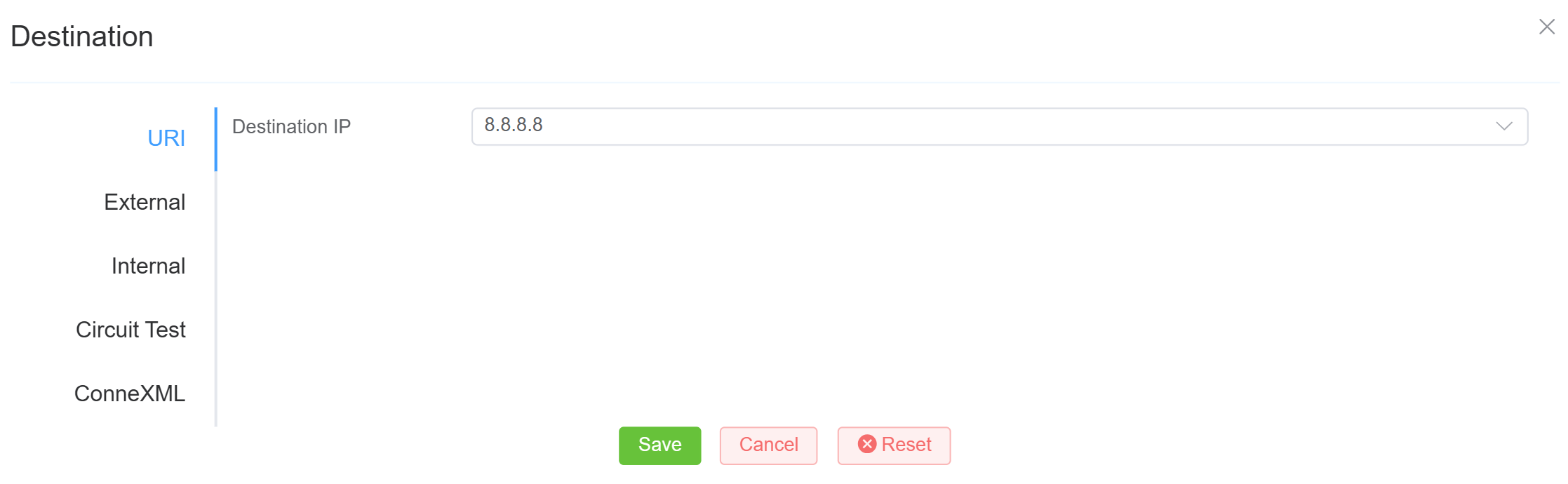
-
You have another fields here, Tags, it's a label which helps you to describe and help organize information.