Payments
Document Metadata
Category: Customer Portal / Payment Methods & Billing Setup
Audience: Administrators, Finance & Billing Staff, Support Team
Difficulty: Beginner to Intermediate
Time Required: Approximately 15–20 minutes
Prerequisites: Active ConnexCS Customer Portal account with permissions to view and update payment methods and billing information
Related Topics: Customer Portal – Invoice & Billing Documents, Customer Portal – Dashboard Overview
Next Steps: Verify current payment method and billing address, update or change payment method if required (e.g., credit-card, bank-transfer, direct debit), download or schedule notifications for upcoming invoices, and document your internal billing & payment verification process.
View the list of all Payments made to date.
- Date / Time: When the selected payment gets completed.
- Total: Payment amount.
-
Status: The payment may show Pending, Cancelled, or Completed.
Note: Pending and Cancelled payments aren't included in the balance calculation.
-
Description: Name of the payment.
Bulk Payment Download
If you wish to download all the Payment details click on  on the extreme right side and a .csv file will be downloaded to your system.
Make payment
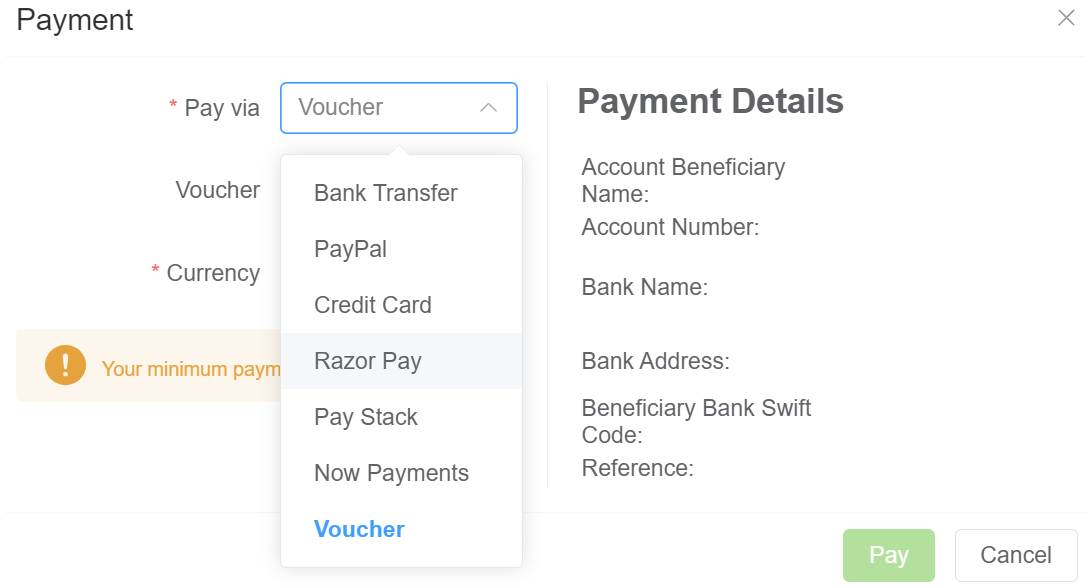
To add a new payment, select Make Payment.
-
Pay via: (required)
- Bank Transfer: You can select the Payment Amount and Currency. This sets the Payment Status to Pending until it's processed.
- PayPal: You can select the Payment Amount and Currency.
- Credit Card: Enter your Credit Card Number, Month and Year of expiry and CVC. Then you can select the Amount and Currency.
- Razor Pay: You can select the Payment Amount and Currency.
- Pay Stack: You can select the Payment Amount and Currency.
- Now Payments: You can select the Payment Amount and Currency.
- Voucher: Requires Voucher number and Currency.
-
Click
Pay.
Negative Payments
If you make some kind of purchase on the account, it will appear as a negative amount under Total.
Yoco Payment
Overview
Yoco Payments is a payment processing service that enables applications and customer portals to initiate, authorise, and complete payment transactions through a secure, hosted checkout provided by Yoco.
Yoco manages the full payment lifecycle, including transaction authorisation, validation, and settlement, while the platform initiating the payment remains out of scope for handling sensitive payment data.
-
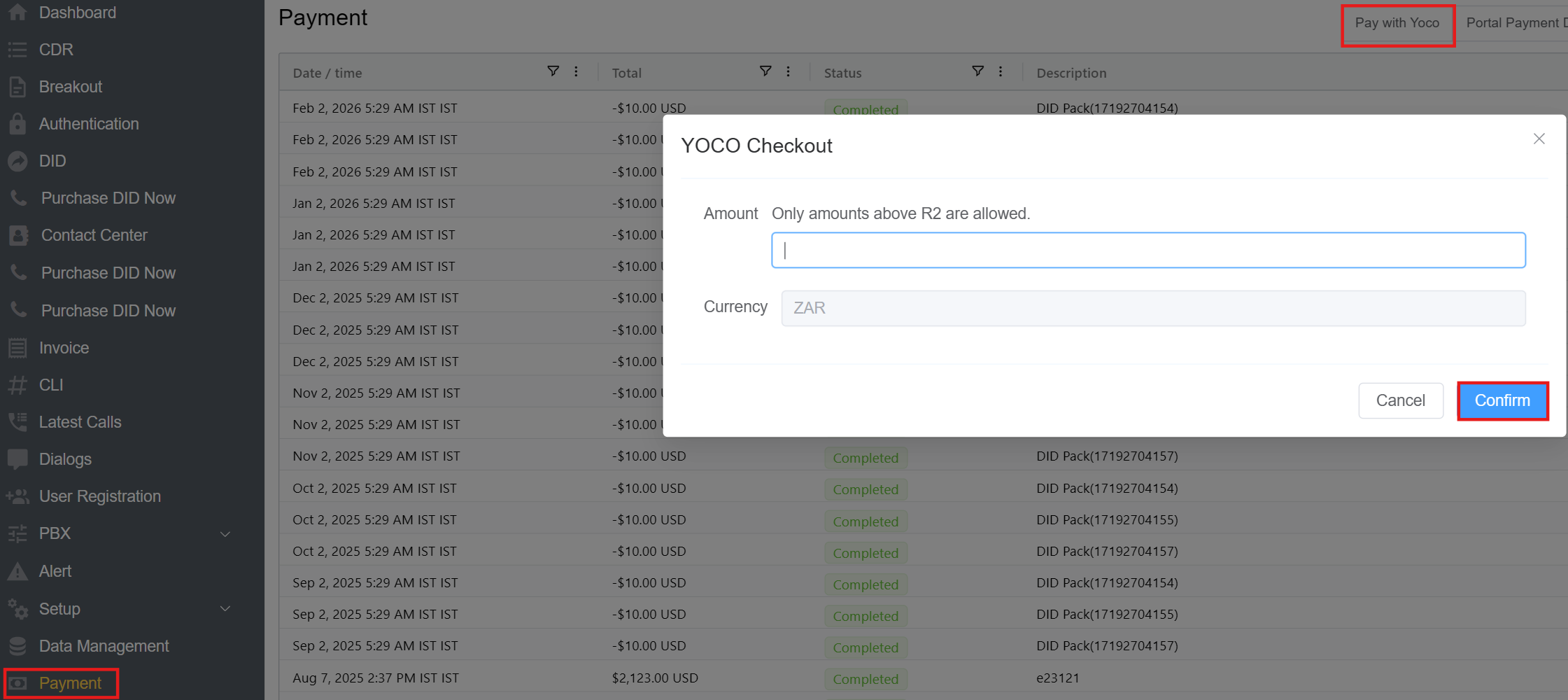
Amount: Enter the amount to be paid. The amount must be greater than ZAR 2.
Any configured surcharge (fixed or percentage) is applied automatically.
-
Currency: Displays the currency in which the payment will be processed. Currency is fixed to ZAR (South African Rand).