Private Branch Exchange (PBX)
In PBX, you will find several useful features to help manage calls and interactions.
Conference
Use the Conference feature (also known as a Conference Call or Bridge) to allow multiple callers to communicate with each other over a voice call. Once created, Callers join the call and Moderator presides.
In this section, view all the configured Conference groups:
- Name: The name of the Conference
- Extension: The dial-in numbers to callers to reach the Conference
- Active Participants: All callers who have joined the Conference
Edit Existing Conference
Click on the existing Conference name to edit the following fields:
Field details:
- Name: Conference room identifier.
- Extension: The dial-in number for callers to reach the room.
- PIN and Moderator PIN: Set these for more security and to enter the room.
-
Quality: Set the amount of bandwidth available per caller in kilohertz (KHz):
Narrow Band- 8 KHz (G711)Wide Band1- 16 KHZUltra Wide Band- 32 KHz -
Max Members: Limit the number of concurrent callers this conference must allow. Note: The preset of '0' Max Members allows an unlimited number of callers to join the conference.
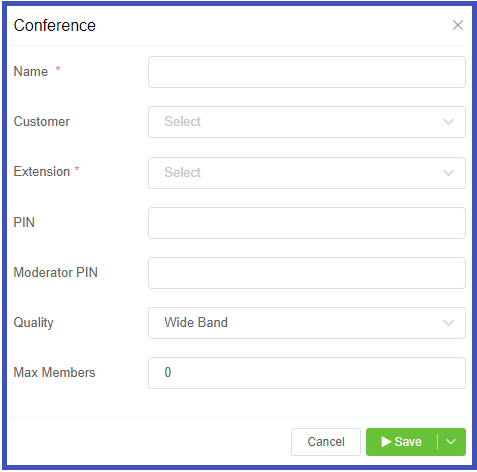
Click Save to retain thew new settings.
Conference calls for external callers
Only internal callers can use the above mentioned standard Conference configuration. To allow external numbers to dial into the conference, setup a Customer DID and set the Destination to Internal, and then select the available pre-configured conference.
*(DID: Direct Inward Dialing)
Conference Call keypad options
Callers can use the keypad to control the audio on the conference call.
| Key | Result | Description |
|---|---|---|
| 0 | Mute | Mute your microphone. The other callers can't hear you. |
| 1 | Vol talk - | Decrease the volume (sensitivity) of your microphone, by 1 unit. |
| 2 | Vol talk reset | Reset the volume (sensitivity) of your microphone to the default value. |
| 3 | Vol talk + | Increase the volume (sensitivity) of your microphone by 1 unit. The other callers hear you louder. |
| 4 | Vol listen + | Increase the volume of the speakers by 1 unit. You hear other callers louder. |
| 5 | Vol listen reset | Reset the volume of the speakers to the default value. |
| 6 | Vol listen - | Decrease the volume of the speakers by 1 unit. |
| 7 | Energy + | Increase the minimum energy threshold by 1 unit (Only when you speak, the background noise above this threshold is bridged into the conference). |
| 8 | Energy reset | Reset the minimum energy threshold to the default value. |
| 9 | Energy - | Decrease the minimum energy threshold by 1 unit. |
| * | Deaf/mute | Mute your speakers and the microphone in one action. |
| # | Hang up | Disconnect the call and leave the conference. |
IVR
The IVR (Interactive Voice Response) (or Phone Tree) presents callers with a menu and options for call routing. Callers dial-in and select an option on the number pad which is mapped to an extension for a specific department or group within the company. These extensions are routed to different Session Initiation Protocol (SIP) addresses, Public Switched Telephone Network (PSTN) numbers, internal extension numbers, other IVRs, conference bridges, groups, and Class 5 applications. When you create an IVR, you specify a 1:1 mapping for all the possible keys on the keypad.
Edit Existing IVR
Click on the IVR name to edit the following fields:
- Name: The name of the IVR.
- Extension: The dial-in numbers to callers to reach the Conference.
- Audio File: Select a file from the drop-down list to play the greeting and explain the keypad options.
-
Keys (numbers 0 to 9, '*' (asterisk) and '#' (hash)): Configure the Destination (what happens when the caller presses the key) for each key using the
Editfield.URI- Specific SIP URI (formatted without the initialsip:, ex: you would enter[email protected])External- External number (ex: someone's mobile).Internal- A number or Private Branch Exchange (PBX) resource (ex: extension numbers, IVRs, conference bridges, and groups).
Group
A Group allows you to create a team of individuals to receive calls placed to a specified number or extension based on the routing strategy you configure. (Ex: Create a number that customers can call which routes them to a team of Technical Support Specialists who can fix the technical issues, or to a Sales group.)
- Name: Enter the name for the group (ex: Sale, Customer Support, Office, or Garage).
- Extension: The number/extension callers use to connect to this group.
Edit Existing Group
Click on the Group name, and then click Edit to modify the following:
- Name: The Group Name (The group type can be mentioned for easy reference).
- Extensions: Not available for edit, please contact support.
-
Group Type: Each Group type uses a different routing strategy to find how calls route to the specified members.
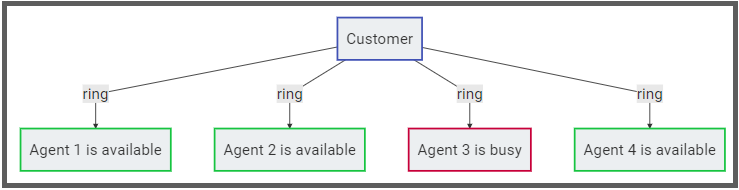
- Parallel: Rings a call to all members of the group simultaneously. The members' extensions ring for the length of time specified. Individual members can have unique timeout timers. Note: Rings all members, even if they're already on a call.
- Sequential: Routes a call in a sequential order based on the order under Group Members. By default, a call is routed to the member whose extension number has the highest value (for example, 5021).
- If the member is busy on another call or does'nt receive the call for a specific time duration, the call is routed to the member with the second highest value of the extension number (for example, 4097).
- If the member with second highest extension number does'nt respond, the call is routed to the extension with the third highest value (for example, 4095). This process continues until a member receives the call.

-
Destination: Click and then click
Editto enter the Destination (External number or Internal extension, SIP User, group, DID, etc.) and Ring Timeout (maximum amount of time for a call to ring before moving to next group member).
*(SIP: Session Initiation Protocol, DID: Direct Inward Dialing)
Queue
The Queue, similar to Groups, allows you to create a team of people into a call queue. The caller is then routed to the next available member(who waits the longest to receive a call). If you use this routing strategy:
- You can upload audio files that greet the caller and play music when the caller or the member puts the call on hold.
-
You don't need to specify the members of a group. Individuals who want to join the group must dial a specific extension number from their phone. To leave the group, they dial another number from their phone. This means that a group that uses a Queue routing strategy doesn't necessarily have a fixed number of members.

Edit Existing Queue
Click on the Queue name to edit the following:
- Name: Enter the name for the queue.
- Extension: Callers will use this extension to reach the queue.
- On Hold Music: The audio file to play when the call is on hold.
- Join Message: The audio file that contains the Welcome Message played after the customer dials the group extension.
- Chime List: A list of audio files with the messages played to the caller if they are awaiting routing to the next available member. The message could thank them for waiting, play an advertisement, reference them to online or email support.
- Chime Interval: The time duration between successive chime messages. During this interval, the system will play the selected On Hold Music.
- Agent Login Destination The extension number an individual must dial to join the group.
- Agent Logout Destination: The extension number an individual must dial to quit the group.
- Agent Offhook Destination: An extension number an individual must dial to receive calls immediately after joining the group.
Audio
Voicemail is managed under specific customers or in a bulk view under Class5 > Voicemail.
Phonebook allows all users to receive the same list of numbers within the customer, essentially a company directory.