Knowledge Base
Document Metadata
Category: Class 5 Services / Knowledge Base Configuration
Audience: Administrators, Engineers, Support Team
Difficulty: Intermediate
Time Required: Approximately 30–45 minutes
Prerequisites: Active ConnexCS account with Class 5 module access; familiarity with conversational AI workflows and document indexing.
Related Topics: AI Agent, Apps (Call Flows)
Next Steps: Add a new document in
Class 5 → Knowledge Base, wait for indexing, and then link it to an AI Agent or call-flow for real-time retrieval.Class 5 Knowledge Base
Overview
The Knowledge Base allows you to upload and index documents.
The documents may include RFCs, technical manuals, or support guides so that AI agents and internal systems can reference them in real time.
Use Case
- AI-Powered Support Bots
Steps to create the Knowledge Base
- Login to your account.
- Navigate to Class 5 Knowledge Base.
- Click on the blue
+icon. - A window will pop-up and you need to enter the following details:
- Name (required field): Enter the name of your knowledge base.
- Customer (optional field): Select the customer if you want the database to be assigned to a particular customer.
- URL (required field): Enter the URL of the document you want to index.
-
Click
Save.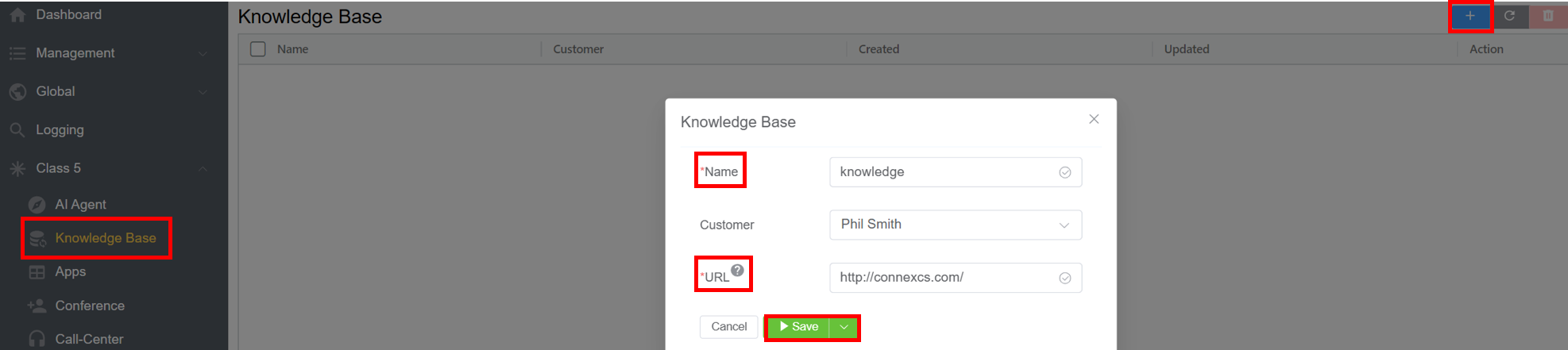
-
The following screen will appear:
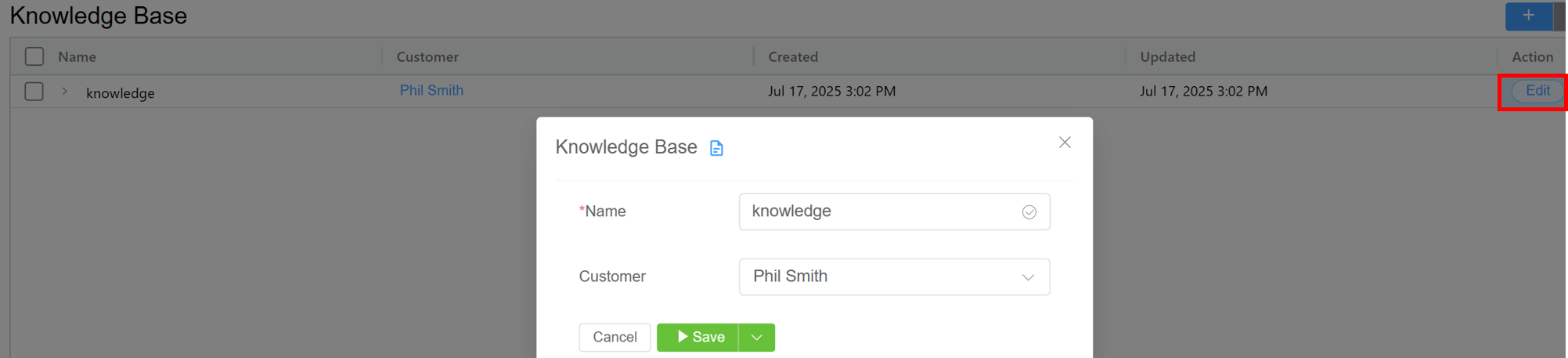
Click
Editto modify the knowledge baseNameor theCustomer. -
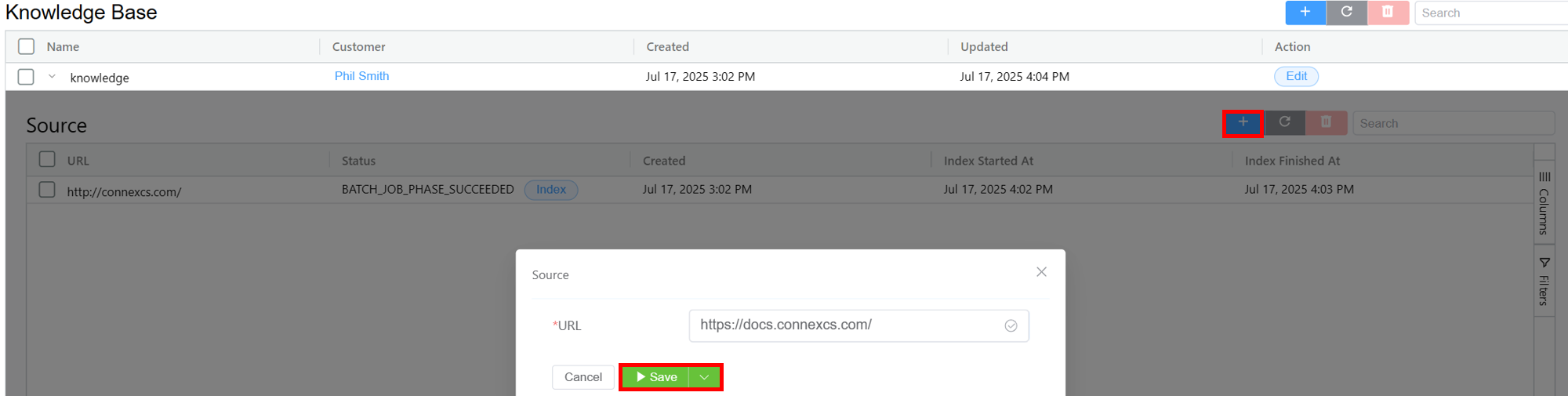
When you click on the name of a knowledge base entry, a detailed view screen will open:

It provides the following information about the knowledge base:
Status: Current state of the indexing job for the document you added to the knowledge base.Created: When the source was added.Index Started At: When indexing began.Index Finished At: When indexing completed. -
If you wish to add another URL, click on the blue
+sign, enter theURLand clickSave.