Changing your Password
Document Metadata
Category: ConnexCS Basics → Changing Password
Audience: Administrators, Engineers, Support Team
Difficulty: Beginner
Time Required: 2–5 minutes
Prerequisites: Access to the ConnexCS Control Panel with permission to change user credentials.
Related Topics: Changing Language (for UI preference updates), User Settings (user account management)
Next Steps: After resetting your password, log out and log back in to confirm the change, then update any saved login credentials you use.
You can Change the Password for your ConnexCS Control Panel login, either when your current password gets compromised or if you want to use a new password.
What do you need to change your password
Ensure that you remember to keep your current password handy. You must enter your current password, to be able to change your password.
What password should I use?
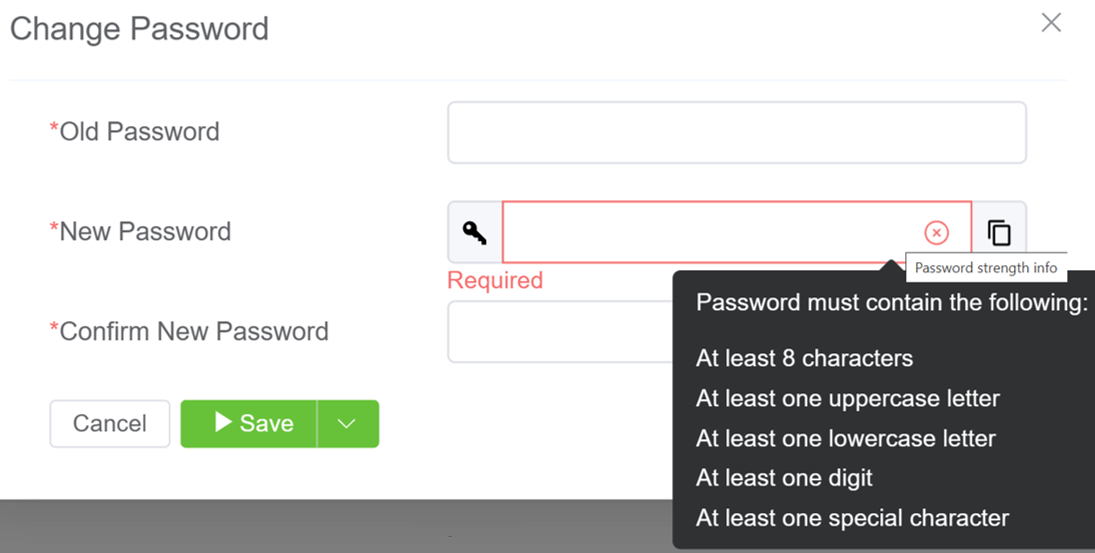
You must enter a password that adheres to the password rules displayed in the Change Password pop-up.
ConnexCS Control Panel doesn't accept a password if it doesn't adhere to the password rules.
To change your password:
- Login to the Control Panel.
- Click the down-arrow next to your name (located at the top-right corner of the page).
-
Select
Change Password.- Old Password: Enter the current password.
- New Password: Enter the new password you want to use.
- Confirm New Password: Enter the same password as the New Password.
Cannot change my password
If you don't enter the same values in the New Password and Confirm New Password text boxes, you can't change your password.
-
Click
Update. -
ConnexCS Control Panel confirms that it has changed your password.
Password change confirmation email
You will also receive an email confirming that your password has changed.