Customer Rate Card
Document Metadata
Category: Rate Card Management / Customer Rate Card Setup & Configuration
Audience: Administrators, Engineers, Billing & Product Teams
Difficulty: Intermediate to Advanced
Time Required: Approximately 1–2 hours
Prerequisites: Active ConnexCS account with Rate Cards access; at least one Provider Rate Card configured and a basic understanding of prefix routing, cost-billing, and profit margin rules.
Related Topics: Provider Rate Card, Rate Card Overview
Next Steps: Create a new Customer Rate Card, link it to the appropriate Provider Card(s), configure profit and billing settings, build/compile the card, then assign it to customer accounts and validate routing and billing accuracy.
Management Customer Rate Cards
Introduction
Customer Rate Cards let you manage the rates for customers, edit customer profiles, and view important information.
Customer Rate Cards are designed to streamline the process of managing rates for customers. These cards can be generated from provider rate cards, allowing for efficient rate management and minimizing manual errors.
Tip
Before configuring, we suggest you review Rate Card Overview then Rate Card Setup in the ConnexCS Video Guide.
Important Note
You will also want to have at least one Provider Rate Card configured.
Rate Definition Properties
These fields define individual rates within the rate card.
-
Destination Prefix: The numerical prefix used to match destinations (e.g., 44 for the UK).
-
Rate per Minute: The cost applied for each minute of a call.
-
Billing Interval: Defines how calls are charged, typically in seconds (e.g., 30/6 means the first 30 seconds are charged fully, followed by 6-second increments).
-
Min Charge Duration: The minimum call duration before charging begins.
-
Connection Charge: A one-time fee applied when a call is connected.
-
Grace Period: A short duration (e.g., 2 seconds) before billing starts.
Key Features
-
Automatic Rate Generation: Customer rate cards can be built from provider rate cards.
-
Manual and Automated Control: Users can choose between auto-generated or manually edited cards.
-
Customizable Naming: Allows internal naming for clarity while presenting a different name to customers.
-
Subscription-Based Usage: Customers subscribe to a rate card when it's assigned to their route. This is done via the customer section by adding the customer card to a route.
-
Dynamic Routing Compatibility: Allows for flexible and optimized routing.
-
Flexible Pricing Structure: Assign different rates based on customer agreements.
-
Automated Billing Accuracy: Ensures correct pricing without manual intervention.
-
Customizable Rules: Set up rate-specific properties tailored to business needs.
-
Real-Time Updates: Modify and apply changes dynamically without service disruption.
-
Enhanced Revenue Management: Optimize pricing strategies for different customers.
Multiple Carrier Rate Cards
- A single customer rate card can have multiple carrier rate cards.
- The system allows the selection of different strategies:
- Random
- Round Robin
- Reverse RCR
- LCR (Least Cost Routing)
- The default strategy is overridden if a routing strategy is set.
Benefits
- Improved Efficiency: Automating rate card generation reduces manual effort and errors.
- Enhanced Customization: Manual overrides and dynamic routing provide flexibility.
- Reseller-Friendly: Ensures sensitive provider details are not exposed to resellers.
- Optimized Routing: Supports various routing strategies for cost and quality optimization.
- Contract Compliance: Ensures legal and business compliance through contract enforcement.
Customer Rate Card Grid
When you open the Customer Rate Card section, the initial screen presents a grid listing all the customer rate cards you’ve created.
This serves as your primary management dashboard, allowing you to quickly search, review, edit, or delete any existing rate card.
Available Options
-
+: Add a new customer card. -
Refresh: Reloads the entire page.
-
Bulk Build: Select multiple cards to perform the build. This is usually done after you've set up your properties and profit, or when you need to gather several customers after a rate change.
-
Bulk Edit: Edit multiple cards at a time for some Properties settings.
-
Delete: Delete a customer rate card by selecting its name from the list and then clicking the trash bin icon.
-
?(Help): Link to the documentation.
| Name | Description |
|---|---|
| Name | Click the name of the customer to see an individual rate card and management options. If a Rate Card name shows a yellow warning or red alert, these will show details about the card. It may be stale or have some sort of error |
| Force Presentation | Click here to know more |
| Direction | Cards are either Termination (calling out to PSTN) or Origination (DID numbers receiving calls from the PSTN). Termination is the most common card used by ConnexCS customers |
| Currency | The currency for the provider's region (typically USD, EUR, or GBP) |
| ? | Lists the upstream providers (parent cards) as well as the total number of customers associated with the card (as specified in Customer Routing). Any changes made to this card will impact the customers associated with the card. Click on the Provider ID or Customer Name to view the configuration |
| ID | A system identifier that acts as a placeholder and prevents confusion between similarly named items |
| Rule Count | The number of rows in the Rate Card |
| Compile | Displays the upstream provider cards associated with the customer card. a. Shows total customers using a specific card. b. Allows users to track which customers are subscribed to a particular card |
| Public Options | Choose what you can do with the card information: view it via HTML (on a web page), download CSV (a spreadsheet), and whether to list the rate card in the customer portal (customers can view cards not presently on their account and select them for use). (Note: API Querying is no longer available.) |
| Dynamic Routing | Manually created cards (added via upload or edited in-browser) have the option to use Dynamic Routing to select routes for the card, essentially changing the routing without creating new cards |
| Active Revision | Only one active revision at a time. Previous revisions can be archived and reactivated if needed |
| Max Revision | Its the latest revision. Additional currencies can be added upon request, but this is rare |
Extra info on Compile
 Stale (needs compilation)
 In sync
Reasons a card marked as Stale
You can refer to a Rate Card as Stale when the information presented isn't the same as the live / active revision.
Some common examples of this are when the customer generates Customer cards from Carrier cards (preferred method) OR when they revise a carrier card.
In both cases, cards are marked as Stale and require compilation.
Compile Example
Provider updates their rates and the customer uploads the new Provider Rate Card into ConnexCS, which increments the revision.
All associated customer cards will be out of sync (orange pause icon). To correct this, select all stale cards, then click Bulk Build to update the new rates and routes.
Parent-Child Rate Card Relationship
- Provider Rate Cards are parent rate cards.
- Customer Rate Cards are child rate cards derived from provider rate cards.
- Users can check dependent (child) rate cards linked to a provider rate card.
Create a Customer Rate Card
Once created, you can either add rows manually or upload an existing file for the new Customer Rate Cards.
I. Step 1
a. When you click the + icon, a Create New Customer Rate Card window appears.
b. This window is divided into three sections Basic, Config, and Advanced where you define the core properties of the card.
c. You only need to complete a few key fields to get started. (For details, see Configure Customer Rate Card below.)
d. Once the card is saved, you can explore detailed configuration options in the next section which is the Properties Section.
e. Required field: Name (Private): Internal label used to identify the rate card.
f. Click on Save. (Once it’s saved, new configuration sections will appear.)
g. At this stage, your rate card is created but not yet functional it doesn’t have any rate data.
h. Once saved, the interface will expand to show additional tabs such as Bulk Upload, Create draft , Revisions, and Properties.
II. Step 2
a. After saving, you must define your rates either by uploading a rate sheet or manually adding prefixes. This is what makes the rate card operational for billing and routing.
b. Three primary options are now visible:
i. Build from Provider Card: This is the preferred method and requires you to select a Provider Rate Card in Properties Basic.
ii. Bulk Upload: Import rates via a CSV file (recommended for full rate sheets).
iii. Manual Add: Add prefixes and rates one by one directly in the interface.
c. Bulk Upload: The preferred method for adding a Rate Card is to import/upload it:
-
Click
Bulk Upload, thenUpload. -
Select the file, typically sent by the Provider in CSV format (if not provided as CSV, conversion required before proceeding).
-
Right-click on the first row of data and select
Set Start Row. -
Right-click and map the columns. It's important to map all fields based on the Rate Card columns. For example:
-
Col 1 - Prefix
-
Col 2 - Name
-
Col 3 - Cost
-
-
Choose Upload to Sever and confirm the upload.
-
Select whether to make this active instantly.
Manually generated cards
When users create Provider Rate Card CSV files manually in Excel (rather than generating them from a rate card management system), they may introduce errors such as empty rows or duplicate prefixes, which could cause the file upload to error.
d. Manual Add: To manually add Rate Card rows, select Create Draft and then add / modify / delete required rows.
e. Build from Provider Card:
1. Click Build and confirm.
2. A notification will tell you if the build was successful. You may need to refresh the card to see the new settings.
Generated vs. Manual Cards
- Generated Cards: Created automatically from provider cards, ensuring the latest rate updates.
- Manual Cards: Created or edited manually, allowing for custom rate configurations.
Configure the Customer Rate Card
Main tab
Bulk Upload: Click here and see "Option 3".
Email: This feature allows providers to email rate cards to customers as an attachment.
It's a convenient way to send customers official information relevant to their accounts.
Click Email, enter the email address and click Send.
Clone Card: Create an exact copy of an existing Rate Card.
Refresh: Reloads the screen.
Help: Link to the documentation.
Audit Log: Review any changes made to the card settings.
Functions:

- Revision: List all versions of changes on the card.
- Create Draft: Create a blank revision to manually add all prefixes and rows. This will only contain rows added manually and doesn't hold any previous revisions.
- Edit Revision: Make inline edits to the current revision. Upon
Save, you can select to make this new revision Active. This keeps the previous revision and the changes made. - Delete Revision: Select a revision to delete.
-
Download: Download a CSV file of the Rate Card.
-
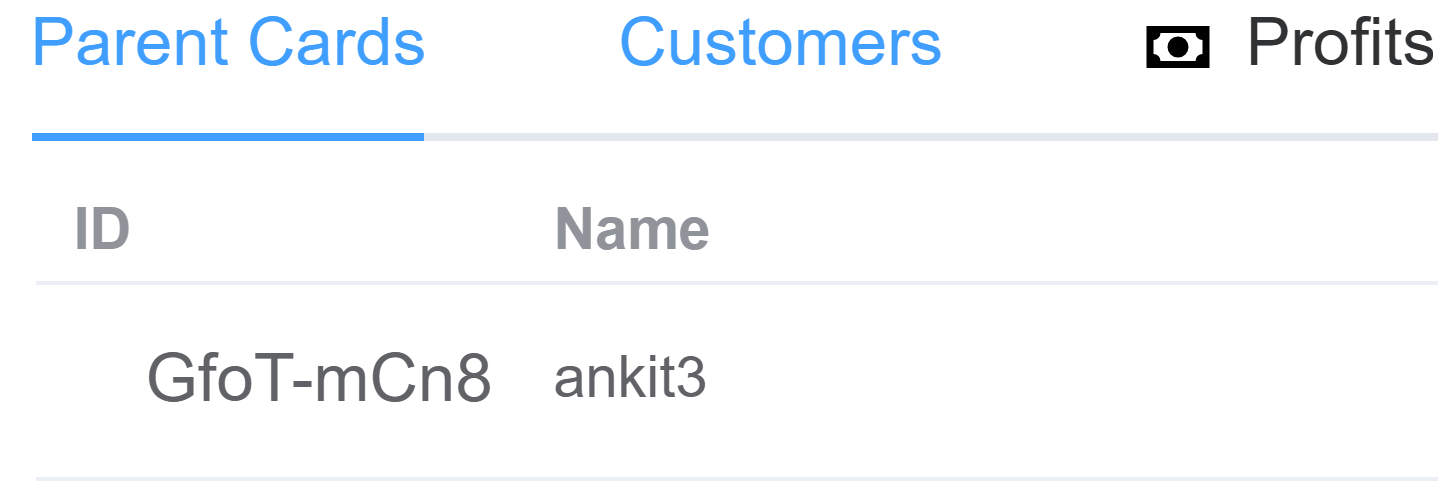
Parent Cards are the Provider Rate Cards associated to this card.
- Customers lists the specific Customers using this card.
-
Profits lets you configure profit rules. This is most useful on cards with a high number of rules.
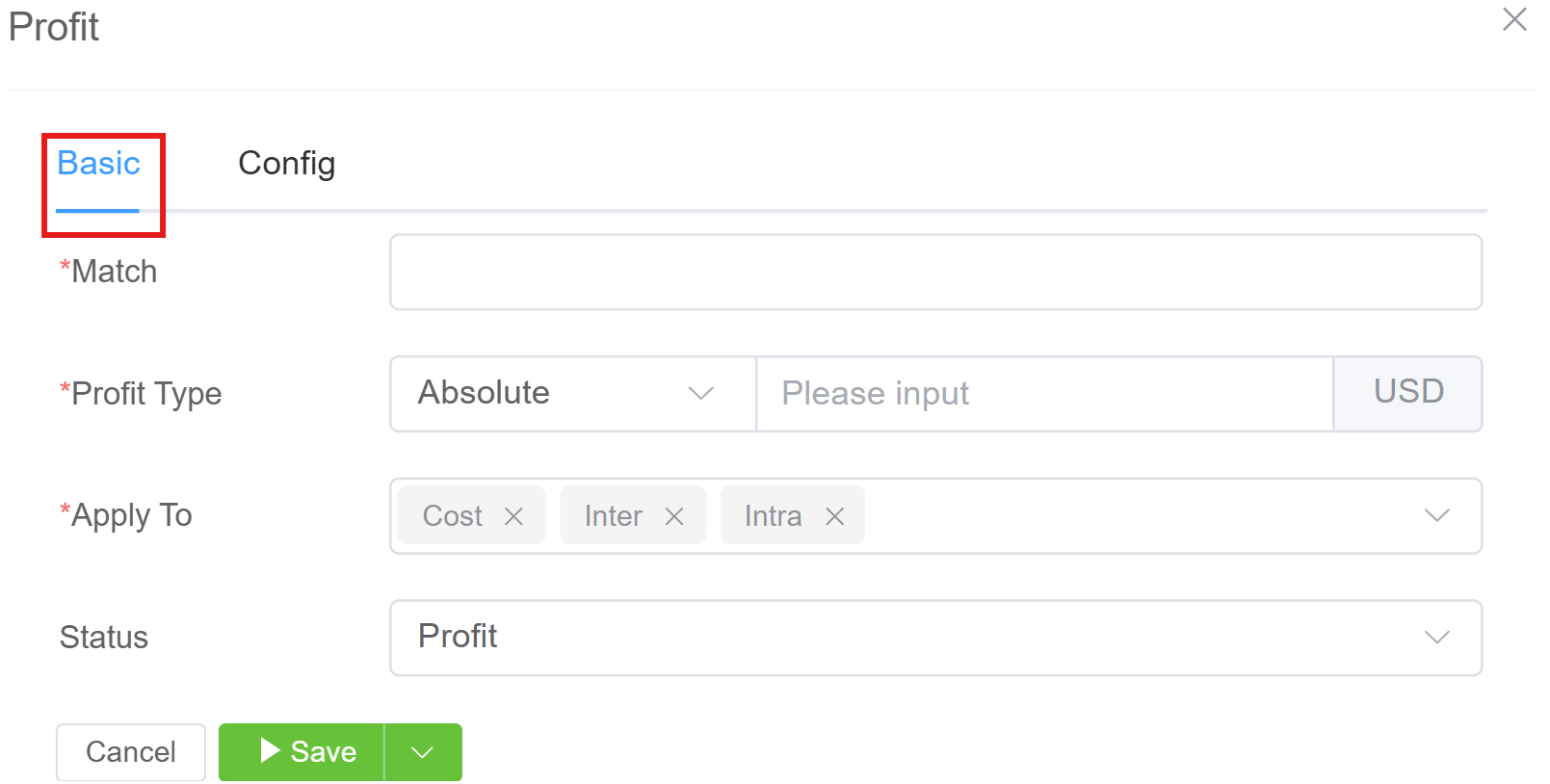
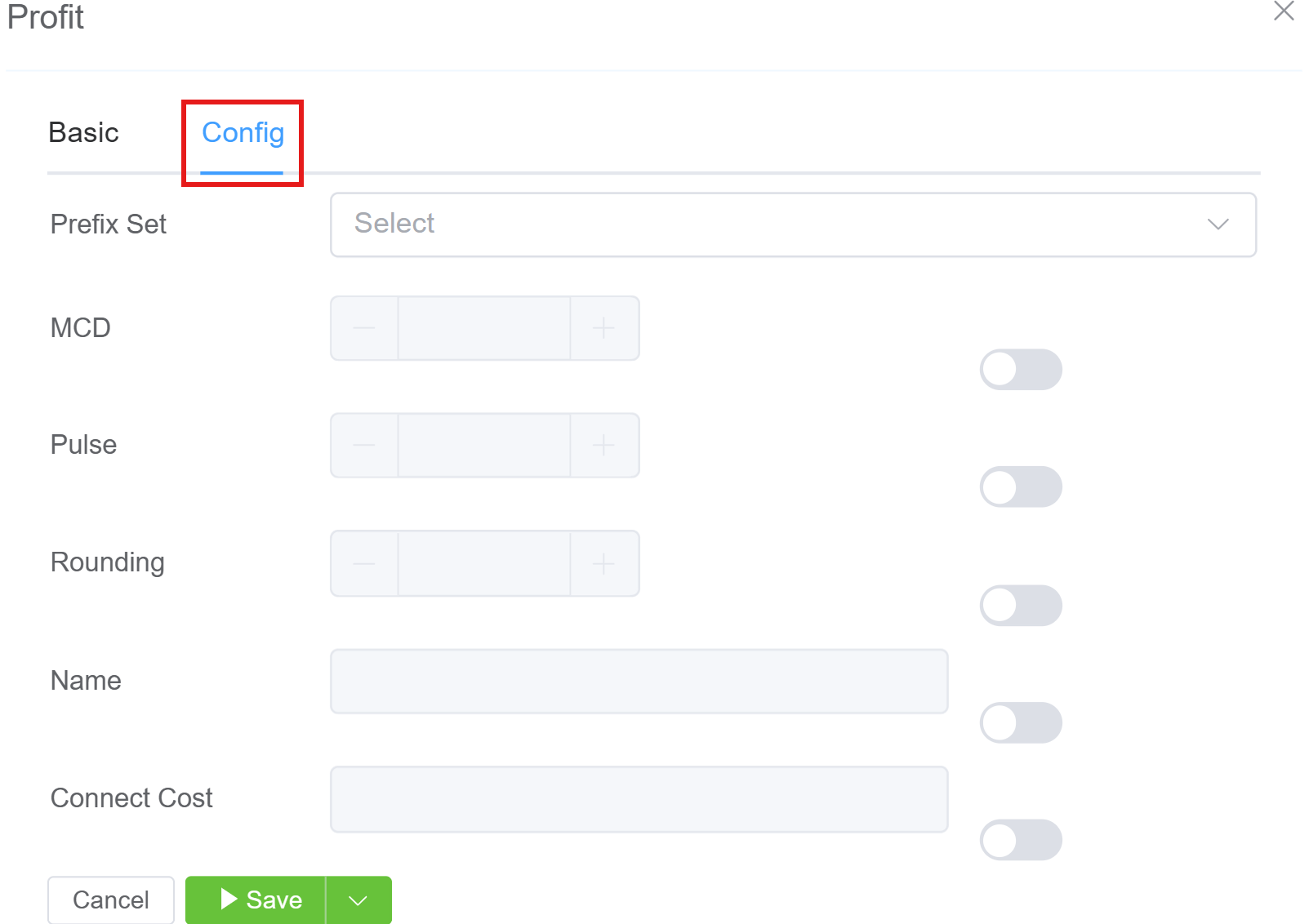
Click each tab for configuration details
- Match: Enter the prefix to match, either as a Regular Expression or a standard prefix (numeric only, typically an international country code, not a provider or customer tech prefix). Adding an up arrow
^on the prefix draws all associated prefixes from the provider card. For example, if you enter '49, it will include '491', '492', '4912345', and so on. -
Profit Type: Select how to add profit:
Absolute- actual value chargedRelative- amount entered is added to the cost from the carrierPercent- cost from the carrier multiplied by this percent -
Apply To: Setup rules to govern how Profit is applied to different types of calls.
- Status: Use Blocked, here or after importing a Carrier Rate Card, to disable specific prefixes.
- Prefix Set: Select Prefix Sets (check here to simplify the Profit configuration).
- When you disable MCD (Minimum Call Duration), Pulse, or Rounding, that setting will select the worst case scenario as defined by the carrier.
- Name: You may choose to add a name to identify the Profit rule
- Connect Cost: one-time fee for connecting the call.
Profit Type
Using Absolute and Relative can be useful, specially when dealing with large cards and your providers prices change; with a single click you can regenerate the customer rate cards.
Revisions tab
The Revision tab displays up to 8 most recent changes made to a rate card. The two most recent revisions are available as Active or Inactive, the rest will be in Archive state.
To change Revision status:
- Click
Archivenext to the Revision to send it to the Archive. This may take some minutes. - To make that version Active, click
Inactive. This may take some minutes. - Use the Date Live function by the Revision to set a future date to make the revision Active.
Properties tab
Basic
- Name (Private): You can see the name of the card, only within the ConnexCS Control Panel (not visible to end-customers).
- Rate Cards: Associate the customer with one or more Provider Cards. This will define the build of customer routing and the process of extracting of customer prices.
- Rate Compacts: Select how to calculate cost using the Minimum, Maximum, or Average cost, based on the routing and cost rules from the Rate Cards selected on the right. It's applicable after Collapse Using.
- Currency: Card billing done using this currency.
Config
- Name (Public): (Optional) Allows you to display an alias or pseudonym for the carrier.
- Collapse Using: Select how you want to merge rate data from the carrier cards.
- Force Presentation: Find the number of rows to display for rates; this is visible to the customer:
| Option | Example | Usage |
|---|---|---|
| Single Rate | 0.0007 | Usually a UK Landline |
| IntER/IntRA | 1 (NPANXX) | Refers to Interstate and Intrastate calling for USA dialing |
| IntER/IntRA/Indeterminate | 1 (NPANXX) | Indeterminate indicates that call is between a USA number and another country |
| EEA | If a call originates from a CLI starting with ‘33’ (France) and the destination number starts with ‘43’ (Austria) | When a call originates from any country worldwide and terminates in any country, not limited to EEA. This depends on the configuration defined in the Origin Billing section |
| Local Rates | If a call originates from a CLI starting with '43' and the destination number also starts with '43' | Both the originating CLI and destination number start with the same country code, specifically '43' for Austria |
| International Rates | If a call originates from a CLI starting with '33' (France) and the destination number starts with '44' (UK) | Any call not meeting the Local or EEA criteria falls under this category. The behavior is determined by what is configured in the Origin Billing section |
-
Dialing: Select whether to bill based on the carrier of the Dialed Number or using an LRN Database (US-only).
The LRN (Local Routing Number) identifies the switch for a number and used to determine billing for a call.
When a customer ports the number from one provider to another, the billing may change based on the new carrier. An LRN dip will correct any pricing discrepancies between the original and new carriers. This helps to reduce billing costs.
If the customer wants to do single rates, they may not want to do the LRN dip.
ConnexCS LRN Database
ConnexCS maintains an in-house LRN database. This ensures a quick response time and updates the rates on daily basis.
No charges for using this service, so customers have unlimited dips into the database.
- Strategy: Manage the distribution of calls among Carriers when a Customer Card has an association with multiple Provider Cards.
Routing Strategy
The Global Routing strategy overwrites the Strategy selected in the customer card.
For a description of each Strategy and configuration for a comprehensive Routing Strategy, see Routing Strategy.
Origin Billing
Origin Billing is a billing mechanism in which call rating is determined using both the originating country and the destination country of a call.
Unlike destination-only billing models, Origin Billing allows differentiated billing behavior based on where a call starts and where it terminates.
- Definition of EEA in Origin Billing
Within Origin Billing, EEA represents a customer-defined country group used for billing classification.
- EEA is a logical label, not a fixed geographic region
- Countries included in EEA are fully configurable by the customer
- EEA is not confined to Europe and includes all countries globally.
- Configuration Scope – EEA-Based Origin Billing
| Item | Description |
|---|---|
| Configuration Level | Origin Billing |
| Applicability | Applied during call rating |
| Required Configuration | Two mandatory country lists |
| Mandatory Fields | Source EEA Countries, Destination EEA Countries |
| Validation Rule | Both lists must be populated for the configuration to be valid |
- Configuration Fields
| Field | Purpose | Evaluation Source | Resolution Logic | Constraints |
|---|---|---|---|---|
| Source EEA Countries | Defines the set of countries from which a call must originate to qualify for EEA billing | CLI (Calling Line Identification) | Country is resolved using standard source country detection logic | One or more countries must be defined; empty lists are not permitted |
| Destination EEA Countries | Defines the set of countries to which a call must terminate to qualify for EEA billing | Destination number | Country is resolved using standard destination country analysis | One or more countries must be defined; empty lists are not permitted |
-
Mandatory Validation Rules:
- Both Source EEA Countries and Destination EEA Countries are required
- Configuration cannot be saved if either list is empty
- Validation occurs at configuration save time
-
Call Classification Logic: A call is classified as an EEA Origin Billing call if and only if both of the following conditions are met:
- Source country ∈ Source EEA Countries
- Destination country ∈ Destination EEA Countries
If either condition evaluates to false, the call is excluded from EEA billing.
This logic is evaluated independently for each call.
-
Call Evaluation Flow
- Call is received by the platform
- System resolves:
- Source country from CLI
- Destination country from called number
- System evaluates Source EEA match
- System evaluates Destination EEA match
- If both matches succeed: EEA Origin Billing rules are applied.
- Otherwise: Non-EEA billing rules apply
Example Configuration
| Source EEA Countries | Destination EEA Countries |
|---|---|
| United Kingdom IndiaUnited States |
Afghanistan IndiaUnited States |
Example Call Scenarios
| Source Country | Destination Country | EEA Billing Applied | Reason |
|---|---|---|---|
| India | United States | Yes | Source and destination both match |
| United Kingdom | India | Yes | Source and destination both match |
| India | United Kingdom | No | Destination not in Destination EEA list |
| Afghanistan | India | No | Source not in Source EEA list |
Impact Considerations
- Modifying EEA country lists directly affects billing outcomes.
- Customers should review rate plans before making changes.
- Changes apply to all calls processed after configuration is saved.
Advanced
- Direction: Configure the card to be either Termination (calling out to the PSTN) or Origination (DID numbers receiving PSTN calls). Termination is the most common card.
- Billing Precision - Round billing on a card to the specified decimal point (typically set to 4).
-
Rounding Method: Specify how to handle the n+1 digit (For example, if your card bill has 4 decimal places, this cares about the 5th digit). For our example, 0.12345 (rounded to 4 decimal places):
Method Explanation Up Rounded up regardless of n+1 digit (0.1235) Down Rounded down regardless of n+1 digit (0.1234) Half-Up Values 5 through 9; rounded up (0.1235) Half-Down Values 0 through 5; rounded down (0.1234) -
Duration Rounding: The same rounding options, but for the call duration.
- Public Options: Choose what you can do with the card information: view it via HTML (on a web page), download CSV (a spreadsheet), and whether to list the rate card in the customer portal (customers can view cards not presently on their account and select them for use). (Note: API Querying is no longer available.)
- Dynamic Routing: Manually created cards (added via upload or edited in-browser) have the option to use Dynamic Routing to select routes for the card, essentially changing the routing without creating new cards.
- Used when an automatically generated card is not preferred.
- Allows users to add extra routes without modifying the existing rate card.
- Ensures flexible routing by enabling on-the-fly adjustments without regenerating cards.
Customer Cards generated from the Provider card use predetermined LCR (Least Cost Routing) based on the Parent card.
-
Default RTP: If set and the customer adds the route themselves, then it deploys the Default RTP. Otherwise, this is an unused setting.
-
Contract: Specify a default contract that applies to a specific rate card. This only applies if the customer selects the rate card from the Customer Portal, not when it's added using the Dashboard.
- Contracts can be linked to rate cards for customer approval.
- If a customer adds a route via the customer portal, they must approve the contract before activation.
- If an administrator adds a route manually, no contract approval is required.
If you don't approve the contract, the rate card will not work that specific route
When a contract is linked to a specific rate card, customer approval is mandatory. Failure to approve the contract will result in the customer being unable to use the associated rate card.
-
Manual Ordering: Allow granular ordering of specific prefixes and which carriers to use. See Manual Ordering below for details.
- Allows precise rule-based manual control over route selection.
- Rarely used but provides in-depth customization for advanced users.
-
Reseller: Select Resellers to associate with this card. When the Reseller logs into the Portal, they see the settings from the perspective of a Provider Card, even though they're configured as a Customer Card.
- In a reseller model, the provider and customer cards are bifurcated.
- Resellers don't see actual provider details; they only see the cards assigned to them.
- The provider card in the reseller’s account behaves as a customer card.
Notes
- Notes (Private): Only visible in the ConnexCS Control Panel (not visible to the Customer).
- Notes (Public): These are visible to the Customer in their Portal.
Manual Ordering Tab
This tab is only available if you enable "Manual Ordering" in Properties Advanced.
For each Prefix you can manually order the Provider Rate Cards for a high degree of control over the routing of calls.
Rate Compact, Collapse Using, and Force Presentation.
- These properties relate to profit calculation and rate structure presentation.
- Ensures rate structure efficiency while providing profit visibility.