User Interface Display Language
Document Metadata
Category: ConnexCS Basics → Changing Language
Audience: Administrators, Engineers, Support Team, End-Users who customise UI language
Difficulty: Beginner
Time Required: 2–5 minutes
Prerequisites: Access to the Control Panel of the ConnexCS Platform with UI permissions.
Related Topics: Language Settings (for full translation/customisation), Getting Started (initial setup includes changing display language)
Next Steps: After selecting a UI display language, optionally go to
Setup → Advanced → Language to edit or add translations for missing terms.The ConnexCS User Interface (UI) allows for the configuration of several languages.
| Language | English Translation |
|---|---|
| اللغة العربية | Arabic |
| Deutsch | German |
| English | English |
| Español | Spanish |
| Francais | French |
| हिन्दी | Hindi, one of the official languages in India |
| 日本語 | Japanese |
| Kanuri | A dialect continuum spoken in Africa |
| Português | Portuguese |
| Русский | Russian |
| తెలుగు | Telugu, a language spoken in some Indian states |
| اردو | Urdu |
| 中文 | Chinese |
Will this change the language for every word in the UI?
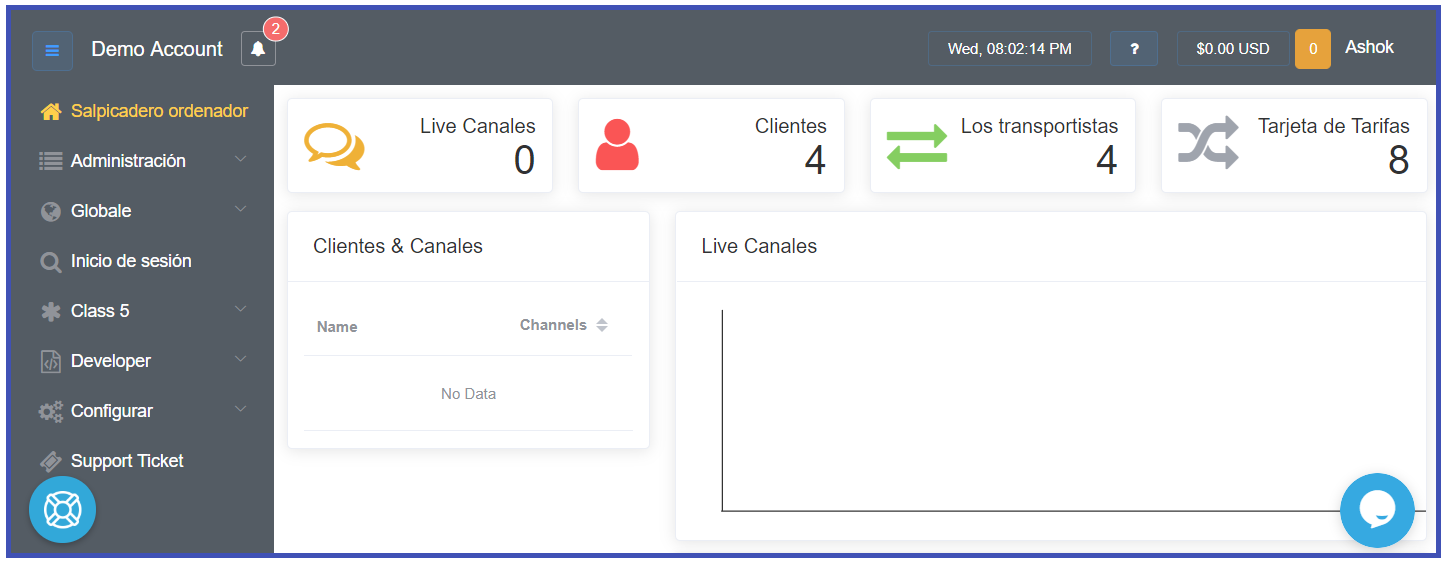
Changing the language here will change most but not all the words in the Control Panel.
To change existing translated words, and to add your own, go to Setup Advanced Language.
Change the language in the Control Panel's User Interface
- Click the down arrow next to your name (located at the top-right corner of the page).
- Select
Change Language. - Select a language from the drop-down list.
- Click
Update. - The ConnexCS Control Panel UI instantly displays most of the text in your preferred language.
The following image illustrates how your Control Panel looks if you change the language to Spanish.