Routing Global
Document Metadata
Category: Routing / Global Routing Templates
Audience: Administrators, Engineers, Network & Operations Team
Difficulty: Intermediate to Advanced
Time Required: Approximately 1–2 hours
Prerequisites: Active ConnexCS account with Routing permissions; foundational knowledge of customer routing, tags, and routing strategies.
Related Topics: Routing Strategy, Routing Overview
Next Steps: Create a global routing template, assign a unique Tag to the template, apply the template to relevant customers using the Tag field in their customer Config, then monitor routing behavior and make template modifications as required.
Management Routing Global
Use Routing Global to create routing templates that you can apply to several customers.
This is ideal when all or several customers are using a repeatable configuration, either the same kind of route or the same routing settings.
When you need to apply a change to routing for several customers, you only need to update the template.
Create Global Routing
To setup a Routing Global template, first create it and then apply it to the customer account(s) using the Tag field.
Step 1: Create the template
- Click + to create a new template.
-
For complete field descriptions, see Ingress Routing configuration.
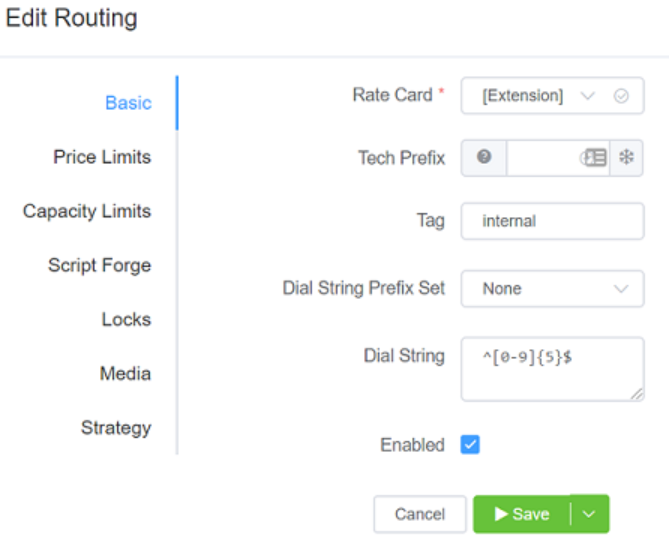
-
The Tag field is essentially the name of the template. When you use the template toset-up a customer, the Tag is visible in Customer Edit Config Tags.
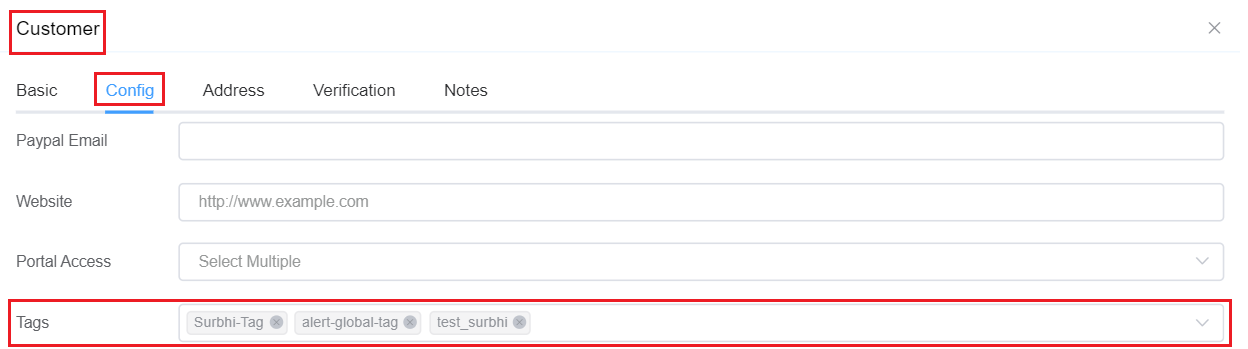
-
Select
Save.
Step 2: Assign the template
For each customer that needs the new template:
- Navigate to Management Customer and select the customer.
- Select
Editin the upper right corner. - On the Config tab, select the new template under Tags.
- Save the customer configuration.
Using Routing Global and Script Forge
You can't use Routing Global templates to set routing details with ScriptForge (Vars box).
With appropriate design, you can configure this directly under Customer Routing.